Preferences is the central warehouse configuration page that allows you to manage the main user profile, warehouse user accounts, communication templates, and mobile and desktop application settings.
This functionality is essential to keep warehouse configuration updated and manage users who have access to the system.
Preferences is a configuration page with multiple tabs that allows you to:
Manage main user profile : Configure Login Name, Email, Password, and Token of the main warehouse userConfigure warehouse information : Set DBA, Company Name, owner information, addresses, and contactsManage warehouse users : Add, edit, and delete warehouse users with different permissionsConfigure communication templates : Manage email templates for different types of notificationsConfigure applications : Adjust settings for mobile and desktop applications
Manage all warehouse configurations in one place, making maintenance and updates easier.
Control who has access to the system and what permissions each warehouse user has.
Customize email templates so notifications reflect your warehouse identity.
Adjust mobile and desktop application settings to optimize workflow.
Keep warehouse information updated for billing, communications, and reports.
Manage passwords and access tokens to maintain system security.
Log in to ShipEdge Core as a user with Manager permissions or Preferences View WH access.
Click “System Config” in the main navigation bar.
Click “Preferences” from the System Config submenu.
Manager permissions or Preferences View WH access to see the Preferences page
The “User accounts” tab is only visible if you have Preferences View WH enabled
Preferences is organized in the following tabs:
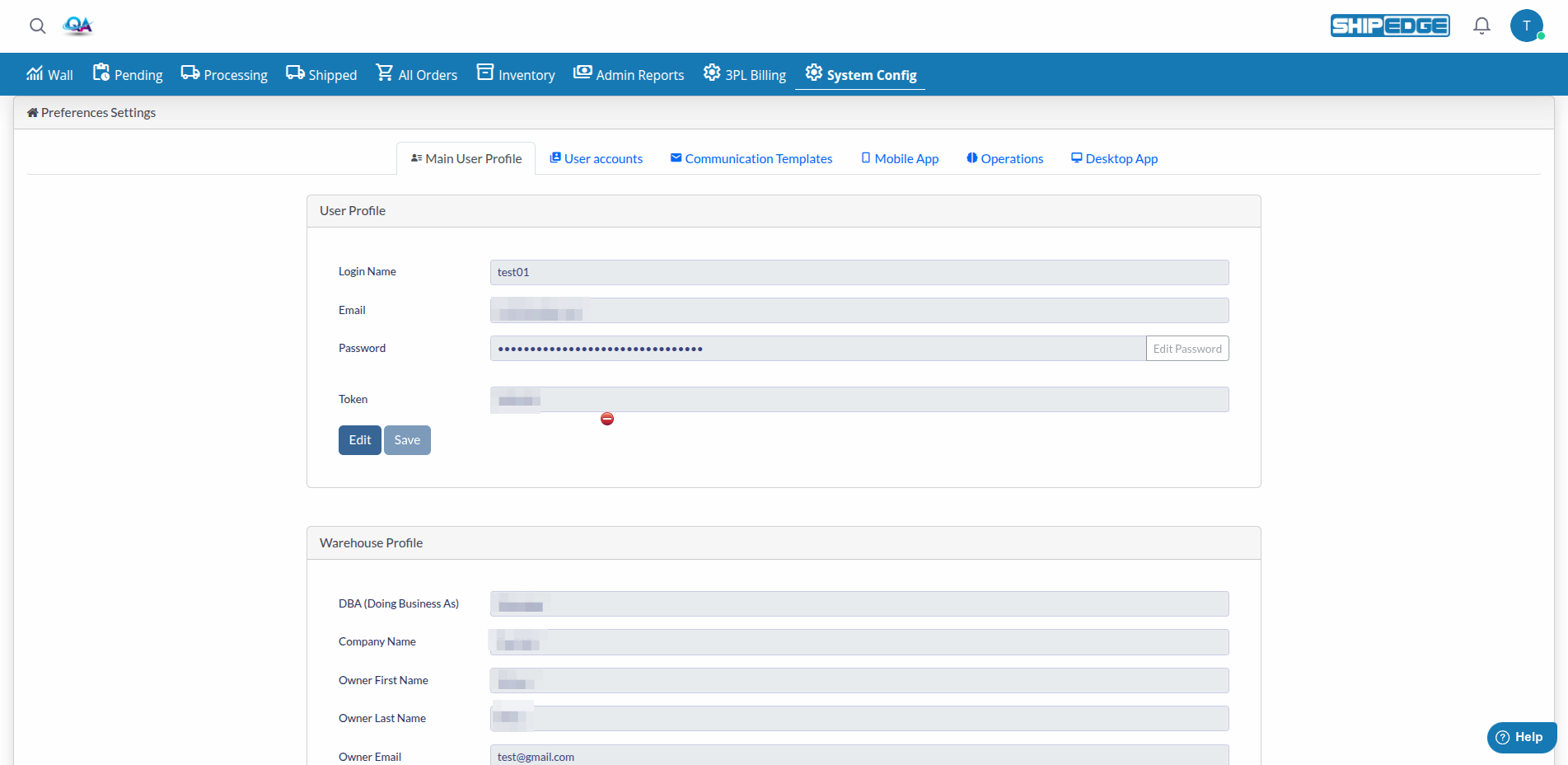
This tab contains two main sections:
User Profile :
Login Name : Username for loginEmail : Main user email addressPassword : User password (use “Edit Password” button to change it)Token : Access token for API integrations
Warehouse Profile :
DBA (Doing Business As) : Warehouse business nameCompany Name : Legal company nameOwner First Name / Owner Last Name / Owner Email : Owner informationDirect Phone / Fax # : Contact numbersCust. Service Name / Public Phone 1 / Public Phone 2 : Customer service contactMain Public Email (Automatic System Communications) : Email for system notificationsReceiving Name / Inventory Email : Receiving and inventory contactsWarehouse Address 1 / Warehouse Address 2 / Warehouse City / Warehouse State Region / Warehouse Zip/Postal-Code / Warehouse Country : Warehouse address (Country has search)Billing Address 1 / Billing Address 2 / Billing City / Billing State Region / Billing Zip/Postal-Code / Billing Country : Billing address (Country has search)URL/Web-Page : Warehouse website URLImage Logo : Warehouse logo (image upload)Login Screen Background Image : Background for the login screen (image upload)
Features :
Each section (User Profile and Warehouse Profile) has its own Edit and Save buttons
Click “Edit” to enable field editing, then “Save” to apply changes
Use the “Edit Password” button to change the main user password
When saving Warehouse Profile, a confirmation appears: “Edits to these fields are global per warehouse and will apply to all users.” Choose Proceed or Close
Upload images (Image Logo, Login Screen Background Image) by dragging and dropping or clicking the upload area
This tab is only visible if you have Preferences View WH enabled.
Features :
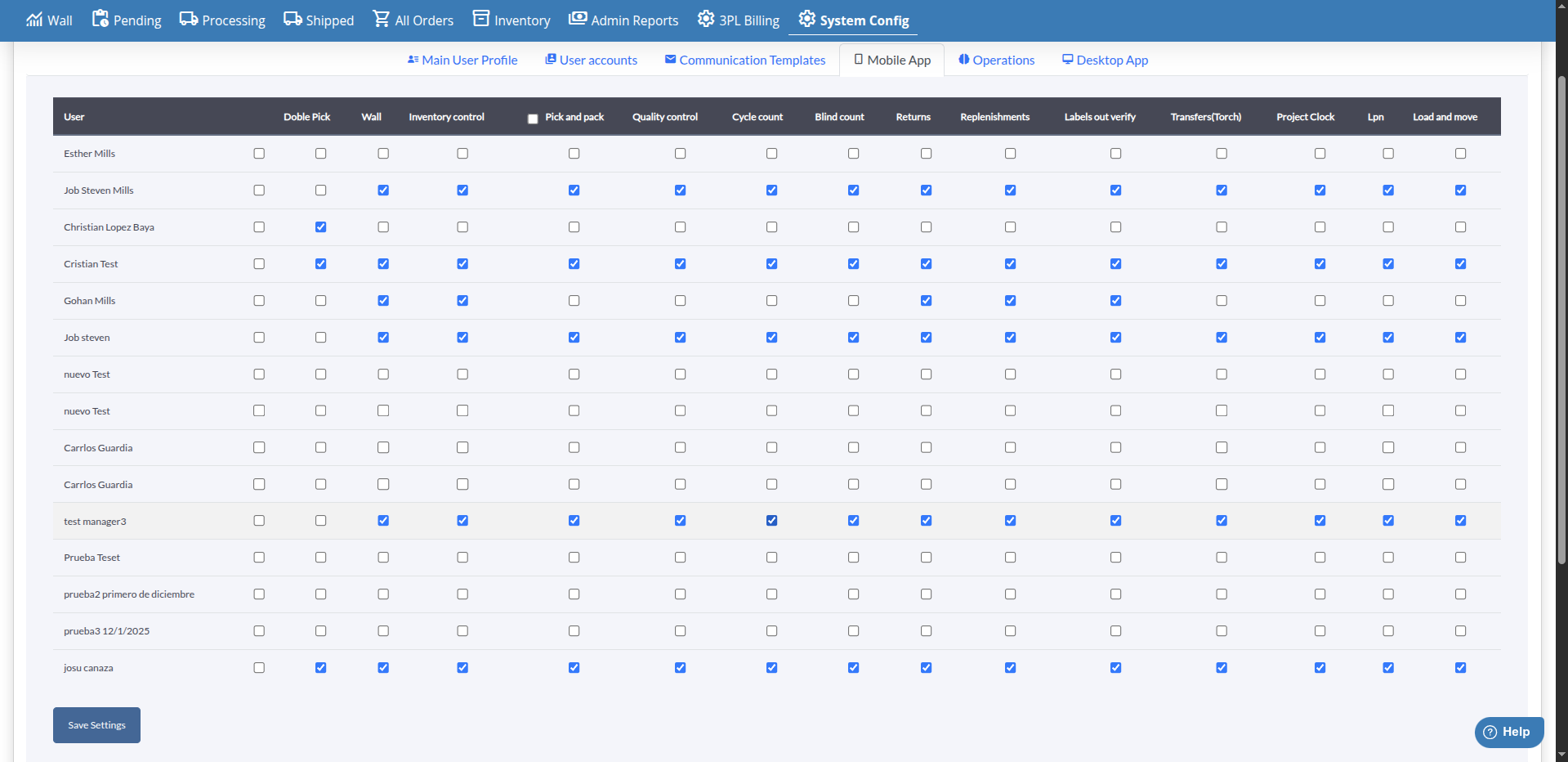
View users : Table with all warehouse usersAdd User : Button to create a new userEdit user : Click the row menu to edit information and permissionsDelete user : Delete users from the system via the row menu
User table columns :
User Name / Email / Temporary Password / First Name / Last Name Activated : Activation status (On/Off)Preferences View : Access to Preferences View WHOrders View / Inventory View / Billing View : View permissionsAllow Corrections : Permission to perform corrections/recountsManager : Manager permissions (UserWH=1)Type of User : User typeToken : Access token
User modal fields (when adding or editing):
Config Preferences : Access to Preferences View WH (replaces “Preferences View” in the form)Save changes : Button to save the user
Search and filtering :
Search users by User Name, Email, First Name, Last Name or Token (press Enter to search)
Sort by any column by clicking the header
Manage email templates for different types of warehouse notifications.
Features :
View templates : Table with all available communication templatesEdit template : Click the edit button (pencil icon) to edit Reply to, Subject, and FooterEnable/Disable : Use the On/Off switch to enable or disable individual templatesPreview : Click the view button (eye icon) to see how the template will look
Template table columns :
Email’s Description : Email type nameReceipient : Email recipientReply To : Reply addressSubject : Email subjectFooter : Email footerOn/Off : Template status (On/Off)
Template modal fields (when editing):
Reply to / Subject / Footer Save changes : Button to save the template
Available template types :
Replenishment
Packing Error
Return by Carrier
New SKU
Replenishment Processed
Seller Information Class
Warehouse Information Class
Inventory Alert
Notify Product Received
Recount
Re-stocking
Configure options for the warehouse Android mobile application.
Features :
Mobile application options configuration
Synchronization and connectivity settings
Permissions and access configuration
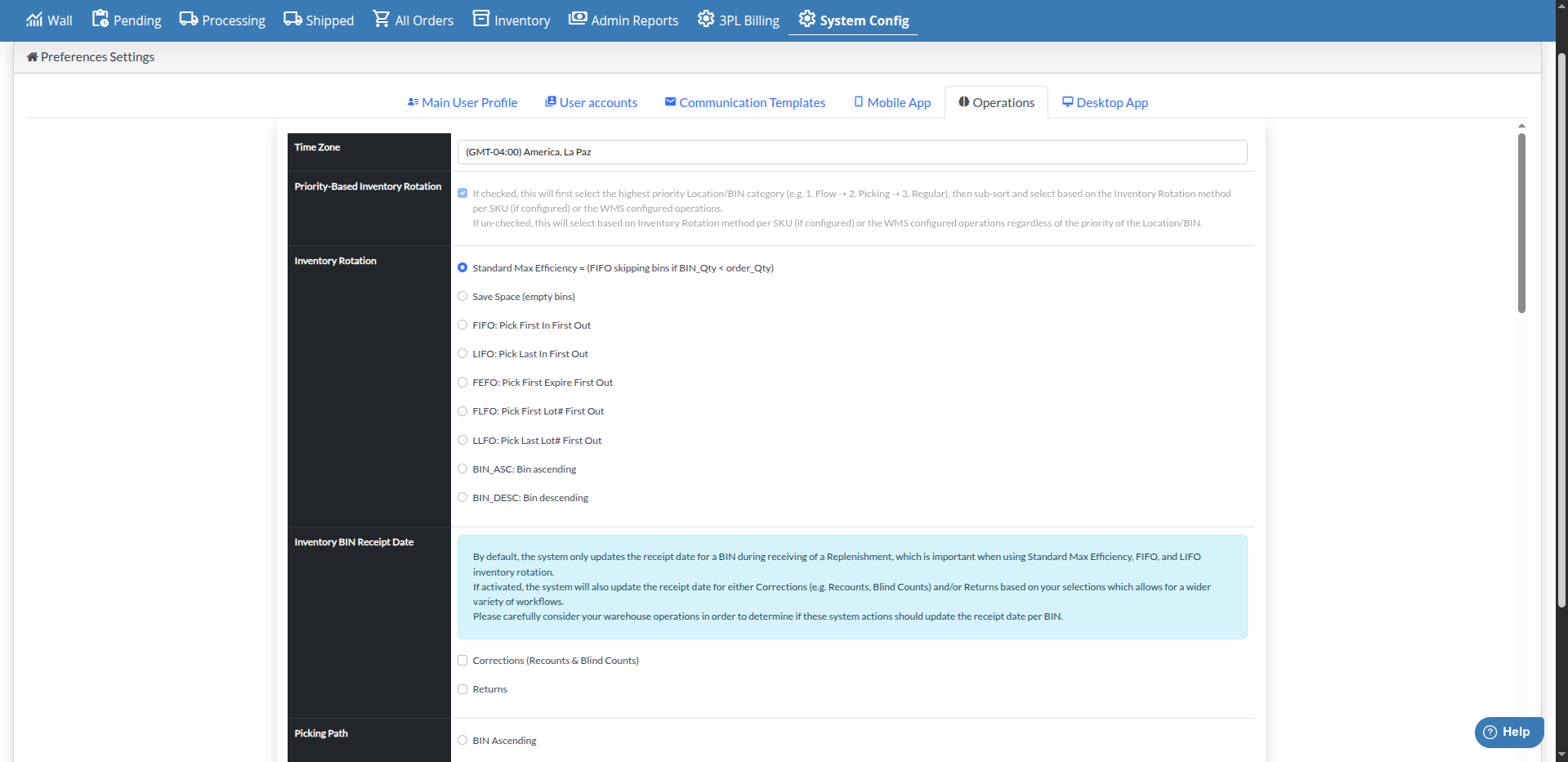
Configure warehouse operations, including automation, processing, and other operational settings.
Features :
Operations automation configuration
Order processing settings
Operational rules configuration
Operations preferences management
Configure options for the warehouse desktop application.
Features :
Desktop application options configuration
Synchronization and connectivity settings
Permissions and access configuration
You can upload and manage images for the warehouse:
Supported image types :
Image Logo : Warehouse logoLogin Screen Background Image : Background for the login screen
Accepted formats :
Limits :
Maximum size: 2 MB per image
Features :
Upload : Drag and drop or click to select fileRemove : Delete current image (revert/remove in the upload area)
Review and update warehouse information regularly to ensure billing and communications are accurate.
Assign appropriate permissions to each user and deactivate accounts that are no longer used to maintain security.
Customize communication templates so they reflect your warehouse identity and provide useful information.
Generate unique and secure tokens for API integrations and don’t share them publicly.
Optimize images before uploading to reduce file size and improve performance.
Review mobile and desktop application configurations periodically to ensure they’re optimized.
I can’t see the “Preferences” option in the menu :
Verify you have Manager permissions or Preferences View WH access
Confirm you’re logged in with an account that has appropriate permissions
I can’t see the “User accounts” tab :
This tab is only visible if you have Preferences View WH enabled
I can’t edit fields in Main User Profile :
Click the “Edit” button to enable field editing
Verify you have edit permissions in warehouse configuration
Error uploading images :
Verify the file is less than 2 MB
Confirm the format is JPG, PNG, SVG, or GIF
Make sure you have write permissions in the logos directory
Changes don’t save :
Verify you clicked the “Save” button after editing
Confirm all required fields are complete
Review error messages in the interface for more details
I can’t change the password :
Use the “Edit Password” button in the User Profile section
Make sure to enter a valid password and confirm it correctly
Next step : Change Password - Change your access password
Related :