
Shipping Rules
Shipping Rules: Automate processes related to shipments in shipping status.
- Automatic label generation
- Batch creation
- Shipping method assignment
- Tracking status updates
Automation Rules are custom workflows that automatically execute actions based on specific conditions. You can create rules for shipments, batches, and pending processes that are triggered by system events or scheduled times.
With Automation Rules, you eliminate repetitive manual tasks and ensure your operation responds consistently to specific situations.
Eliminate repetitive manual tasks. Rules work 24/7 executing actions automatically when conditions are met.
Consistent and predictable actions every time. Rules eliminate human error in repetitive tasks.
Trigger rules by system events in real-time or schedule periodic executions with custom schedules.
Create rules with advanced filters and multiple actions. Manage priorities, enable/disable rules, and review complete history.
Shipping Rules
Shipping Rules: Automate processes related to shipments in shipping status.
Batch Rules
Batch Rules: Manage creation and processing of picking batches.
Pending Rules
Pending Rules: Control records in pending status.
Access Automation Rules
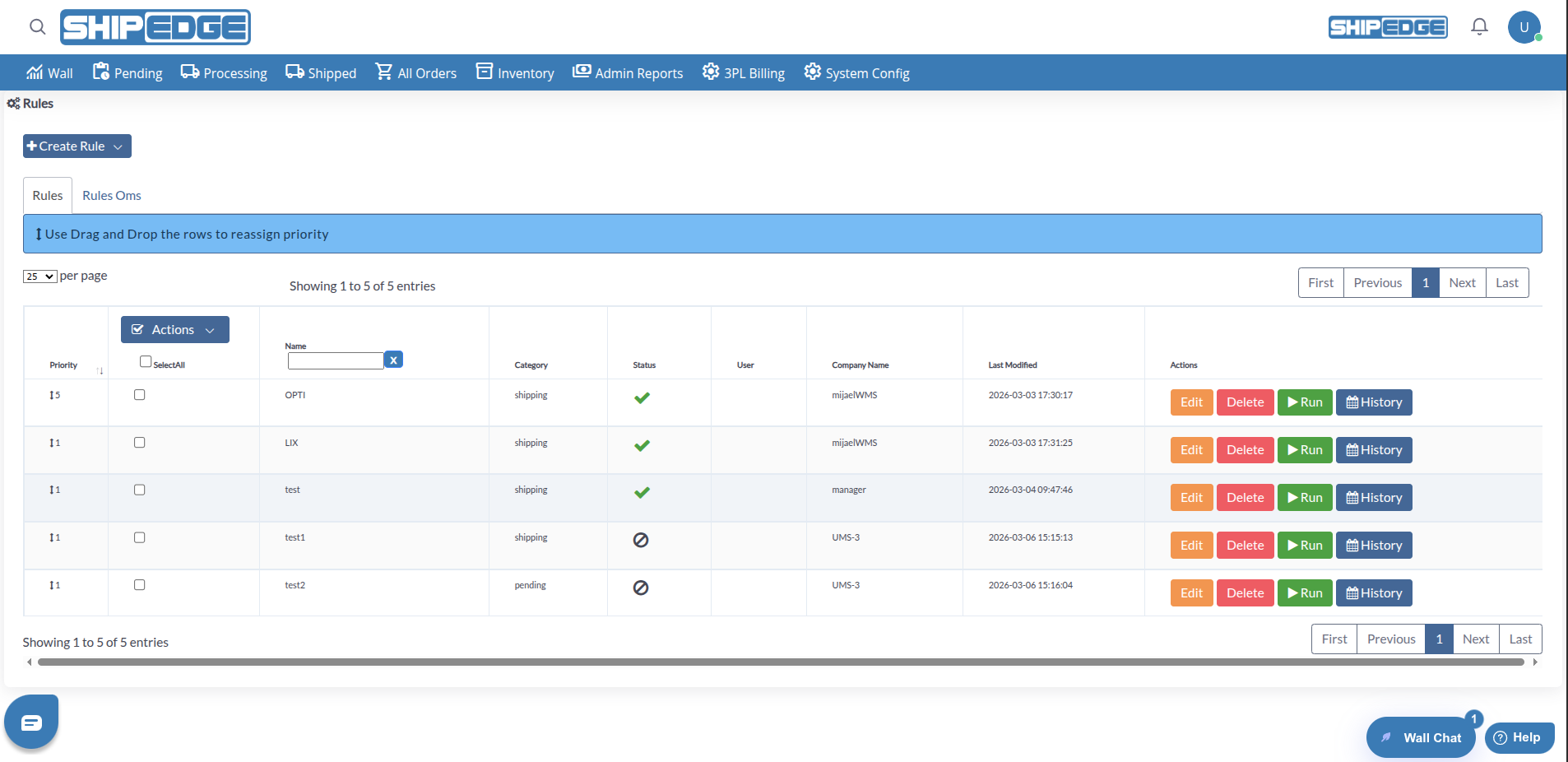
Go to the main menu and select Rules. You’ll see a list of all your existing rules organized by priority.
Click “Create Rule”
Select the rule type from the dropdown menu (Shipping Rule, Batch Rule, or Pending Rule).
Configure Basic Information
Select Activation Type
Choose how your rule will be triggered:
Option A: Select Trigger (By Event)
Option B: Config Custom Schedule (By Schedule)
Add Filters (Optional but Recommended)
Filters determine WHICH shipments or records will apply to this rule:
Define Actions
Actions are the tasks that will be executed when filters are met:
Save the Rule
Click Save to create your rule. If marked as active, it will start working immediately.
The rules table shows:
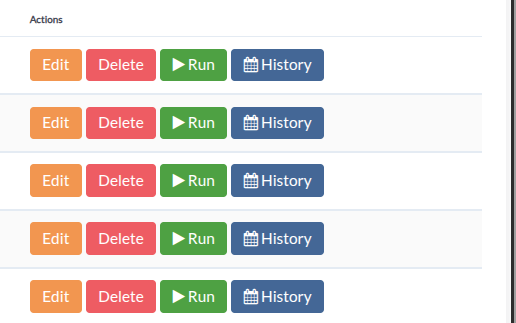
For each rule you can:
Edit
Modify filters, actions, triggers, or any rule configuration.
Delete
Permanently delete the rule. Confirm deletion to prevent accidental deletions.
Run (Manual Execution)
Execute the rule immediately without waiting for trigger or schedule. Useful for testing rules or executing actions on demand.
History (View History)
Review the complete execution history of the rule:
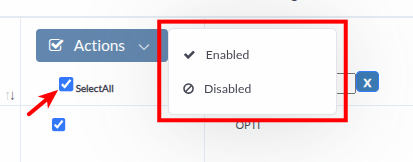
You can manage multiple rules at once:
Select Rules
Check the boxes of the rules you want to modify. Use “SelectAll” to select all.
Choose an Action
From the Actions menu:
Confirm Operation
The system will ask for confirmation before changing the status of multiple rules.
Use the “Run” button to manually execute the rule and verify results before activating it permanently.
Give clear names that describe WHAT the rule does and WHEN it triggers. Example: “Auto-Create Batches - Daily 8AM”
Monitor execution history to detect errors or unexpected behaviors. Adjust filters if necessary.
Assign logical priorities. Critical rules (like batch creation) should have higher priority than notification rules.
Use the description field (if available) to document the purpose and logic of each rule for future reference.
Use specific filters to avoid the rule affecting unwanted records. It’s better to be conservative and expand later.
Possible Causes:
Solution:
Possible Causes:
Solution:
Possible Causes:
Solution:
Possible Causes:
Solution:
Explore Related Features: