
Handle Unexpected Returns
Process returned products without prior authorization and correctly re-enter them into inventory.
The Restocking process allows you to handle unexpected or unauthorized merchandise returns. Unlike regular returns (RMA), restocking is used when you receive products you didn’t expect or that don’t have a prior return request.
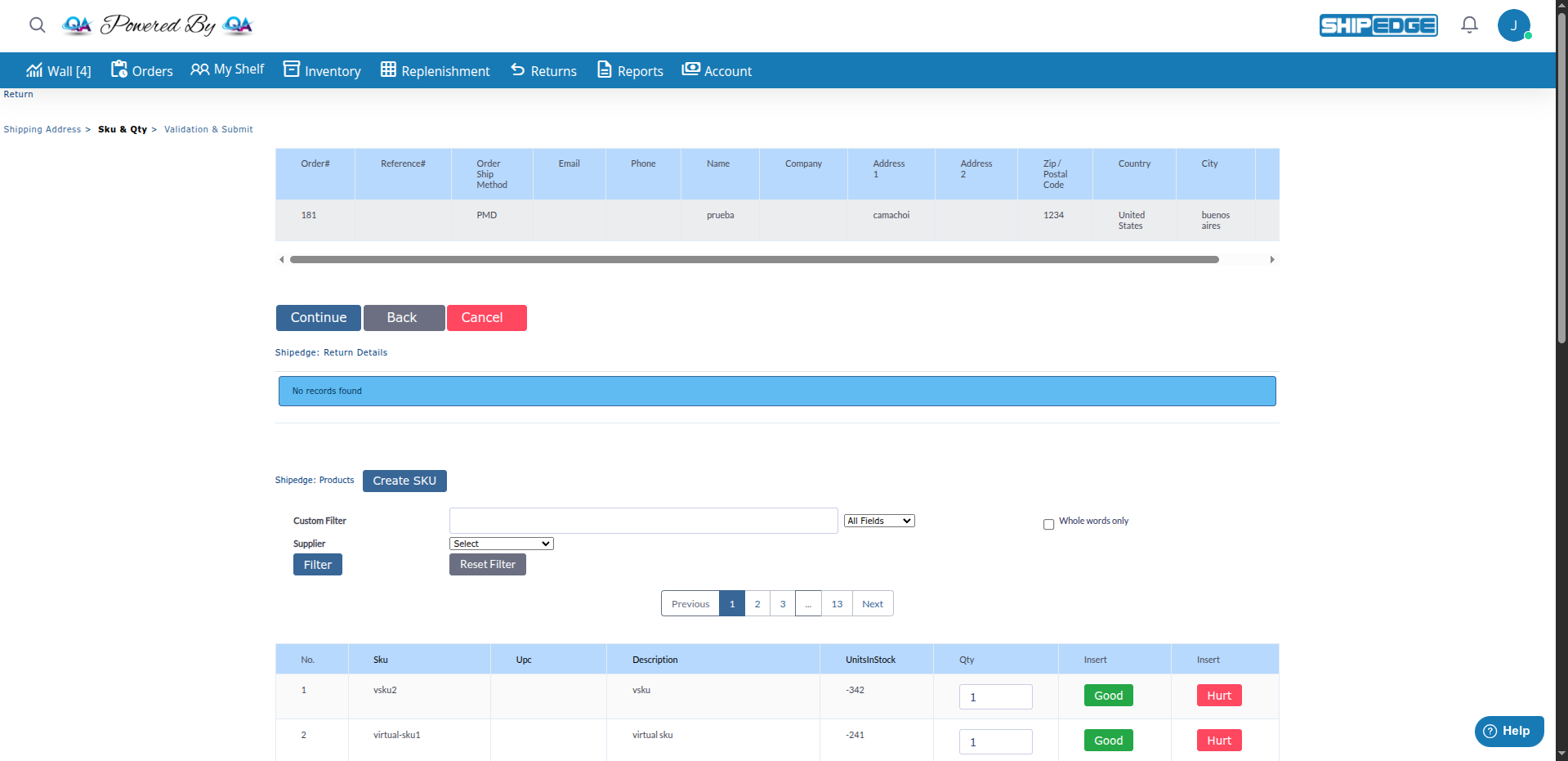
Process returned products without prior authorization and correctly re-enter them into inventory.
Classify products as “Good” or “Hurt” during the receiving process.
Records every inventory movement with unique RMA number and complete details.
Automatically calculates return handling charges according to billing configuration.
Use the Restocking process when:
Difference from Regular RMA: Standard RMA returns are created when the customer requests a return. Restocking is used for returns that arrive without prior authorization.
Dropship Return vs Regular Restocking:
There are two main ways to create a Restocking, depending on whether the order was shipped by your warehouse or by a dropship supplier:
Use this method when the order was shipped by a dropship supplier and you need to manually create a restocking record.
Access Returns View
Navigate to Returns.
You’ll see several options at the top of the Returns page.
Click Dropship Return
Click the “Dropship Return” button in the Returns view.
This opens a form to manually enter return information.
Enter Customer Information
Fill in the required customer details:
Enter Order Details
Provide the order information:
Add Products
Click “Add Sku” to add products to the restocking.
You’ll be able to add SKUs and quantities in the next step.
Complete Restocking Creation
After adding products, the system creates a Restocking record with status In-Transit.
The restocking is now ready for warehouse processing.
The Restocking process goes through different statuses:
Initial status (OMS): Restocking created by OMS user, waiting for warehouse processing.
Initial status (WMS): Restocking created by WMS user, products on the way to warehouse.
Successful: All received products match expected quantities and are in good condition.
Minor discrepancy: Some quantities or SKUs don’t match, but processed correctly.
Major discrepancy: Significant issues with quantities, SKUs, or product condition.
Primary Access: Returns view (main entry point)
Routes:
Who uses it: OMS users (managers, customer service representatives)
Purpose:
Route: WMS > Inventory > Returns
Who uses it: Warehouse staff (warehouse staff, receivers)
Purpose: Physically process the restocking, verify products, assign bins, and finalize receipt.
Always physically verify products before entering them into the system. Don’t rely solely on documents.
Separate “Good” and “Hurt” products immediately upon receipt. This prevents errors in available inventory.
Use specific bins for returned products. This facilitates inspection and re-processing if necessary.
Use the comments field to record important details about product condition or return reasons.
If you receive a different SKU than expected, use the “Other SKU” field instead of forcing the original SKU.
If you mark the correction option during the process, the system automatically creates a “Re-Count” record for audit purposes.
Problem: You’re trying to process a restocking that was already finalized.
Solution: Check the RMA status. If you need to make adjustments, use Corrections (Recounts) instead of reopening the restocking.
Problem: There are inconsistencies in the entered quantities.
Solution:
Problem: The Restocking option doesn’t appear available.
Solution:
Problem: The Dropship Return button doesn’t appear in Returns view.
Solution:
When a restocking is completed:
When restocking is finalized:
history table with type “Re-stocking”If the received products were on backorder:
A webhook is triggered when restocking is completed:
unexpected_return/order_receivedNext Step: Return Label Status - Track the status of return labels
See Also: