
Skip to content

Bulk Upload Inventory

Bulk Upload Inventory allows you to upload hundreds or thousands of products to your catalog in minutes using CSV files. You can create new products, update existing products, and even create replenishments automatically, all from a single file.

This tool is essential for:
  • Initial setup: Load your entire catalog when starting with ShipEdge
  • Bulk updates: Change prices, weights, dimensions, or descriptions for many products
  • Create replenishments: Generate purchase orders automatically by including quantities in the CSV
  • Synchronization with external systems: Keep your inventory updated from your ERP or e-commerce

Bulk Upload Inventory

Efficient Bulk Upload

Upload hundreds or thousands of products in minutes instead of hours of manual entry.

Flexible Updates

Choose whether to create only new products or update existing ones with new information.

Automatic Replenishments

Include a quantity column to automatically create replenishment requests when uploading the CSV.

Custom Templates

Create and save mapping templates for different suppliers or e-commerce platforms.

Smart Validation

The system validates your CSV before processing, detecting format errors and invalid SKUs.

Complete History

View history of all your previous uploads with detailed results and re-processing capability.

The bulk upload process has 4 main phases:

Prepare your CSV file with product data. You can download a template for reference, but it’s not required - you can upload any CSV file directly with this fields(sku, qty, description).

Upload your CSV file directly to ShipEdge. The system automatically detects the separator used (commas, semicolons, pipes, or tabs).

If your CSV doesn’t match the standard template, map your columns to ShipEdge fields. You can save this mapping as a template for future use.

The system processes the file in the background (queue), creating/updating products and generating replenishments if quantities were applied.

  1. Navigate to Upload Inventory View

    From the main menu, go to Inventory → Upload Inventory.

    You can also access from:

    • Product catalog view: “Import Products” link
    • Replenishments list: “Upload CSV” link
  2. Prepare Your CSV File

    Create or export your CSV file with product data. You don’t need to download a template first - you can upload any CSV file directly.

    Required Columns (minimum required):

    • SKU: Unique product code
    • Description: Product description
    • Quantity: If you want to create a replenishment automatically

    Recommended Columns:

    • UPC: Barcode
    • Cost: Unit cost
    • Retail or Declared: Declared value for shipping
    • Weight: Product weight
    • Length, Width, Height: Package dimensions

    Optional Columns:

    • Supplier: Supplier name
    • DistributionCenter: If you handle multiple warehouses
    • SynSet: To create product families
    • Many others (see Detailed Fields section)

    Tip: You can download templates from the “Download Template” dropdown button if you want a reference format.

  3. Upload File in ShipEdge

    In the Upload Inventory view:

    • Click browse or drag your CSV to the upload area
    • The file name will appear in the field
    • Click the blue Upload button
  4. System Validates File

    The system automatically:

    • Validates file format (.csv extension)
    • Detects separator used (comma, semicolon, pipe, or tab)
    • Verifies CSV structure and headers
    • Checks for duplicate column names
  5. Column Mapping (If Needed)

    If your CSV columns don’t match ShipEdge field names exactly, you’ll be redirected to the Map Inventory CSV page.

    On this visual mapping page:

    • Left side: Your CSV column headers
    • Right side: ShipEdge product fields
    • Connect columns: Drag from a CSV column to a ShipEdge field to create a link
    • Template selection: Choose a saved mapping template from the dropdown (if available)

    Required fields (marked with *):

    • Sku (SKU) - Must be mapped
    • Description - Must be mapped

    Save template: Click “Save as…” to save your mapping configuration for future uploads.

  6. Process File

    Click the Process button to start processing.

    The system will:

    • Validate required field mappings
    • Check for special characters in SKUs (if found, you’ll get options to proceed)
    • Queue the file for background processing
    • Change status to “In queue”
  7. File Processing States

    Your upload will move through these states:

    • Draft: File uploaded, mapping not completed
    • In queue: Waiting to be processed
    • Processing: Currently being processed
    • Processed: Completed successfully

    Estimated processing time:

    • 50 products: ~30 seconds
    • 500 products: ~3-5 minutes
    • 1,000 products: ~7-10 minutes
    • 5,000 products: ~30-40 minutes
    • 10,000 products: ~60-90 minutes
  8. Review Results

    Once status changes to “Processed”:

    • Click the info icon (ℹ️) button in the Status column
    • View detailed results:
      • Products created count
      • Products updated count
      • Replenishments generated (with RequestID links)
      • Errors or warnings per row
      • Invalid SKUs or missing data

Below, all available fields in the CSV, grouped by category:

Format: Alphanumeric, maximum 40 characters (less than 10 recommended)

Description: Unique product identifier. This is the code you use to identify each product in your system.

Examples:

  • “ABC-001”
  • “WIDGET-BLU-LG”
  • “SKU12345”

Rules:

  • Must be unique in your account
  • Only alphanumeric characters and some symbols: . - # / ~ & | ( ) + _
  • Avoid spaces and special characters (á, é, ñ, etc.)
  • Case-sensitive: “ABC” is different from “abc”

Best Practices:

  • Use short and consistent codes
  • If importing from a supplier, use the same SKU they use
  • If selling on e-commerce, use the SKU they have in your store
  • Use SynSets to map different codes to the same product

Format: Text, maximum 150 characters

Description: Product description that warehouse staff will use to verify they received the correct item.

Examples:

  • “Widget Blue Large - 12oz”
  • “Red Polo Shirt Size M”
  • “Laptop Charger 65W USB-C”

Rules:

  • Maximum 150 characters (automatically truncates for customs forms)
  • Don’t use double quotes inside description
  • Don’t use commas inside description

Best Practices:

  • Be descriptive but concise
  • Include color, size, material if applicable
  • Avoid marketing language (“The best!”, “Amazing”, etc.)
  • Think of someone who doesn’t know your product: what do they need to know to identify it?

Format: Alphanumeric, maximum 255 characters (generally 12-15 digits)

Description: Product barcode. Can be UPC, EAN, ISBN, ASIN, or any other barcode.

Examples:

  • “012345678905” (standard UPC)
  • “9780134685991” (ISBN for books)
  • “B08N5WRWNW” (Amazon ASIN)

When to Use:

  • Products with retail barcode
  • Books (use ISBN)
  • Products sold on Amazon (can use ASIN)
  • For quick scanning in warehouse

Note: If the product doesn’t have an official barcode, you can leave empty or use your own internal code.


Format: Decimal number, maximum 6 digits with 3 decimals (example: 123.456)

Description: Unit purchase cost of the product from your supplier. Used for:

  • Generating purchase orders
  • Calculating total inventory value
  • Cost reports
  • Warehouse insurance

Examples:

  • “15.99”
  • “125.50”
  • “0.75”

Best Practices:

  • Use most recent purchase price
  • Don’t include currency symbols ($, €)
  • Use period (.) as decimal separator, not comma (,)
  • Update periodically if your costs change

Format: Decimal number, maximum 6 digits with 3 decimals

Description: Declared value of the product for shipping, customs, and insurance purposes. Generally your retail price to the public.

Examples:

  • “29.99”
  • “199.00”
  • “1.50”

Importance:

  • Used in customs forms for international shipments
  • Used to calculate package insurance during shipping
  • Appears on shipping documents if required

Note: If you don’t complete this field, some carriers may reject international shipments or apply default values.


Format: Decimal number (in pounds - lbs)

Description: Weight of individual product in its retail packaging (the one shipped to end customer).

Examples:

  • “0.5” (half pound)
  • “2.25” (2 pounds and a quarter)
  • “12.0” (12 pounds)

Importance:

  • Critical for calculating shipping cost
  • Verified in warehouse upon receipt (can be overridden if differs)
  • Used to select appropriate box type

Note: Warehouse can weigh product upon receipt and update this value if it differs significantly.


Format: Decimal number (in inches)

Description: The longest dimension of the product’s retail packaging.

Examples:

  • “12.5” (12.5 inches)
  • “8.0” (8 inches)
  • “24.75” (24 inches and three quarters)

Format: Decimal number (in inches)

Description: The second longest dimension of the retail packaging.

Examples:

  • “8.5”
  • “6.0”
  • “18.25”

Format: Decimal number (in inches)

Description: The shortest dimension of the retail packaging (generally height when standing).

Examples:

  • “2.5”
  • “4.0”
  • “10.75”

Importance of Dimensions:

  • Used to calculate dimensional weight (DIM weight) in shipments
  • Help select correct box size for shipping
  • Used to optimize warehouse space

Best Practices:

  • Measure product in its retail packaging (not bare product)
  • Be precise: 1 inch difference can change shipping cost
  • Round up if between two measurements

Format: Integer (no decimals)

Description: ADVANCED - If you complete this field, the system will automatically create a Replenishment Request with this quantity for each SKU.

Examples:

  • “100”
  • “500”
  • “1000”

How It Works:

  • System creates a replenishment with status “INCOMPLETE”
  • Groups all CSV SKUs into a single replenishment
  • Generates a RequestID that appears in upload results
  • You can review and edit the replenishment before confirming it

When to Use:

  • When uploading products you already ordered from supplier
  • To create purchase orders in bulk
  • To prepare scheduled receipts

Warning: Only use this field if you actually expect to receive inventory. Don’t use it just to create products without replenishment.


Format: Alphanumeric, maximum 255 characters (less than 15 recommended)

Description: ADVANCED - Name or code of your supplier. Associates the product with a specific supplier.

Examples:

  • “Acme Wholesale”
  • “PROV-001”
  • “Amazon Vendor”

How It Works:

  • If supplier doesn’t exist, system creates it automatically
  • Used to generate POs (purchase orders) automatically
  • Used in forecasting and reorder reports

Best Practices:

  • Use a consistent name for each supplier
  • Can be full name or short code
  • Configure suppliers manually in “Procedures” for full functionality

Warehouse and Distribution Fields (Advanced)

Section titled “Warehouse and Distribution Fields (Advanced)”

Format: Alphanumeric, 1-5 characters

Description: ADVANCED - Code of the distribution center or warehouse where the product is stored.

Examples:

  • Leave empty = main warehouse (home warehouse)
  • “FBA” = Amazon FBA
  • “DC2” = Distribution Center 2
  • “MS” = MyShelf

How It Works:

  • Leave empty for ShipEdge’s main warehouse
  • Enter code if you handle multiple integrated DCs
  • If code doesn’t exist, automatically creates a “dropship code” (supplier)

Important:

  • Additional ShipEdge DCs are configured in: Account Prefs → Channel Automation → Fulfillment Centers
  • Dropship suppliers are configured in Suppliers view

Format: Full URL, maximum 250 characters

Description: Direct URL to the product’s main image.

Examples:

https://example.com/images/product123.jpg
https://cdn.shopify.com/s/files/1/0123/4567/products/widget.png

Requirements:

  • Must be a full URL (start with http:// or https://)
  • Image must be publicly accessible
  • Supported formats: JPG, PNG, GIF
  • Recommended size: 800x800 px

Note: System downloads and stores image locally. If URL is invalid, product is created without image.


Product Families and Sets Fields (Advanced)

Section titled “Product Families and Sets Fields (Advanced)”

Format: Alphanumeric, maximum 40 characters

Description: ADVANCED - Creates or assigns the product to a SynSet (Product Family).

How It Works:

For Synonyms:

  • Use the same SynSet for equivalent SKUs
  • Example: If “WIDGET-A” and “WIDGET-B” are the same physical product, give them the same SynSet “WIDGET”
  • System will treat them as interchangeable

For Sets (Bundles/Kits):

  • Repeat the same SynSet for multiple rows (multiple SKUs)
  • Each SKU in the bundle must be in its own row with the same SynSet
  • System will create a bundle of all those SKUs

Examples:

CSV for a Synonym:

SKU,Description,SynSet
WIDGET-US,Widget for USA,WIDGET-GLOBAL
WIDGET-EU,Widget for Europe,WIDGET-GLOBAL

CSV for a Bundle (Kit):

SKU,Description,SynSet
SHIRT-RED,Red Shirt,SUMMER-KIT
SHORTS-BLUE,Blue Shorts,SUMMER-KIT
HAT-WHITE,White Hat,SUMMER-KIT

Warnings:

  • Creating SynSets in bulk is an advanced functionality
  • Recommended to create SynSets manually in the interface first to understand how they work
  • Don’t create SynSets and complex bundles simultaneously with new products (do in separate steps)

Format: Alphanumeric, maximum 40 characters (generally 6-10 digits)

Description: Harmonized System code for international trade. Required if you import or export products.

Examples:

  • “6109100040” (Cotton T-shirts)
  • “8471.30.01” (Laptop computers)
  • “9503.00.00” (Toys)

Importance:

  • Required for customs declarations in international shipments
  • Determines import tariffs and taxes
  • Varies by country (consult a customs expert if unsure)

Where to Find It:

  • Consult with your freight forwarder or customs broker
  • Use https://hts.usitc.gov/ for USA codes
  • Your international supplier can generally provide it

Format: 2-letter country code (ISO 3166-1 alpha-2)

Description: The country where the product was manufactured or produced. Required for import/export.

Examples:

  • “US” (United States)
  • “CN” (China)
  • “MX” (Mexico)
  • “DE” (Germany)

Importance:

  • Required on customs forms
  • Affects tariffs (USMCA, FTA, etc.)
  • May affect import regulations

Complete Code List: Search “ISO 3166-1 alpha-2” on Google for the complete list.


Format: One letter: Y, N, or R

Description: Controls whether the product requires serial number tracking.

Options:

  • N or empty = No serial number control
  • Y = Outbound control (requires serial when shipping)
  • R = Inbound and outbound control (requires serial when receiving and shipping)

Usage Examples:

  • Y for electronics with warranty
  • R for medical devices
  • N for products without serial

Note: If you enable serial numbers, warehouse staff will need to scan or enter serials during receipt and/or shipping.


The following fields are available but are less commonly used. They are listed here for reference:

Format: Alphanumeric

Description: ShipEdge’s internal barcode for products transferred between ShipEdge warehouses. Advanced use only.

Format: Alphanumeric

Description: Unique identifier for tracking pallets or packages in shipping. Requires Quantity field if used.

Format: Alphanumeric, maximum 40 characters

Description: Product model number or family (optional).

Format: Alphanumeric, maximum 40 characters

Description: Product manufacturer name (optional).

Format: Alphanumeric, maximum 40 characters

Description: Product category or family.

Format: Integer

Description: Number of individual units in a case pack from supplier.

Format: Specific text (predefined options)

Description: Picking strategy for warehouse operations. Options include STANDARD, FIFO, LIFO, FEFO, etc. Advanced use only.

BoE (Bill of Entry), BoL (Bill of Lading), Container (Container Number)

Section titled “BoE (Bill of Entry), BoL (Bill of Lading), Container (Container Number)”

Format: Alphanumeric

Description: International shipping document fields. Only available if your account has “International Documents” feature enabled.

UOM Name, UOM Unit Factor, UOM Description, UOM Barcode, UOM Weight, UOM Length, UOM Height, UOM Width, UOM Package Type, UOM Cost, UOM Price, UOM Pack Sku

Section titled “UOM Name, UOM Unit Factor, UOM Description, UOM Barcode, UOM Weight, UOM Length, UOM Height, UOM Width, UOM Package Type, UOM Cost, UOM Price, UOM Pack Sku”

Format: Various (alphanumeric, integer, decimal, text)

Description: Unit of Measure (UOM) fields for products sold in different unit sizes. Only available if your account has UOM feature enabled.

Format: Alphanumeric, maximum 10 characters each

Description: Custom optional fields for specific integration projects. Consult with your account manager before using.

Format: Alphanumeric, maximum 40 characters. Separate words with pipe (|)

Description: Tags or labels for integration rules and advanced filters.


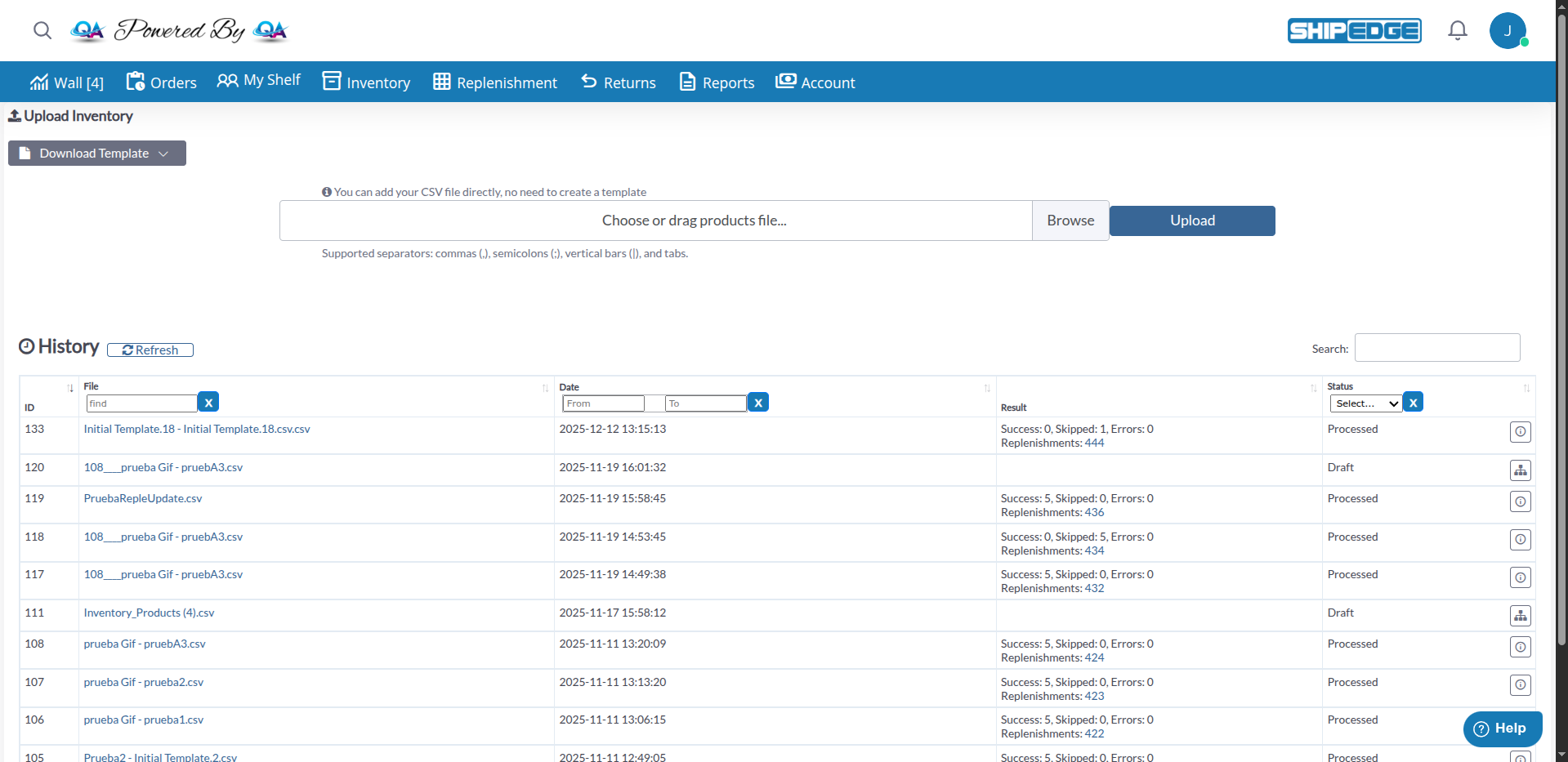
All your uploads are saved in history and displayed in the table at the bottom of the Upload CSV view.

Each row shows:

  • ID: Unique upload ID
  • File: Name of uploaded CSV file
  • Date: Upload date and time
  • Result: Result summary (success, errors, warnings)
  • Status: Draft, In queue, Processing, Completed, Error
  • Mapping icon: Appears when status is “Draft” - click to complete column mapping
  • Info icon (ℹ️): Appears when status is “Processed” - click to view detailed results:
    • Products created count
    • Products updated count
    • Replenishments generated (with RequestID links)
    • Errors or warnings per row
    • Invalid SKUs or missing data
  • File link: Click file name to download the original uploaded CSV file
  • Refresh button: Click to reload the history table and see updated statuses

Use the filters above the table:

  • File: Filter by file name
  • Search: Filter by file name
  • Date range: Filter by upload date
  • Status dropdown: Filter by status (Draft, In queue, Processing, Processed)

Test with Small File First

Before uploading 5,000 products, test with 5-10 products to verify format and mapping are correct.

Use UTF-8 Encoding

Save your CSV with UTF-8 encoding to support special characters (accents, ñ, etc.). In Excel: “CSV UTF-8 (Comma delimited)”.

Avoid Special Characters in SKUs

Use only letters, numbers, and basic symbols (. - # / ~ & | ( ) + _). Avoid spaces, commas, quotes, and accents.

Verify Before Checking 'Update SKU'

Updating existing SKUs is IRREVERSIBLE. If unsure, DO NOT check this option on first upload.

Save Your Mapping Templates

If you upload CSVs from the same supplier frequently, save the mapping as a template to reuse.

Complete Accurate Dimensions

1 inch difference in dimensions can significantly change shipping costs by dimensional weight.

Review Upload History Results

Always review details of completed upload to see if there were errors or warnings.

Problem: System rejects the file when trying to upload it.

Solutions:

  1. Check extension: Must be .csv, not .xlsx or .txt
  2. Save correctly:
    • Excel: File → Save As → CSV UTF-8 (Comma delimited)
    • Google Sheets: File → Download → Comma-separated values (.csv)
  3. Don’t rename an Excel file to .csv: Must save/export as CSV properly

Problem: “The CSV header-name and/or the order of the columns does not meet our requirements”

Section titled “Problem: “The CSV header-name and/or the order of the columns does not meet our requirements””

Problem: CSV columns don’t match the expected template.

Solution:

  1. System automatically redirects you to the visual mapping page
  2. Map your columns visually:
    • Drag from your CSV column (left) to ShipEdge field (right)
    • Required fields (marked with *) must be mapped: Sku and Description
    • Remove incorrect links by clicking on them
  3. Save mapping as template: Click “Save as…” to reuse this mapping
  4. Select template: Use dropdown to choose a previously saved template
  5. Alternative: Download a template from “Download Template” dropdown and reorganize your CSV to match exactly

Problem: Included Quantity column but replenishment wasn’t generated.

Common Causes:

  1. All SKUs already exist: If you DIDN’T check “Update SKU”, existing SKUs are ignored and no replenishment is created
  2. Quantities are 0 or empty: If quantities are 0, there’s no replenishment to create
  3. Processing error: Click info icon (ℹ️) in history to see detailed errors

Solution:

  1. If you want to create replenishment for existing SKUs, check “Update SKU data”
  2. Verify quantities are greater than 0
  3. Review “Details” link - if replenishment was created, RequestID will appear there

Problem: Some Products Created, Others Didn’t

Section titled “Problem: Some Products Created, Others Didn’t”

Problem: Upload completed partially - some SKUs created, others didn’t.

Solution:

  1. Click upload “Details”
  2. Review error list
  3. Common errors per row:
    • Invalid SKU (special characters)
    • Empty Description (required)
    • Incorrect number format (Cost, Weight, etc.)
    • Duplicate SKU in same CSV
  4. Fix SKUs with errors
  5. Create a new CSV ONLY with failed SKUs
  6. Upload again

Problem: Status Stuck in “Processing” for Long Time

Section titled “Problem: Status Stuck in “Processing” for Long Time”

Problem: Upload has been in “Processing” or “In queue” for more than expected time.

Understanding Statuses:

  • Draft: File uploaded but mapping not completed - click mapping icon to continue
  • In queue: Waiting to be processed (normal for large files)
  • Processing: Currently being processed
  • Processed: Completed successfully

Solution:

  1. For large files (5,000+ products), processing can take 30-60 minutes - this is normal
  2. Refresh page (F5 or click Refresh button) to see updated status
  3. Check processing time estimates:
    • 500 products: ~3-5 minutes
    • 1,000 products: ~7-10 minutes
    • 5,000 products: ~30-40 minutes
    • 10,000 products: ~60-90 minutes
  4. If status is “Draft”: Click the mapping icon in Status column to complete mapping
  5. If more than expected time:
    • Contact support
    • Process may have stalled
    • Support can restart processing

Problem: Update Overwrote Data I Didn’t Want to Change

Section titled “Problem: Update Overwrote Data I Didn’t Want to Change”

Problem: Checked “Update SKU” and some fields were deleted or changed unintentionally.

Explanation: When updating an existing SKU, ALL CSV fields overwrite current values. If a field is empty in CSV, it overwrites with empty.

Prevention:

  1. If you only want to update some fields, include ALL SKU fields in CSV (not just ones you want to change)
  2. Export your current products first:
    • Go to Products view
    • Export to CSV
    • Use that CSV as base to update
  3. Test with few products first before updating in bulk

Solution IF it already happened:

  • Unfortunately, there’s no “undo”
  • You’ll need to reload correct values
  • For future, always test with 2-3 products first

Next Steps:

See Also:

Complete Setup Process:

  1. Bulk Upload Inventory ← You are here
  2. Review Products → See Product Management
  3. Configure Suppliers → Suppliers documentation (coming soon)
  4. Setup Replenishments → See Creating Replenishment Requests