Skip to content

Archived Replenishments

Archived Replenishments is the history view where all replenishments that have been completed, processed, or partially processed are stored. This view allows you to review past shipments, verify what was received, track costs, and mark orders as paid for accounting control.

Once a replenishment has been completed (all inventory received and placed in bins), it automatically moves to the archived section. This keeps your active replenishments list clean and organized, while preserving all history for auditing and analysis.
Archived Replenishments

Complete History

Access all your past replenishments without time limit. Perfect for audits and historical analysis.

Payment Control

Mark orders as paid for accounting control and avoid duplicate payments to suppliers.

Advanced Search

Filter by RequestID, PO#, supplier, dates, status, and more to quickly find specific receipts.

Cost Analysis

View total cost of each received replenishment for expense analysis and forecasting.

Receipt Verification

Review exactly which SKUs and quantities were received in past shipments.

Data Export

Export your history to CSV for external reports, Excel analysis, or integration with accounting systems.

Replenishments are automatically archived when:

When all expected inventory was received and processed:

  • System changes status to PROCESSED
  • Replenishment appears in Archived Replenishments
  • All SKUs were placed in bins
  • Received quantities match expected (or were adjusted)

When you received less than expected and decided to close the replenishment:

  • User manually marks as “Archive”
  • System changes status to PARTIALLY PROCESSED
  • Indicates not everything expected arrived, but replenishment was closed anyway
  • Can create a new replenishment with what was missing using “Re-open” function

When you mark a replenishment as paid to supplier:

  • User clicks “Archive” (mark as paid)
  • System changes status to ARCHIVED
  • SW_PAGADO changes to “PAID”
  • Indicates supplier invoice was paid
  1. Navigate to Replenishments Module

    From the main menu, go to Inventory → Replenishments or search for “Replenishment”.

  2. Click the Archived Link

    In the main replenishments view, look for the link or button that says:

    • Archived History

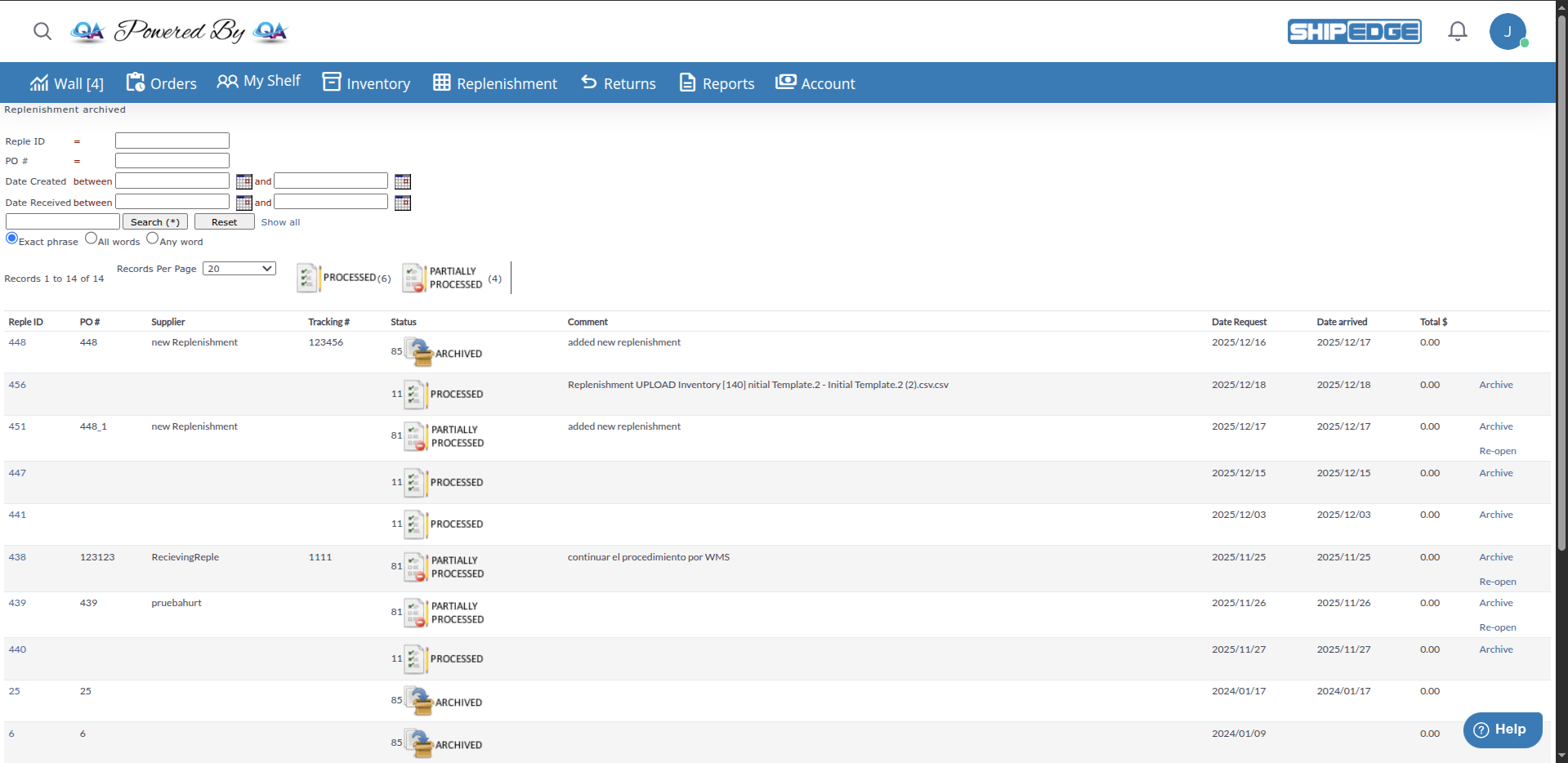
  3. You’ll See the List of Archived Replenishments

    The system displays a table with all completed replenishments, showing:

    • Reple ID (RequestID)
    • PO# (Purchase Order Number)
    • Supplier
    • Tracking#
    • Status (current status)
    • Comment
    • Date Created
    • Date Arrived
    • Total $ (total received cost)

Understanding the Archived Replenishments Table

Section titled “Understanding the Archived Replenishments Table”

The table shows columns with key information from each archived replenishment:

The unique ID of the replenishment. Click it to see complete details (which SKUs were received, quantities, bins, etc.).

Example: 12345, 67890

Use: Identifier to search, track, and reference the replenishment.


The purchase order number you assigned when creating the replenishment.

Example: PO-2024-001, ORDER-12345

Use: Correlate with your purchasing records and supplier invoices.


The name of the supplier or distributor from whom you received inventory.

Example: Acme Wholesale, Global Distributors, Internal Transfer

Use: Filter by supplier to see all history from a specific supplier.


The carrier tracking number that delivered the shipment.

Example: 1Z999AA10123456784 (UPS), 9400110200830208562007 (USPS)

Use: To verify delivery information or disputes with carrier.


The final status of the archived replenishment. Icons indicate:

  • Meaning: All expected inventory was received and processed successfully.
  • When it occurs: System automatically marks it when completing receipt of all SKUs.
  • Meaning: Part of inventory was received, but not all. Replenishment was manually closed.
  • When it occurs: When you click “Archive” before receiving everything.
  • Available actions:
    • Can use “Re-open” to create a new replenishment with what was missing
    • Can mark as “Archive” (paid) once invoice is paid
  • Meaning: Replenishment was marked as paid to supplier.
  • When it occurs: When you click “Archive” to mark as paid.

Comments about the replenishment. Can be:

  • Comments added when creating replenishment
  • Comments added during processing
  • Notes about discrepancies or problems

Example: Arrived in 3 pallets, Missing 10 units of SKU-001, Damaged box replaced


The date when the replenishment was created in the system.

Format: YYYY/MM/DD or MM/DD/YYYY HH:MM AM/PM

Example: 2024/03/15 10:30 AM

Use: To know when shipment was ordered or scheduled.


The date when the shipment physically arrived at the warehouse and was marked as “Arrived”.

Format: YYYY/MM/DD HH:MM:SS

Example: 2024/03/22 14:45:00

Use: To calculate transit time and supplier performance.

Note: This date is automatically recorded when warehouse marks replenishment as “Arrived”.


The total monetary value of received inventory, calculated based on:

  • Received quantity of each SKU × SKU Cost

Format: $X,XXX.XX

Example: $1,250.50, $10,450.00

Use:

  • For expense control
  • To compare with supplier invoices
  • For inventory investment analysis
  • For accounting reports

Note: This total is calculated based on ACTUALLY received quantities, not expected.


The archived view includes advanced search filters:

  • Field: Reple ID (RequestID)
  • Operator: = (equals)
  • Example: Enter 12345 to search for that specific replenishment
  • Use: When you know the exact ID of the replenishment
  • Field: PO#
  • Operator: = (equals)
  • Example: Enter PO-2024-001 to search for that purchase order
  • Use: To correlate with your purchasing records
  • Field: Date Created
  • Operator: between (between)
  • Example: 2024/01/01 to 2024/03/31 (Q1 2024)
  • Use: To see all receipts from a specific period
  • Field: Date Received (Date Arrived)
  • Operator: between (between)
  • Example: 2024/03/01 to 2024/03/31 (March 2024)
  • Use: To see what physically arrived in a specific month
  • Note: The filter is labeled “Date Received” but filters by the DateStatus field, which represents when the replenishment status was updated. The table displays “Date arrived” which uses the date_arrived field.

In the general search field you can enter any term and search in:

  • Reple ID
  • PO#
  • Supplier Name
  • Tracking Number
  • Comments

Note: The general search does NOT search by Reple ID. Use the specific Reple ID filter for that.

Search options:

  • Exact phrase: Searches for the complete phrase exactly as entered
  • All words: Searches for records containing all words
  • Any word: Searches for records containing at least one word

General search example:

  • Search “Acme” → finds all replenishments from supplier Acme
  • Search “PO-2024” → finds all PO# containing “PO-2024”
  • Search “damaged” → finds replenishments with comments about damage

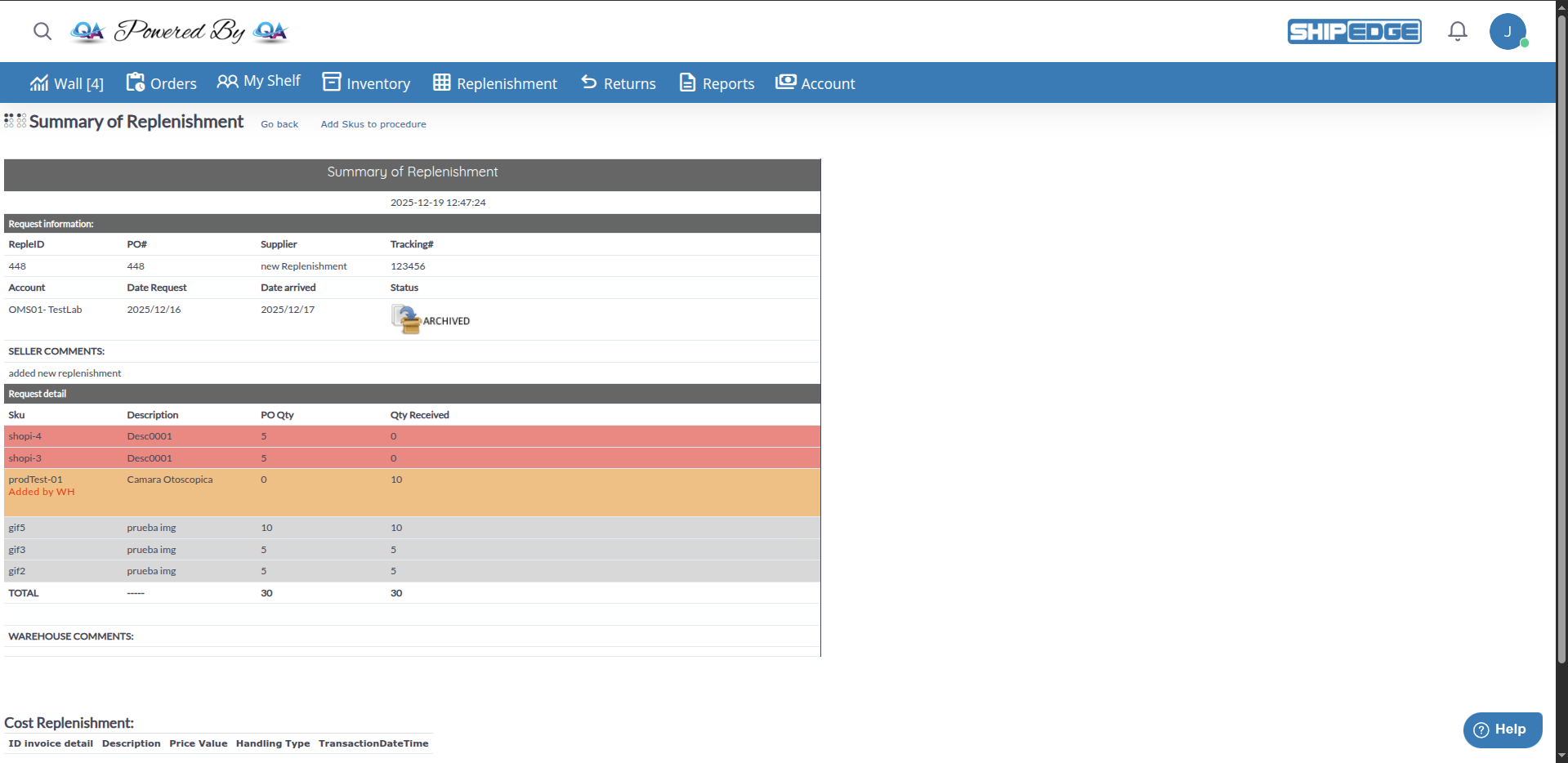
Summary of Replenishment

  1. Click the Reple ID

    In the archived replenishments table, click the Reple ID (RequestID) number of the replenishment you want to review.

    This opens the Summary of Replenishment view.

  2. Request Information Section

    At the top of the details view, you’ll see key information about the replenishment:

    • RepleID: The unique replenishment identifier
    • PO#: Purchase Order number
    • Supplier: Name of the supplier
    • Tracking#: Carrier tracking number
    • Account: Account name associated with the replenishment
    • Date Request: When the replenishment was created
    • Date arrived: When the shipment physically arrived
    • Status: Current status with icon (PROCESSED, PARTIALLY PROCESSED, or ARCHIVED)
  3. SELLER COMMENTS Section

    Displays comments added by the seller when creating or processing the replenishment. This may include notes about the order, special instructions, or issues encountered.

  4. Request Detail Table

    The main table shows all SKUs in the replenishment with:

    • Sku: Product SKU code
    • Description: Product description
    • PO Qty: Quantity ordered (expected)
    • Qty Received: Quantity actually received

    Color coding:

    • 🔴 Red rows: SKUs with 0 quantity received (not received)
    • 🟠 Orange rows: SKUs with discrepancies (e.g., “Added by WH” - received items not in original order)
    • Grey rows: SKUs where ordered and received quantities match

    TOTAL row: Shows sum of PO Qty and Qty Received columns

  5. WAREHOUSE COMMENTS Section

    Displays comments added by warehouse staff during receiving and processing. This section may be empty if no warehouse comments were added.

  6. Cost Replenishment Section

    Shows cost breakdown information with columns for:

    • ID invoice detail
    • Description
    • Price Value
    • Handling Type
    • TransactionDateTime

    Note: This section may not always display data depending on how costs were recorded.

  7. Available Actions

    In the header area, you’ll find:

    • Go back: Returns to the archived replenishments list
    • Add Skus to procedure: Link to add SKUs to warehouse procedures
    • Archive (if eligible): Mark as paid (only visible for PROCESSED or PARTIALLY PROCESSED status)
    • Re-open (if eligible): Create new replenishment with missing items (only visible for PARTIALLY PROCESSED status)

When you pay the supplier invoice, you can mark the replenishment as paid for accounting control:

  1. Locate Replenishment in Table

    Find the replenishment you want to mark as paid.

    Requirement: Replenishment must be in status PROCESSED or PARTIALLY PROCESSED.

  2. Click “Archive”

    In the last column of the table (Actions column), you’ll see a button that says Archive.

  3. System Updates Status

    The system:

    • Changes status to (ARCHIVED)
    • Updates status icon to “Archived”
    • Shows confirmation message: “The RepleID [ID] was successfully archived.”

Payment Fields:

  • SW_PAGADO: Can be PAID, NOT_PAID, or PENDING
  • Class_Paid: Used for payment visual styles
  • Date Paid: Some systems record payment date

If a replenishment was partially processed and you need to order the missing items, you can use the “Re-open” function to create a new replenishment with only the SKUs and quantities that were not received.

  1. Locate Partially Processed Replenishment

    Find a replenishment with status PARTIALLY PROCESSED.

  2. Click “Re-open” Link

    In the Actions column of the table, you’ll see a link that says “Re-open”.

    Note: This link only appears for replenishments with status (PARTIALLY PROCESSED).

  3. Confirm Action

    A confirmation dialog appears: “This action will create a new replenishment with the SKUs and Quantities not received. Proceed?”

    Click OK to confirm.

  4. New Replenishment Created

    The system:

    • Creates a new replenishment request in the active replenishments list
    • Includes only the SKUs that were not fully received
    • Sets quantities to the difference between expected and received
    • Maintains the same supplier and other details from the original replenishment
  5. Process New Replenishment

    • You can edit it if needed
    • Submit it to order the missing items
    • Process it normally when it arrives

Use Cases:

  • Supplier shipped partial order and you need to reorder missing items
  • Some SKUs were damaged and need replacement
  • You want to track missing items separately from the original order

Case 1: Verify What Was Received Last Month

Section titled “Case 1: Verify What Was Received Last Month”

Scenario: Need to know all inventory that arrived in March for a monthly report.

  1. Go to Archived Replenishments
  2. Use Date Arrived filter:
    • From: 2024/03/01
    • To: 2024/03/31
  3. Click Search
  4. See list of all replenishments received in March
  5. (Optional) Export to CSV for Excel analysis
  6. Sum Total $ column to get total monthly expense

Result: Complete list of March receipts with total values.


Scenario: Received an invoice from supplier “Acme Wholesale” for $5,450.00 corresponding to PO# PO-2024-Q1-005. Need to verify everything matches before paying.

  1. Go to Archived Replenishments
  2. Search by PO#: PO-2024-Q1-005
    • Use the PO# filter field (operator =)
    • Or use general search and enter “PO-2024-Q1-005”
  3. Verify Total $ shown: should be approximately $5,450.00
  4. Click Reple ID to see details
  5. Review SKU breakdown and received quantities in the Summary view
  6. Compare with supplier invoice:
    • ✅ SKUs match
    • ✅ Quantities match
    • ✅ Total matches
  7. If everything is correct, process payment to supplier through your accounts payable system
  8. Return to Archived Replenishments (click “Go back” link in details view)
  9. Click “Archive” link in the Actions column to mark as PAID
  10. Replenishment status changes to ARCHIVED/PAID (85) and shows archived icon

Result: Invoice verified and marked as paid in system.


Scenario: Want to analyze if supplier “Global Distributors” delivers on time and complete.

  1. Go to Archived Replenishments
  2. In general search field, enter: Global Distributors
  3. Select “Any word” and click Search
  4. See all replenishments from that supplier
  5. Review the list to see:
    • Status icons (PROCESSED vs PARTIALLY PROCESSED)
    • Date Created vs Date Arrived (transit time)
    • Total $ values
  6. Open in Excel or analyze directly in the system:
    • Transit time: Calculate difference between DateRequest and date_arrived
    • Completeness: Count how many are PROCESSED (11) vs. PARTIALLY PROCESSED (81)
    • Punctuality: Compare date_arrived vs. date_expected_arrival (if available)
    • Volume: Sum of Total $ column per month
  7. Generate supplier performance report

Result: Data to evaluate performance and negotiate better terms with supplier.


Case 4: Investigate Historical Discrepancy

Section titled “Case 4: Investigate Historical Discrepancy”

Scenario: A customer claims they never received a product you supposedly had in stock since February. Need to verify if you actually received it from supplier.

  1. Identify product SKU: Example WIDGET-001
  2. Go to Archived Replenishments
  3. Filter by Date Arrived: 2024/02/01 to 2024/02/29 (February)
  4. Export to CSV
  5. Open in Excel
  6. For each replenishment, click Reple ID
  7. Search if WIDGET-001 is in list of received SKUs
  8. If found:
    • Note Reple ID, date, received quantity
    • Go to Inventory to see where it was located (bins)
    • Verify if it was sold after (Orders history)
  9. Use this information to resolve customer claim

Result: Documentary evidence of when and how much inventory was received to resolve disputes.


Scenario: End of fiscal year - need a complete report of all inventory purchases for the year.

  1. Go to Archived Replenishments
  2. Filter by Date Arrived:
    • From: 2024/01/01
    • To: 2024/12/31
  3. Click Search
  4. Change Records Per Page to “All Records” to see everything on one page
  5. Export to CSV
  6. Open in Excel
  7. Create pivot tables and analysis:
    • Total spent: Sum of Total $
    • By supplier: Group by Supplier, sum Total $
    • By month: Group by DateArrived (month), sum Total $
    • By status: Count of PROCESSED vs. PARTIALLY PROCESSED
  8. Generate charts and reports for finance
  9. Save CSV as backup for audit

Result: Complete annual inventory investment report ready to present to finance or audit.


Archived replenishments have three payment statuses:

SW_PAGADO: NOT_PAID or empty

Meaning: Supplier invoice hasn’t been paid yet.

Action: Review invoice, process payment when appropriate, and mark as PAID.


SW_PAGADO: PENDING

Meaning: Payment is in process (check issued, transfer scheduled, awaiting approval).

Action: Once payment completes, mark as PAID.


SW_PAGADO: PAID

Meaning: Supplier invoice was paid completely.

Action: None. Replenishment is closed and paid.


Mark as Paid Immediately

When you pay a supplier invoice, mark the replenishment as PAID the same day. Avoids confusion and duplicate payments.

Use Consistent PO#

Use a standard numbering system for PO#. Facilitates searches and correlation with your accounting system.

Review Discrepancies Before Paying

Before paying supplier invoice, review archived replenishment to confirm you received everything invoiced.

Export Monthly

At end of each month, export archived replenishments from the month to CSV and save as backup for accounting records.

Quarterly Supplier Analysis

Each quarter, review supplier performance using archived replenishments: punctuality, completeness, costs.

Document Useful Comments

When processing replenishments, add comments about problems, damage, or discrepancies. These comments will be visible in archived.

I Can’t Find a Replenishment I Know Was Processed

Section titled “I Can’t Find a Replenishment I Know Was Processed”

Problem: Searching for a specific replenishment but it doesn’t appear in archived list.

Possible Causes:

  1. Not archived yet: Replenishment may be in active list, not archived
  2. Different filters: Search filters may be excluding it
  3. Different period: Searching in wrong date range

Solutions:

  1. Click “Show all” or “Reset” to clear all filters
  2. Search by specific Reple ID in search field
  3. If it doesn’t appear, check active replenishments list (may not be archived yet)
  4. Verify replenishment was completely processed (status PROCESSED or PARTIALLY PROCESSED)

Problem: Total $ shown in archived is different from supplier invoice amount.

Common Causes:

  1. Outdated costs: Costs in ShipEdge don’t match supplier’s current prices
  2. Received less than expected: Was partially processed and total reflects only what was received
  3. Shipping charges: Supplier invoice includes shipping costs not in ShipEdge
  4. Taxes: Invoice includes taxes not calculated in ShipEdge

Solutions:

  1. Click Reple ID to see detailed breakdown by SKU
  2. Compare quantities:
    • Did you receive everything supplier invoiced?
    • Are there missing SKUs?
  3. Update costs in products: If prices changed, update Cost in product catalog
  4. Add shipping/taxes manually in your accounting system (ShipEdge doesn’t calculate these)
  5. Request clarification from supplier if difference is significant

I Can’t Mark as PAID (No “Archive” Appears)

Section titled “I Can’t Mark as PAID (No “Archive” Appears)”

Problem: Don’t see “Archive” link to mark as paid.

Possible Causes:

  1. Already marked as PAID: Replenishment already has status (ARCHIVED/PAID)
  2. Incorrect status: Can only mark PAID if in (PROCESSED) or (PARTIALLY PROCESSED)
  3. Insufficient permissions: Your user doesn’t have permissions to mark replenishments as paid

Solutions:

  1. Check status icon: If it already shows “archived” icon (replenishment_archived.png), it’s already marked as PAID
  2. Check StatusRqt value: Must be (PROCESSED) or (PARTIALLY PROCESSED) to see the Archive link
  3. Review SW_PAGADO field: If it says “PAID”, it’s already paid
  4. Click Reple ID to see details view - Archive link also appears there if eligible
  5. Contact administrator if you think you should have permissions but don’t see the link

Differences Between Active and Archived Replenishments

Section titled “Differences Between Active and Archived Replenishments”
AspectActive ReplenishmentsArchived Replenishments
StatusINCOMPLETE, IN-TRANSIT, ARRIVEDPROCESSED, PARTIALLY PROCESSED, ARCHIVED/PAID
ActionCan be edited, received, processedRead-only (generally)
PurposeWork in progressHistory and audit
Mark as PAIDNot availableAvailable (“Archive” link for status PROCESSED or PARTIALLY PROCESSED)
Re-openNot applicableAvailable (“Re-open” link for status PARTIALLY PROCESSED only)
QuantityA few (current shipments)Thousands (all history)
FilterShows all active statusesPROCESSED, PARTIALLY PROCESSED, ARCHIVED/PAID

See Also:

Complete Replenishment Process:

  1. Create ReplenishmentCreating Replenishment Requests
  2. Update to IN-TRANSITReplenishment Overview
  3. Receive MerchandiseWMS receipt replenishment
  4. Archive ← You are here
  5. Mark as Paid ← You are here

Reports and Analysis:

  • Reports documentation (coming soon)
  • API documentation for integrations (coming soon)

All history is preserved indefinitely, providing complete transparency and traceability of your supply chain.