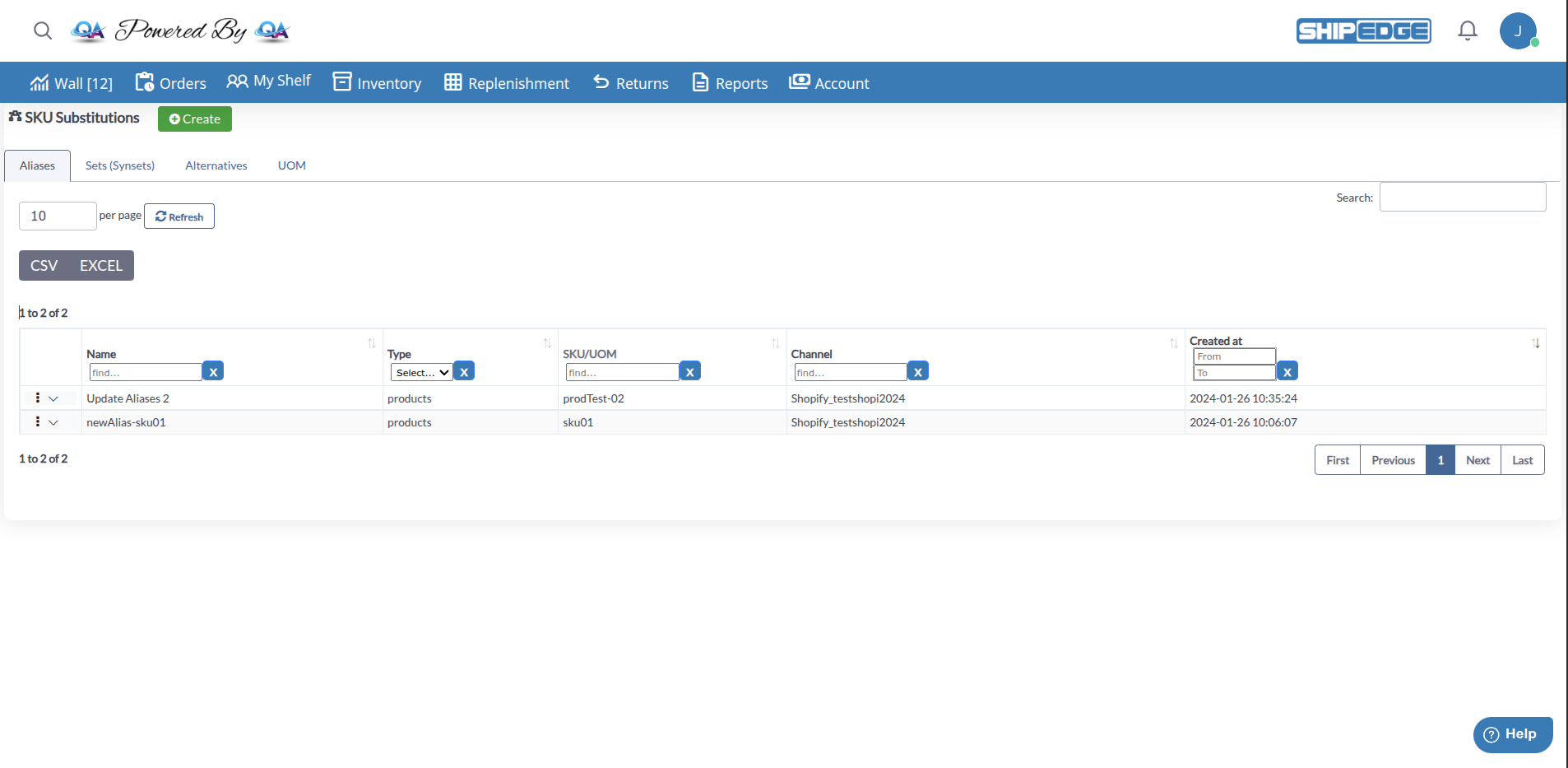
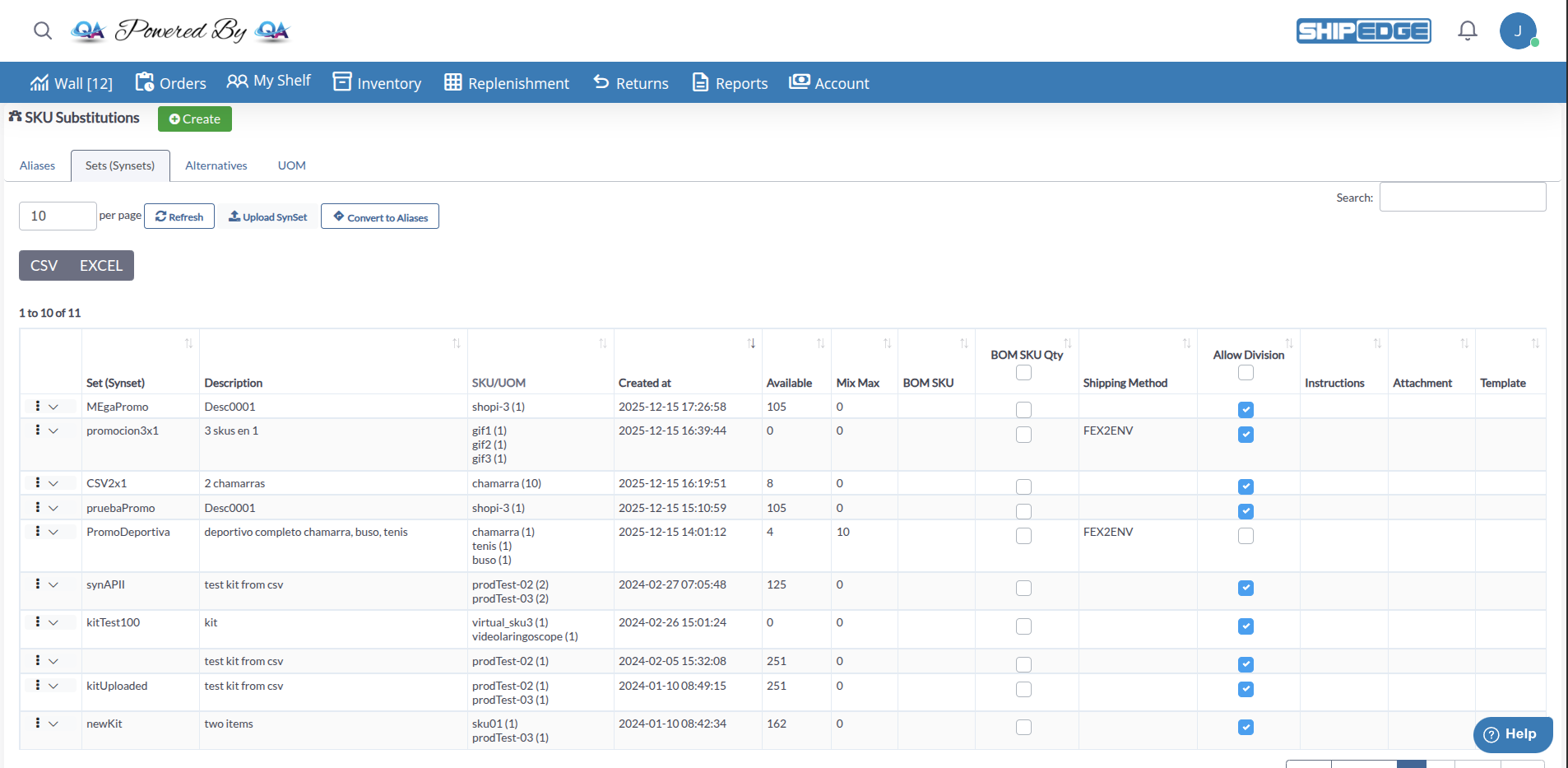
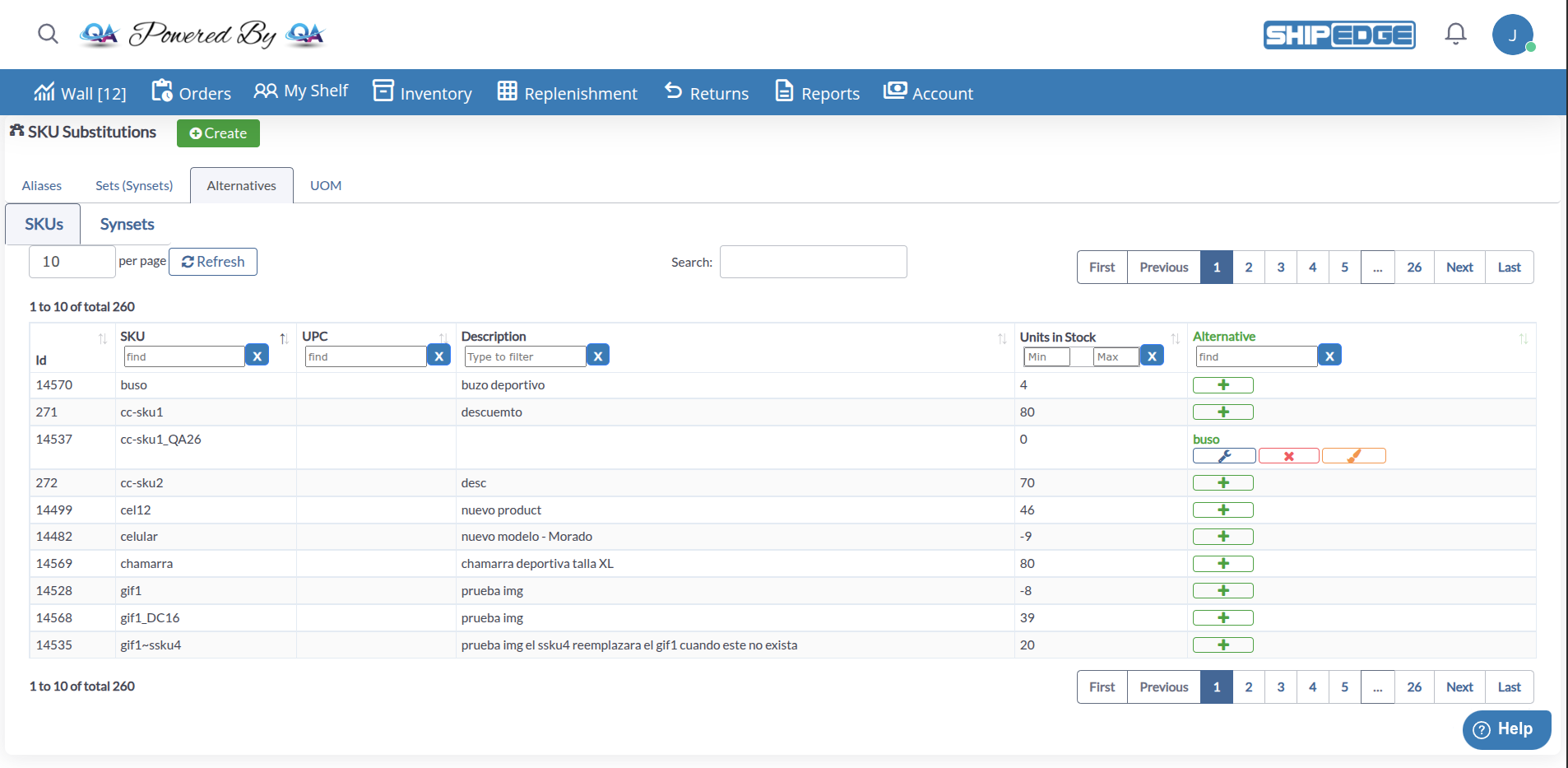
SKU Substitutions is a unified interface that manages different types of product relationships in your inventory. Use it to link channel SKUs to inventory SKUs, translate kits to components, map replacement products, and configure unit of measure relationships.
This feature helps you handle complex product scenarios like multi-channel selling, product bundles, seasonal variants, and automatic substitutions when products are unavailable.
Access SKU Substitutions from Inventory , then click the SKU Substitutions button in the Catalog toolbar. The interface opens in a new tab with four main sections: Aliases, Sets (Synsets), Alternatives, and UOM.
Link channel-specific SKUs to your inventory SKUs using aliases for seamless integration across sales channels.
Translate kits or bundles into their component SKUs using synsets for accurate inventory tracking and fulfillment.
Map alternative SKUs that can automatically substitute unavailable products during order processing.
Configure UOM relationships to designate pack quantities and handle different measurement units for the same product.
SKU Substitutions manages four types of product relationships:
Purpose : Link channel SKUs to inventory SKUs
Aliases connect SKUs from external sales channels (like Amazon, Shopify, or distribution centers) to your internal inventory SKUs. This allows the system to recognize different SKU names from various channels as the same product in your inventory.
Use Cases :
Multi-channel selling where each channel uses different SKU codes
Distribution center integration with different naming conventions
Legacy system migration where old SKU codes need mapping
Purpose : Translate kits or bundles to components
Synsets define product bundles or kits and their component SKUs. When an order comes in for a kit, the system breaks it down into individual component SKUs for accurate inventory tracking and fulfillment.
Use Cases :
Product bundles sold as a single unit but fulfilled as separate items
Kits with multiple components
Gift sets and promotional packages
Purpose : Map replacement SKUs for products
Alternatives define products that can substitute each other when one is unavailable. The system can automatically suggest or use alternative SKUs during order processing when the original SKU is out of stock.
Use Cases :
Seasonal product variants (summer/winter versions)
Size or color substitutions with customer approval
Product upgrades or downgrades
Discontinued product replacements
Purpose : Designates the quantity of a SKU as a pack
UOM relationships define how individual units relate to packs or larger measurement units. This helps manage products sold in different quantities (e.g., individual units vs. cases).
Note : UOM is only available when enabled in your account settings.
Navigate to Inventory
Go to Inventory in the main navigation menu.
Click SKU Substitutions
In the Inventory toolbar, click the SKU Substitutions button. The SKU Substitutions interface opens in a new tab.
Select a Tab
Choose the tab you want to work with:
Aliases - For channel SKU mappingSets (Synsets) - For kit/bundle configurationAlternatives - For replacement product mappingUOM - For unit of measure relationships (if enabled)
Open SKU Substitutions
Navigate to Inventory , then click SKU Substitutions .
Click Create
Click the Create button in the SKU Substitutions page header.
Choose Substitution Type
In the modal that appears, select the type of substitution you want to create:
Aliases : Link channel SKUs to inventory SKUsKits : Translate kits or bundles to componentsAlternatives : Map replacement SKUs for productsUOM : Designate the quantity of a SKU as a pack
Complete the Form
Fill in the required information based on the substitution type you selected. The form fields vary depending on the type.
Save
Click Save or Continue to create the substitution relationship.
Aliases connect external channel SKUs to your internal inventory SKUs.
Navigate to SKU Substitutions → Aliases tab
Click Create button
Select Aliases from the substitution type options
Enter the channel SKU and map it to your inventory SKU
Specify the channel or distribution center
Save the alias relationship
View : All aliases are displayed in the Aliases tableEdit : Click on an alias row to modify the relationshipDelete : Remove alias relationships when no longer neededFilter : Use table filters to find specific aliases
Synsets define product bundles and their component SKUs.
Navigate to SKU Substitutions → Sets (Synsets) tab
Click Create button
Select Kits from the substitution type options
Enter the SynSet name and description
Add component SKUs with their quantities
Configure additional settings (BOM SKU, shipping method, mix/max)
Save the SynSet
View : SynSets are displayed in a grid showing components and quantitiesEdit : Click the edit icon on a SynSet to modify componentsDelete : Remove SynSets that are no longer in useUpload : Import SynSets from CSV files using the Upload SynSet buttonConvert : Convert SynSets to Aliases using the Convert to Aliases button
Alternatives map replacement SKUs that can substitute unavailable products.
Navigate to SKU Substitutions → Alternatives tab
Choose a SKU or SynSet from the list
Click the + button next to the selected item
In the modal that opens, choose between Skus or Synsets tabs to find your alternative
Use the search filters or browse the table to find the alternative SKU or SynSet
Click the Select button in the Actions column for the alternative you want to use
Review the relationship visualization in the confirmation modal
If creating a SKU-to-SKU relationship (not SynSet), you can optionally check Bidirectional to create the relationship in both directions
Click Confirm to save the alternative relationship
View : All products with alternatives are shown in the Alternatives tableEdit : Click the edit icon to modify alternative relationshipsRemove : Delete alternative relationships when products are discontinuedTrace : View the complete substitution path using the trace feature
UOM relationships define pack quantities and measurement units.
Note : UOM functionality is only available when enabled in your account settings.
Navigate to SKU Substitutions → UOM tab
Click Create button
Select UOM from the substitution type options
Enter the base SKU and pack SKU
Define the quantity relationship
Configure additional UOM settings
Save the UOM relationship
Use clear, descriptive names for SynSets and consistent relationship types for alternatives to make management easier.
Periodically review and update substitution relationships, especially when discontinuing products or changing product lines.
Test alternative substitutions with manual orders before relying on automatic substitution in production.
Keep notes on why certain substitutions exist to help team members understand product relationships.
You can import SynSet configurations from CSV files:
Navigate to SKU Substitutions → Sets (Synsets) tab
Click Upload SynSet button
Select your CSV file
Map columns to SynSet fields
Review and confirm the import
Export substitution data directly from the tables:
Navigate to the appropriate tab (Aliases, SynSets, Alternatives, or UOM)
Choose your export format (CSV, Excel)
Download the exported file
Problem : Alternative SKU is not being used during order processing.
Solutions :
Verify alternative is set up in SKU Substitutions → Alternatives tab
Check that the alternative relationship is active
Ensure the alternative SKU has available inventory
Verify order rules allow substitution
Test with a manual order to verify substitution works
Problem : Kit orders are not being broken into component SKUs.
Solutions :
Verify SynSet is configured correctly in Sets (Synsets) tab
Check that all component SKUs exist and are active
Ensure component quantities are set correctly
Verify the order is using the SynSet name, not individual SKUs
Problem : Channel SKU is not mapping to inventory SKU.
Solutions :
Verify alias exists in Aliases tab
Check that channel type matches your integration
Ensure alias is active and not deleted
Verify the channel SKU format matches exactly
Problem : UOM tab is not showing in SKU Substitutions.
Solutions :
Check if UOM is enabled in your account settings
Verify your user level has access to UOM features
Contact support if UOM should be enabled but is not visible