All Transactions provides a complete view of all billing transactions in your account. View partial invoices, service charges, cost details, and transaction history. Filter transactions by date, service type, or other criteria, and export data for accounting and analysis.
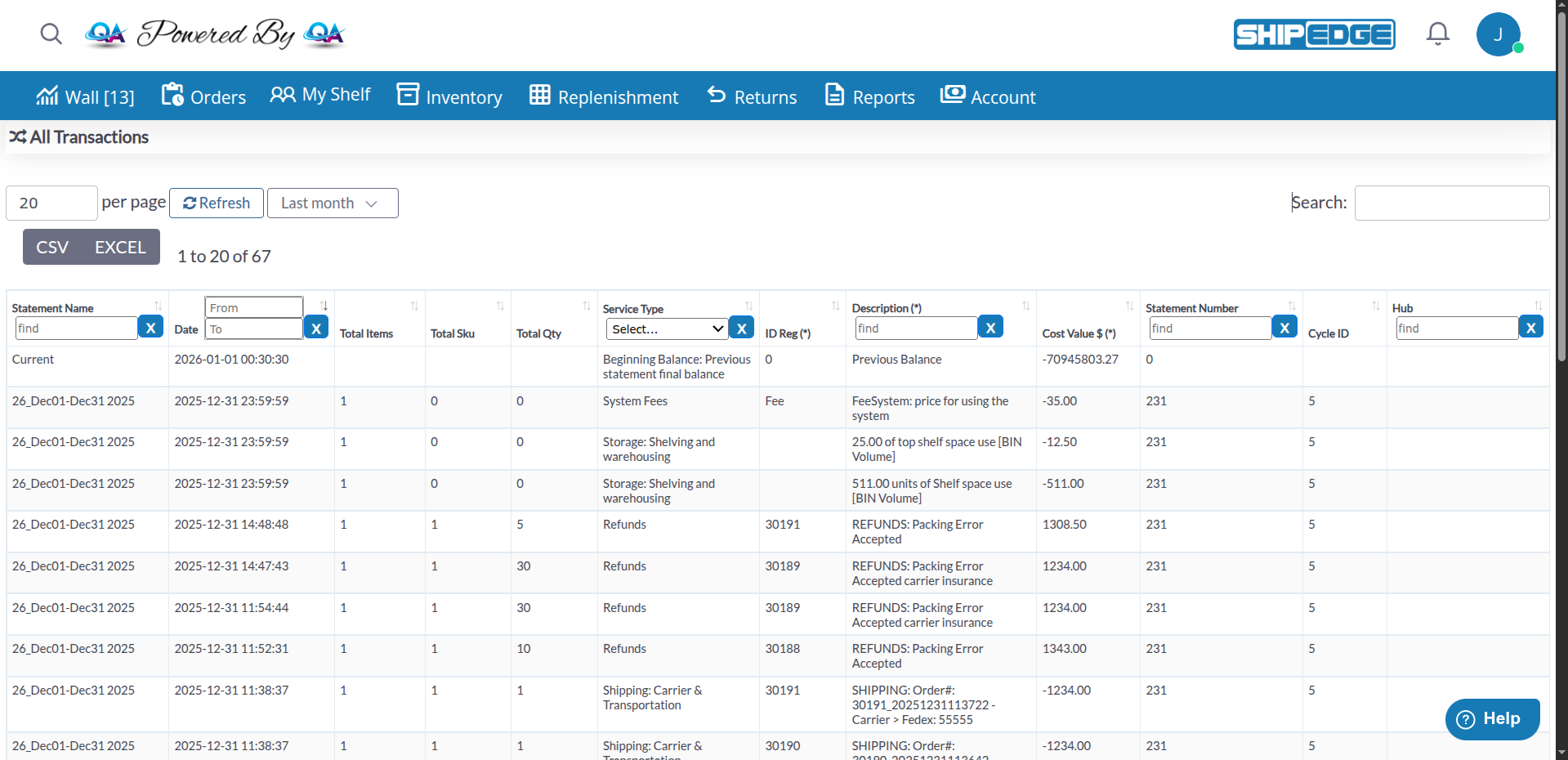
View all billing transactions in one place. Track every service charge, cost, and billing event for complete financial transparency.
Edit or delete transactions before they’re finalized in invoices. Make corrections to billing entries before statements are generated.
Filter transactions by date range, service type, company, statement name, and more. Find specific transactions quickly with powerful search options.
Export transaction data to CSV or Excel for accounting and analysis. Use exported data for financial reporting and reconciliation.
-
Navigate to Account Overview
Go to My Account → Account Overview.
-
Click All Transactions Link
Click the All Transactions link in the Account Overview page to view all transactions.
-
View All Transactions
The All Transactions page displays all billing transactions for your account with filtering and export options.
All Transactions shows individual billing transactions from the partial_invoice table. These are individual charges that are later grouped into statements and invoices.
Partial Invoices
- Individual billing transactions for services rendered
- Each transaction represents a specific service charge or cost
- Transactions are grouped into statements and invoices later
Service Charges
- Charges for various services (shipping, handling, storage, etc.)
- Each service type has its own transaction entry
- Service types are displayed by name, not just ID
Current vs. Finalized
- Current: Transactions with
ID_Invoice = 0 (not yet in an invoice)
- Finalized: Transactions with
ID_Invoice > 0 (already in an invoice)
- Only Current transactions can be edited or deleted
The All Transactions table displays the following columns:
Statement Name
- The statement name or invoice name for the transaction
- Examples: “Current”, statement period names
- Filterable by text search
Date
- The registration date of the transaction
- When the transaction was recorded
- Filterable with date range picker
Total Items
- The total number of items in the transaction
- Count of items charged
Total Sku
- The total number of unique SKUs in the transaction
- Count of different products
Total Qty
- The total quantity of items in the transaction
- Sum of all quantities charged
Service Type
- The type of service being charged
- Examples: Shipping, Handling, Storage, etc.
- Filterable with dropdown selection
- Shows service name, not just ID
ID Reg (*)
- The registration ID or reference ID
- Links to the source record (order, adjustment, etc.)
- Filterable by text search
Description (*)
- Detailed description of the transaction
- Explains what the charge is for
- Filterable by text search
Cost Value $ (*)
- The cost value of the transaction
- Displayed with 2 decimal places for readability
- Calculated with 8 decimal places for accuracy
- Total shown in footer with info tooltip
- Negative values indicate credits or adjustments
Statement Number
- The statement or invoice number
- Shows which statement/invoice the transaction belongs to
- “0” means transaction is not yet in a statement
- Filterable by text search
Cycle ID
- The billing cycle ID
- Links to pricing cycle information
Hub
- The warehouse hub associated with the transaction
- Shows which warehouse location processed the transaction
- Filterable by text search
Year Filter
- Dropdown menu in the table controls
- Options:
- Last month: Shows transactions from the last month
- Last 3 months: Shows transactions from the last 3 months
- Transactions [Year]: Shows transactions for a specific year
- Warning icon appears for past years
- Filter persists in your session
Column Filters
Statement Name Filter
- Text filter below Statement Name column
- Type to search by statement/invoice name
- 1-second delay before filtering
Date Filter
- Date range picker below Date column
- Select start and end dates
- Filter by transaction registration date
Service Type Filter
- Dropdown filter below Service Type column
- Select from available service types
- Shows all service types used in transactions
Description Filter
- Text filter below Description column
- Type to search transaction descriptions
- 1-second delay before filtering
Statement Number Filter
- Text filter below Statement Number column
- Type to search by statement/invoice number
- 1-second delay before filtering
Hub Filter
- Text filter below Hub column
- Type to search by warehouse hub
- 1-second delay before filtering
Global Search
- Search box in the top-right of the table
- Searches across all columns
- 1-second delay before filtering
Records Per Page
- Select how many records to display per page
- Options: 10, 20, 50, 100, 200, 500, 1000, 1500, 2000, 2500, 5000
- Default: 10 records per page
Sorting
- Click any column header to sort
- Default sort: Date (descending - most recent first)
- Click again to reverse sort order
Cost Value Total
- Shows sum of Cost Value for current page
- Displays with 2 decimal places
- Info icon explains decimal precision:
- Display: 2 decimal places (for readability)
- Calculation: 8 decimal places (for accuracy)
- Difference doesn’t affect total amount
Statement Number Count
- Shows count of transactions on current page
- Helps verify pagination
CSV Export
- Click CSV button to export current filtered view
- Exports only visible/filtered data
Excel Export
- Click EXCEL button to export current filtered view
- Exports only visible/filtered data
Maximum Records
- Maximum export: 5,000 records
- Alert appears if filtered results exceed limit
- Message: “Your query has [count] record. Maximum number of downloadable records is 1,000. Please modify filters and try exporting data again.”
- Apply filters to reduce results before exporting
Review transactions regularly to catch billing errors early. Check transactions before they’re finalized in invoices.
Use year filter or date range to focus on specific periods. Reduces data volume and improves performance.
Check footer totals to verify transaction sums. Use export for detailed analysis and reconciliation.
Make corrections before transactions are finalized in invoices. Once in an invoice, transactions cannot be edited.
What Are Partial Invoices?
- Individual billing transactions recorded in the system
- Each transaction represents a specific service charge
- Transactions are grouped into statements and invoices later
- Stored in
partial_invoice table
Display vs. Calculation
- Display: 2 decimal places (for readability)
- Calculation: 8 decimal places (for accuracy)
- Footer total uses 8 decimal precision
- Export includes full 8 decimal precision
Why the Difference?
- Easier to read with 2 decimals
- More accurate calculations with 8 decimals
- Total amount is not affected by display precision
Common Service Types
- Shipping charges
- Handling fees
- Storage costs
- Adjustment charges
- Other service fees
Service Type Display
- Shows service name, not just ID
- Filterable by dropdown selection
- Service types loaded dynamically from database
Problem: All Transactions table is empty
- Solution:
- Check year filter - may be filtering out all data
- Try “Last month” or “Last 3 months” filter
- Clear all filters to see all available data
- Verify you have transactions in the system
Problem: Export shows error or limited records
- Solution:
- Check if filtered results exceed 5,000 records
- Apply more filters to reduce data volume
- Use year filter to limit time period
- Export in smaller batches if needed
Problem: Page loads slowly or times out
- Solution:
- Apply filters to reduce data volume
- Use year filter to limit time period
- Reduce records per page setting
- Clear filters and use date range instead
- Contact support if issues persist
Problem: Footer totals seem incorrect
- Solution:
- Totals are for current page only, not all data
- Check if filters are applied
- Verify Cost Value precision (2 decimals display, 8 decimals calculation)
- Export data to verify totals across all records
Next Steps:
