
Centralized Communication
View all communication from OMS accounts in one place. See topics from all accounts and respond quickly to questions and issues.
Esta página aún no está disponible en tu idioma.
Wall Communication is the internal messaging system for warehouse operations. As a warehouse user, you can view all communication from OMS accounts, respond to questions, manage topics, and coordinate with your team. Use Wall Communication to stay connected with accounts and resolve issues quickly.
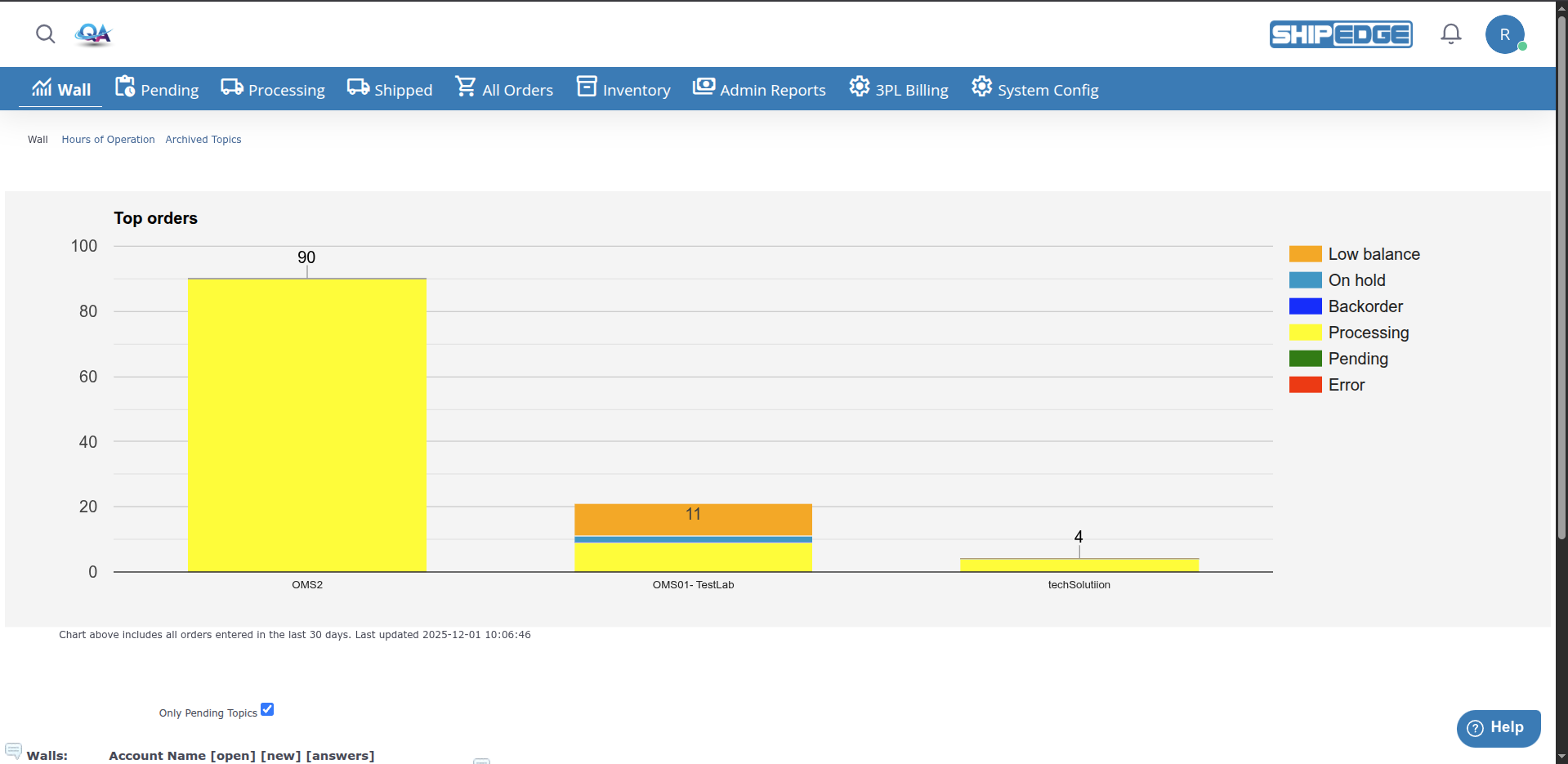
View all communication from OMS accounts in one place. See topics from all accounts and respond quickly to questions and issues.
See which topics need attention with open topic counts. Track topics without replies and prioritize responses.
Coordinate with warehouse team members. See who responded to topics and manage conversations together.
Manage communication for multiple accounts. View account-specific walls and respond to account questions.
What you see in Wall Communication depends on your warehouse user level:
Warehouse users see:
You can:
Warehouse managers have all warehouse user capabilities plus:
Navigate to Wall Communication
Click Wall in the warehouse navigation menu. The Wall Communication page opens showing all account walls.
View Account Walls
See a list of all OMS accounts with their communication status:
Select Account or Warehouse Wall
Click on an account name to view that account’s wall, or click Warehouse to view warehouse-wide communication.
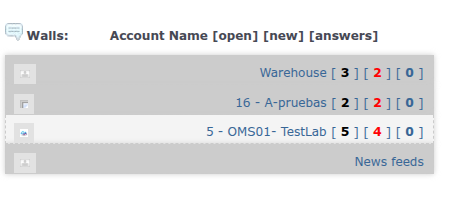
Account walls show numbers in brackets. The format depends on your role:
Format: Account Name [open] [new] [answers]
[open]: Number of open topics (topics not marked as done)
[new]: Number of topics without replies
[answers]: Number of topics waiting for warehouse response
System admins see: Account ID - Company Name [new topics] [answers] (no open count)
Example: 123 - Acme Corp [5] [2] [3] means:
By default, Wall Communication shows only pending topics (topics not marked as done).
To view all topics:
To view only pending topics:
Select Account
Click on an account name from the account walls list. Accounts show as Account ID - Company Name.
View Account Topics
All topics for that account are displayed, showing:
Navigate to Another Wall
Click another account name or Warehouse from the list to switch walls.
Click Warehouse
Click Warehouse from the account walls list.
View Warehouse Topics
See all warehouse-wide communication including:
View Chart
The Top Orders Chart shows visual overview of orders entered in the last 30 days, updated automatically.
Open the New Topic Area
Find the text area at the top of the wall with placeholder “Start a new topic”.
Type Your Message
Enter your question or comment in the text box.
Add a Photo (Optional)
Click Add photo to this post to attach an image before posting.
Post
Click Post to publish your topic.
Find the Topic
Browse the wall to find the topic you want to reply to. Topics show the original message and all existing replies.
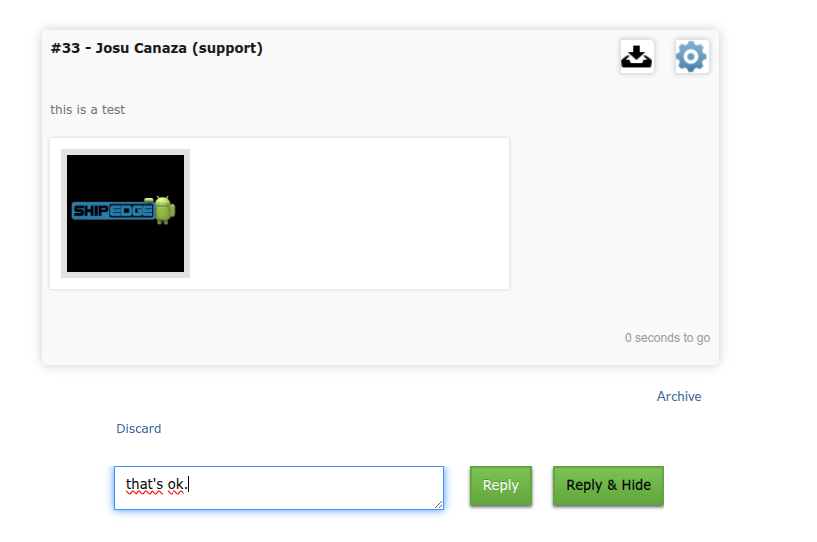
Click Reply
Click Reply to expand the reply area, then type in the text box (placeholder: “Write a reply…”).
Write Your Reply
Type your response in the reply text box. Include:
Submit Your Reply
Click Reply to add your reply. Warehouse users and managers can also click Reply & Hide to reply and mark the topic as done in one step.
Mark topics as done when they’re resolved:
Find the Topic
Locate the topic that has been resolved or answered.
Reply and Mark Done
When replying, click Reply & Hide to reply and mark as done in one step. Or use the Done icon (checkmark) on the topic to mark it as resolved without replying. OMS account users see an Archive icon instead of Done.
Topic Status Updated
The topic is marked as resolved and moved to archived topics (when using “Show less” view).
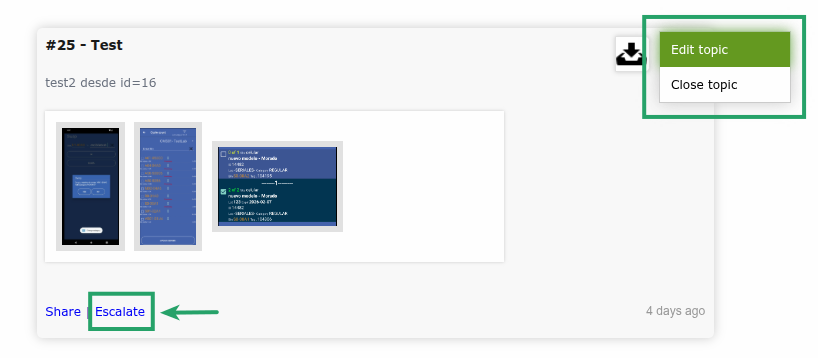
Post authors and admins can use the options menu on each post:
Escalate important topics to system administrators:
Find the Topic
Locate the topic that needs admin attention.
Escalate
Click the Escalate button (if available). The topic is flagged for system admin review.
Open Archived Topics
Click Archived Topics link at the top of the Wall Communication page.
Browse Archived Topics
View all topics that have been marked as done or archived.
View warehouse hours of operation:
Open Hours of Operation
Click Hours of Operation link at the top of the Wall Communication page.
View Schedule
A popup window shows the warehouse operating hours and schedule.
When viewing the warehouse wall, see a visual chart showing:
The chart updates automatically and provides quick insights into order activity.
Check topics without replies regularly and respond quickly. This helps maintain good communication with accounts and resolves issues faster.
Mark topics as done when they’re resolved. This keeps the active wall clean and helps team members focus on open issues.
Write clear, specific responses. Include order numbers, SKUs, or specific details to help accounts understand the resolution.
Regularly check account walls for new topics. Use the status indicators (red numbers) to prioritize which accounts need attention.
Check if other team members have already responded before replying. Avoid duplicate responses and coordinate team communication.
Problem: Account walls list doesn’t appear or shows no accounts.
Solutions:
Problem: Reply button doesn’t appear or doesn’t work.
Solutions:
Problem: Done icon or Reply & Hide button doesn’t appear or doesn’t work.
Solutions:
Problem: Top Orders Chart doesn’t appear on warehouse wall.
Solutions:
Problem: Open topics, new topics, or answers counts seem incorrect.
Solutions:
Next Steps:
Related Features: