
Process Orders by Account
Process all pending orders for one or more accounts at once. Use the Account filter and Process button to move orders to Processing in bulk.
Esta página aún no está disponible en tu idioma.
Waves are batches of orders grouped for wave picking. You create waves from Pending Orders by clicking Process, then view and manage them in the Batches view. Waves help you process many orders together and pick them using the mobile app.
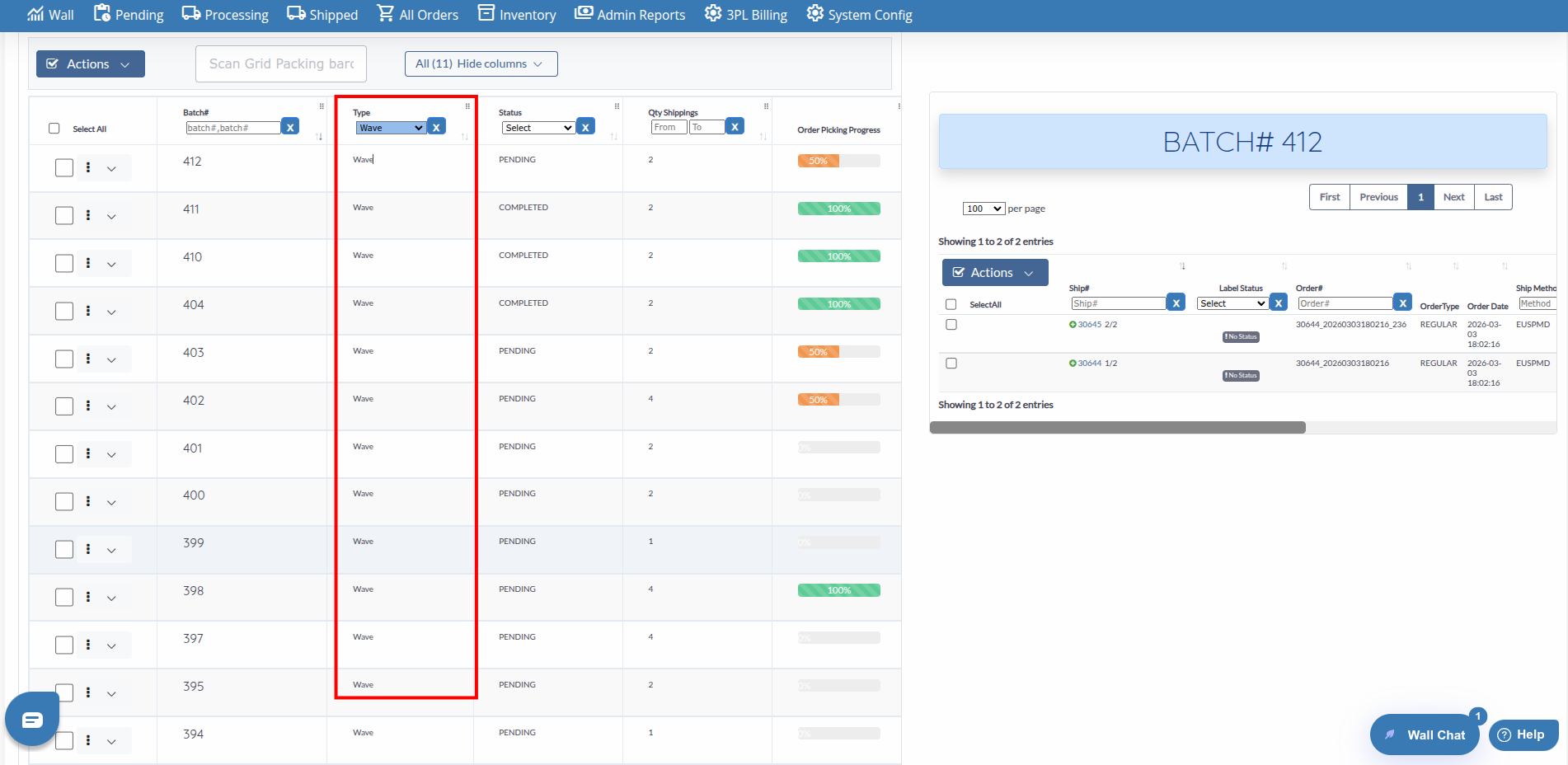
Waves are a special batch type (Type = Wave) in the Batches table. You can use the same batch actions: Get Labels, Print Labels, Print Packing List, and more. The main difference is that waves are created from Pending Orders and are designed for wave picking workflows.
Waves are groups of orders that move from Pending to Processing together. When you process orders as waves, the system creates them as wave-type batches. You can then pick these orders in the mobile app using the wave picking flow.
Waves are created in Pending Orders and appear in Batches. Filter the Batches table by Type = Wave to see only waves.
Process all pending orders for one or more accounts at once. Use the Account filter and Process button to move orders to Processing in bulk.
Waves are designed for mobile picking. Pickers can work through wave orders in the mobile app for efficient warehouse flow.
Manage waves like any other batch. Get labels, print packing lists, and use all batch actions from the Batches view.
See wave status in Batches: PENDING, PROCESSING, PICKING, or COMPLETED. Monitor progress and know when waves are ready to pick.
Waves are created in Pending Orders and viewed in Batches:
Go to Pending Orders
Click Pending Orders in the warehouse navigation menu. The page shows all pending orders in a table.
Filter by Account (optional)
Use the Account filter in the top bar to select one or more accounts. This limits which orders to process.
Select orders to process
Use one of these methods:
Confirm and wait
Confirm the action. On success, you see “Moving orders to Processing.” The orders move to Processing and waves are created. On the Batches page, filter by Type = Wave to see them.
Go to Batches
Click Batches in the warehouse navigation menu.
Filter by Wave
In the Type column filter, select Wave. The table shows only wave-type batches.
View wave details
Click a wave row to see its orders in the right panel. Each wave shows Batch#, Type (Wave), Status, Qty Shippings, Progress, Labels Status, Print Status, and more.
Use batch actions
Select one or more waves and use the Actions menu: Get Labels, Print Labels, Print Packing List, Print Picking Summary, Remove Batches, and others.
Waves can have these statuses in the Batches table:
| Status | Meaning |
|---|---|
| PENDING | Wave is created but not yet being processed |
| PROCESSING | Wave is being processed |
| PICKING | Wave is being picked (often in mobile app) |
| COMPLETED | Wave picking is complete |
Waves are designed for picking in the mobile app. When a wave is in PICKING status, pickers can work through the orders using the wave picking flow. The wave groups orders together so pickers can pick multiple orders in one pass.
Use the Account filter to process waves for specific clients. This keeps waves organized by account.
After processing, go to Batches and filter by Wave to confirm your waves were created and see their status.
Get labels and print packing lists for waves before pickers start. This helps avoid delays during picking.
If the system is busy, wait a few minutes before trying again. Processing waves uses a queue that may be full.
Problem: The Process button shows this message when you try to create waves.
Solution: The system is processing other orders. Wait a few minutes and try again. The wave processing queue has limits; when it is full, new requests are paused.
Problem: You processed orders but do not see waves in Batches.
Solution: The waves may take a moment to appear. Refresh the Batches page. Make sure you filter by Type = Wave to see only wave-type batches. If you filtered by Account in Pending Orders, check that the account had pending orders.
Problem: You try to remove orders from a wave but get a warning.
Solution: If the wave is currently being picked, the message says: “The selected wave is currently being picked. If you wish to remove the Ship#(s)… you must first release it in the mobile app.” Release the wave in the mobile app before removing orders.
Next Steps: