
Multiple Presentations
Define different units for the same product (individuals, boxes of 12, pallets, etc.) and manage inventory in all of them.
Esta página aún no está disponible en tu idioma.
Unit Of Measure (UOM) lets you view different units of measure for your products, such as individual units, boxes, packs, or containers. This is useful when you sell products in different presentations and need to track inventory and process orders using different units.
Define different units for the same product (individuals, boxes of 12, pallets, etc.) and manage inventory in all of them.
The system automatically converts between units using the conversion factor (unit_factor) you define.
Track available inventory in each unit of measure and automatically calculate available units considering orders in process.
Process orders that require different units of measure, such as complete boxes or individual units of the same product.
Associate specific units of measure to bins for precise location and quantity control.
Integrates with Packaging for automatic packaging recommendations based on configured units of measure.
You can access Unit Of Measure in two ways:
From Packaging
Go to Inventory > Packaging. If Lot is active for your account, you will see the Unit Of Measure button in the page header. Click it to open the Unit Of Measure list in a new tab.
Unit Factor is the number that indicates how many individual units a unit of measure contains. For example:
The system uses this factor to automatically convert between units when processing orders or querying inventory.
The number of units this package or presentation contains. Used together with Unit Factor for inventory calculations.
A unique SKU that identifies this specific unit of measure. Useful for integrations with sales channels that require different SKUs for different presentations.
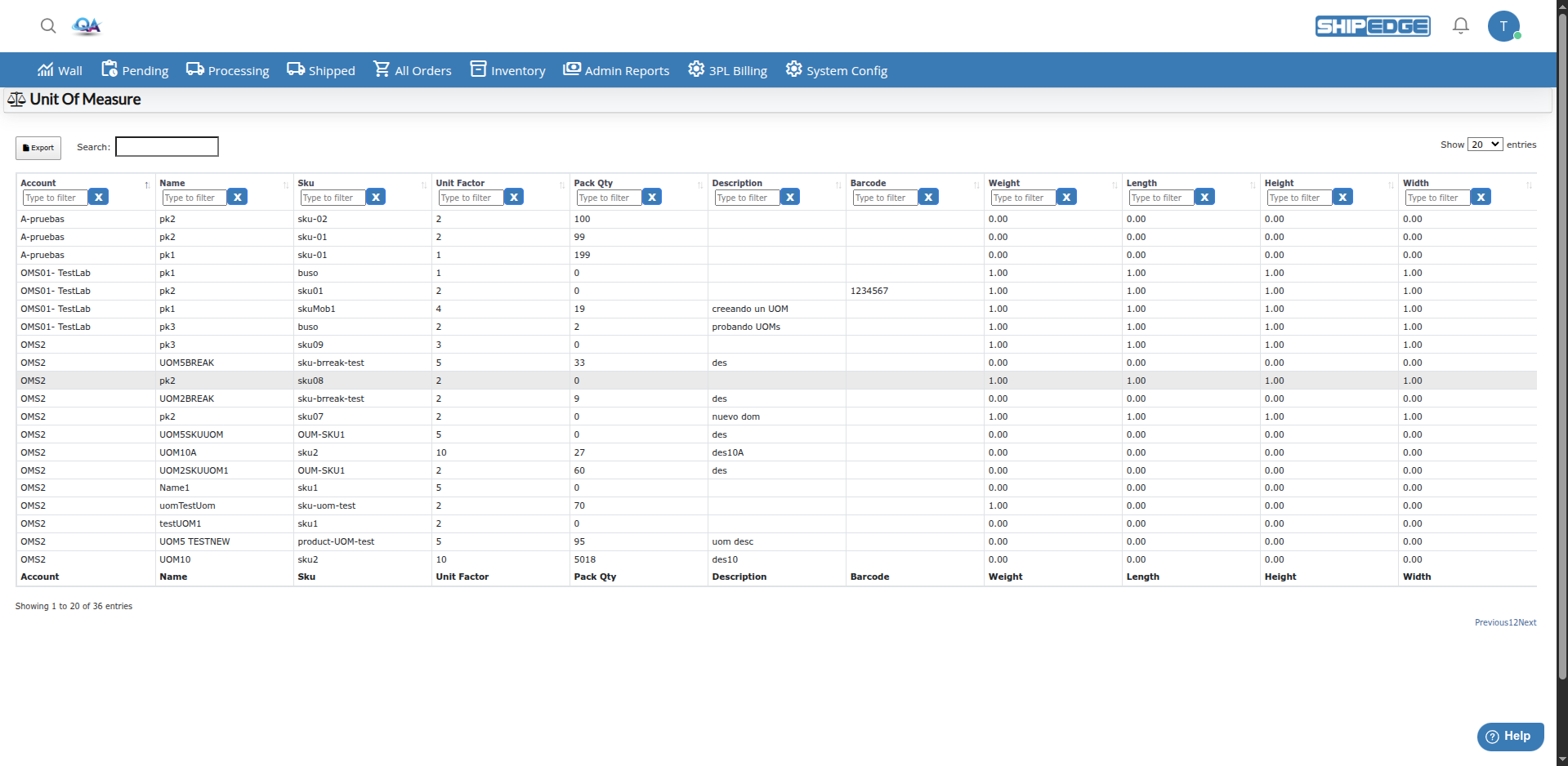
The main page shows a table with all configured units of measure:
You can filter and sort the table using the search fields in each column header.
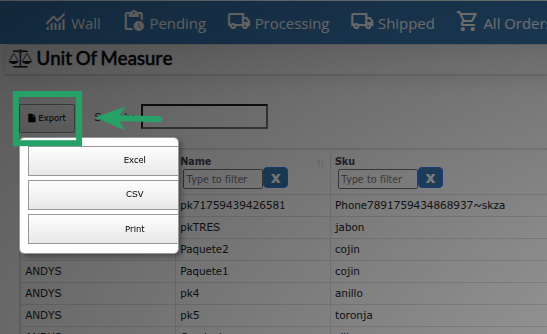
You can export the Unit Of Measure list:
Click Export
In the table toolbar, click the Export button (file icon).
Select format
Choose the export format:
Download the file
The file will download with all data from the current table (including applied filters).
Unit Factor is key for conversion between units. Here are examples:
Example 1: Product sold in boxes
If you have 5 boxes in inventory, the system calculates: 5 × 12 = 60 individual units available.
Example 2: Product sold in pallets
If you have 2 pallets in inventory, the system calculates: 2 × 144 = 288 individual units available.
Example 3: Order processing If an order requires 50 individual units and you have inventory in boxes:
Use clear and descriptive names for units (e.g., “Box of 12” instead of just “Box”) to help identification.
Make sure Unit Factor is correct. An error here affects all inventory and conversion calculations.
If you integrate with sales channels that require different SKUs for different presentations, configure Pack SKU.
Use the same name structure and factors for similar products. Helps management and reduces errors.
Verify that inventory in different units of measure is consistent and reflects warehouse reality.
Test units of measure with test orders before using them in production to ensure conversions work correctly.
Problem: Available inventory doesn’t reflect correct units when there are multiple units of measure.
Solution:
Problem: Orders don’t convert correctly between units of measure.
Solution:
Problem: The Unit Of Measure button doesn’t appear on the Packaging page.
Solution:
Problem: You receive an error when configuring Pack SKU indicating it already exists.
Solution: