
Complete History
Access all completed return orders without time limits. Perfect for audits and historical analysis.
Esta página aún no está disponible en tu idioma.
Archived Returns shows all completed and archived return orders. Review return history, verify what was processed, and access historical data for reporting and analysis. This is your permanent record of all returns that have been completed and archived.
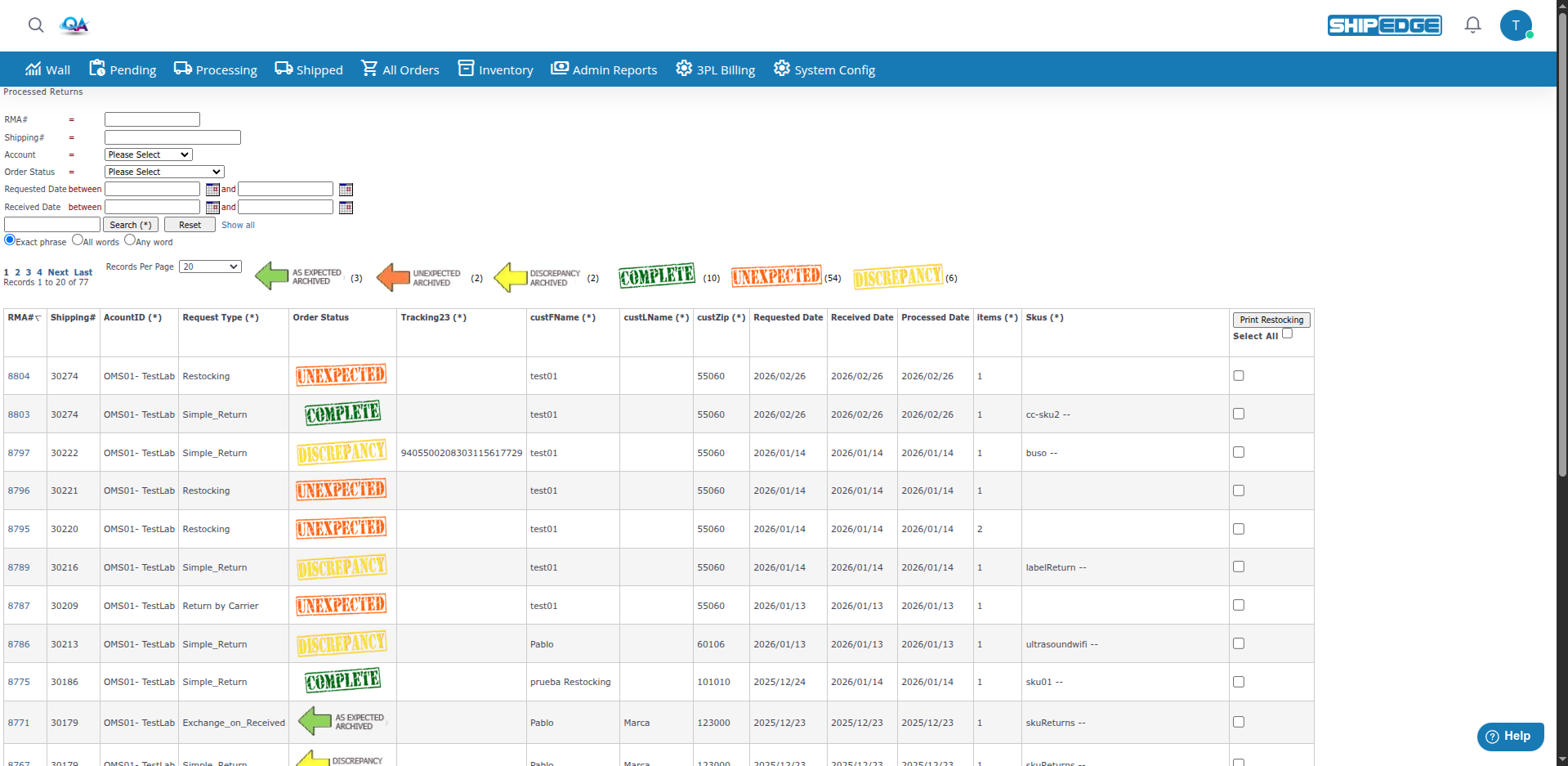
Access all completed return orders without time limits. Perfect for audits and historical analysis.
Review exactly what was processed in past returns. Verify items received, quantities, and processing dates.
Analyze return processing performance over time. See processing dates, completion times, and return rates.
Look up past returns quickly when customers have questions about previous return transactions.
Use the search form to filter by RMA#, Shipping#, account, status, and date ranges. Basic search finds returns by keyword.

Archived returns can have different statuses based on how they were completed:
| Status | Description |
|---|---|
| COMPLETE | Return processed successfully. All items received and processed as expected. |
| DISCREPANCY | Return processed but there was a discrepancy (wrong items, wrong quantity, etc.). |
| INCOMPLETE | Some expected items were not received in the return. |
| UNEXPECTED | Return contained unexpected items that weren’t in the original order. |
| AS EXPECTED ARCHIVED | Return completed successfully and archived. |
| DISCREPANCY ARCHIVED | Return with discrepancy archived. |
| INCOMPLETE ARCHIVED | Incomplete return archived. |
| UNEXPECTED ARCHIVED | Unexpected return archived. |
Returns are archived automatically when they reach completion statuses:
When a return reaches these completion statuses, it appears in Processed Returns:
These returns can be manually archived to their archived versions, but they already appear in the archived view.
Returns can be archived manually:
Open Processed Returns
Go to Returns → Archived Returns. From the active Returns list (Return Orders), click Processed Returns to open the page in a new tab.
Review the List
The table shows archived return orders with:
Use Search and Filters
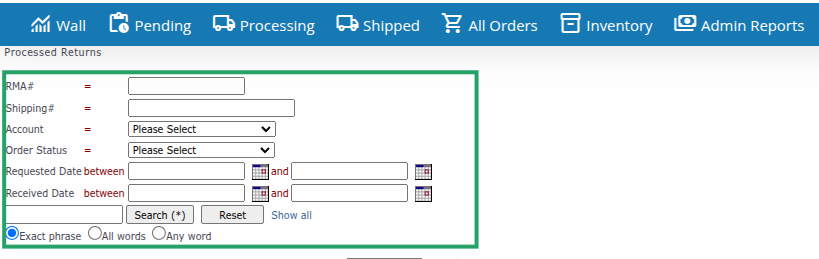
The search form at the top lets you filter by:
Use the search box for keyword search, then click Search (*). Use Reset to clear, or Show all to remove filters. Choose Exact phrase, All words, or Any word for search type.
Change Records Per Page
Use the Records Per Page dropdown (10, 20, 50, 100, 200, 500, or All Records) to control how many rows show.
Sort Columns
Click column headers to sort by that field. Click again to reverse the sort order.
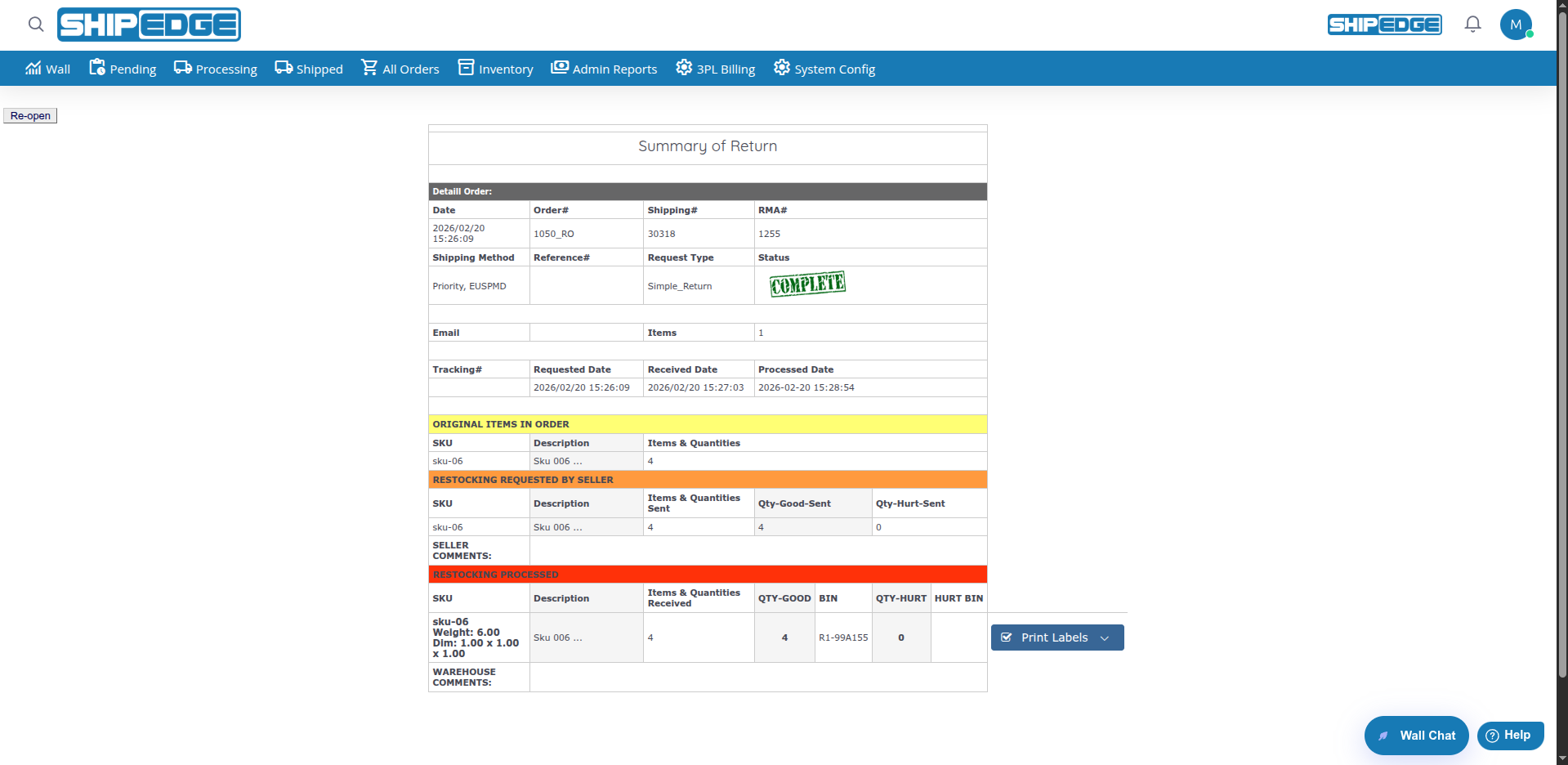
Click on an RMA#
Click the RMA# in the first column to open the detail view. Restocking returns open in one view; other types open in a different view.
Review Complete Information
The detail view shows:
Verify Processing
Check that returns were processed correctly:
What it means:
When you see this:
What it means:
When you see this:
What it means:
When you see this:
What it means:
When you see this:
You can print restocking forms for archived returns:
Select Returns
Check the boxes next to returns you want to print restocking forms for.
Select All (Optional)
Check Select All to select all returns on the current page.
Click Print Restocking
Click the Print Restocking button to generate restocking forms for selected returns.
Forms Generate
PDF documents are generated showing restocking information for the selected returns.
Use the Search Box
Enter keywords in the search box to find returns by:
Click Search (*) to run the search. Use Reset to clear the form, or the Show all link to remove all filters.
Choose Search Type
Select how keywords are matched:
Use the Filter Form
The form above the table lets you filter by:
Filter by Status
Focus on specific return outcomes:
Review archived returns periodically to verify processing accuracy and identify trends.
Verify that returns show the correct status. AS EXPECTED means success, DISCREPANCY means issues found.
Export data regularly to analyze return trends, identify problem products, and track processing performance.
Use archived returns to quickly answer customer questions about past return transactions.
Keep archived returns for audit purposes. They provide complete history of all return processing activities.
Review DISCREPANCY returns to identify patterns and improve return processing procedures.
Problem: A completed return doesn’t appear in archived list.
Solution:
Problem: A return shows DISCREPANCY but you expected COMPLETE.
Solution:
Problem: Can’t open an archived return to view details.
Solution: