
Complete History
Access all completed replenishment requests without time limits. Perfect for audits and historical analysis.
Esta página aún no está disponible en tu idioma.
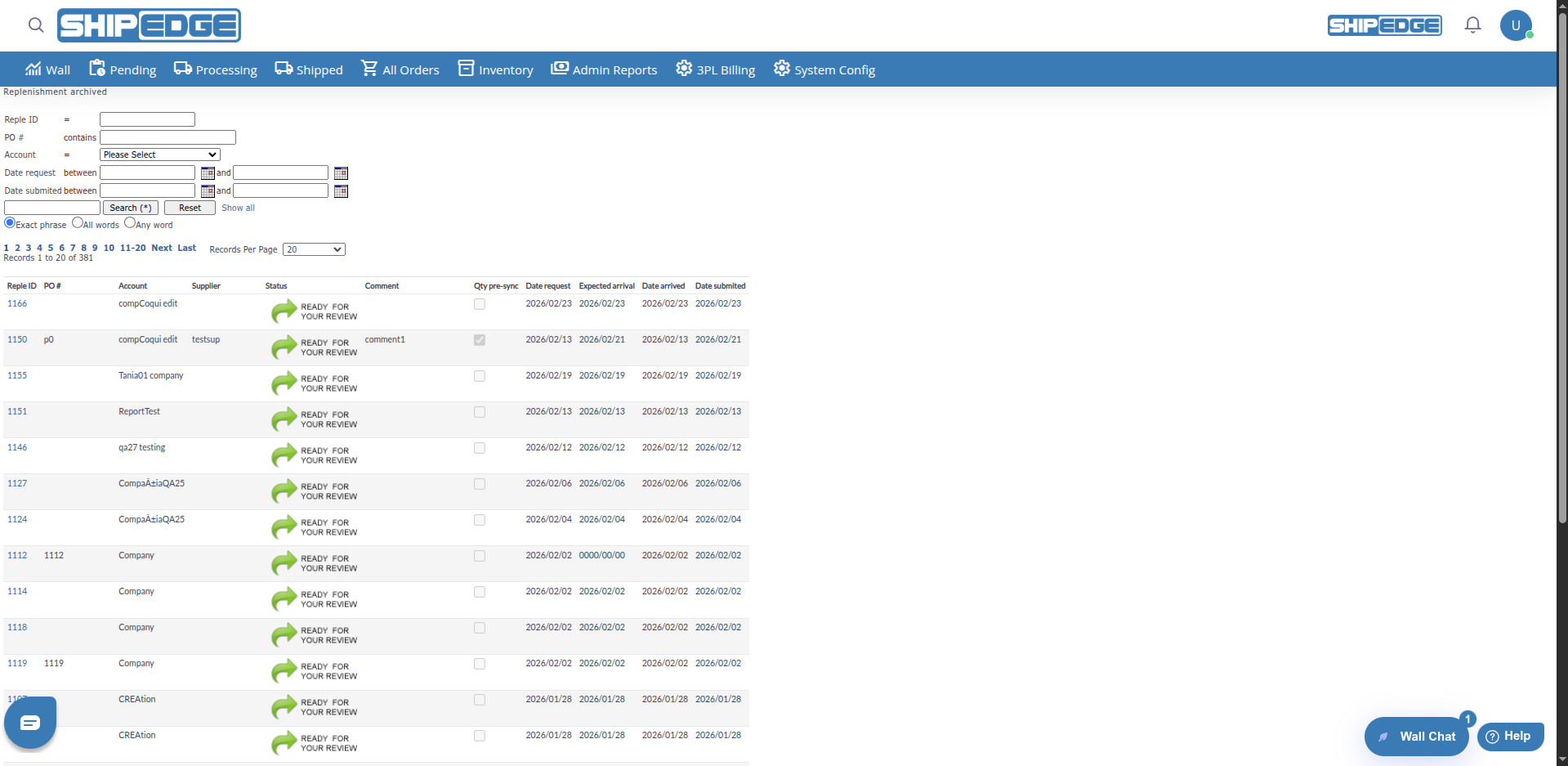
Archived Replenishments shows all completed and archived replenishment requests. Review receiving history, verify what was received, track processing dates, and see payment status. This is your historical record of all inventory that has been received and processed.
Access all completed replenishment requests without time limits. Perfect for audits and historical analysis.
Review exactly what was received in past shipments. Verify SKUs, quantities, and processing dates.
See payment status for completed replenishments. Track which shipments have been paid to suppliers.
Analyze receiving performance over time. See processing dates, arrival dates, and completion times.
Filter by Reple ID, PO #, Account, Date request, and Date submited to find specific archived requests.
Navigate to Archived Replenishments
Go to Inventory → Replenishments and inside of it click in the Archived History button.
Review the List
The table shows all archived replenishment requests with:
Filter Archived Requests
Use search and filter options to find specific requests:
Sort and Paginate
Click column headers to sort. Use Records Per Page (10, 20, 50, 100, 200, 500, All Records) and First, Previous, Next, Last to navigate.
Click on Reple ID
Click the Reple ID in the table to open the detail view. The link goes to the replenishment detail page.
Review Complete Information
The detail view shows:
Verify Receiving
Check that all items were received correctly:
What it means:
When you see this:
What it means:
When you see this:
What it means:
When you see this:
What to do:
What it means:
When you see this:
The Qty pre-sync column shows a checkbox for Sync API status:
Filter by Reple ID, PO #, or Account
Use the search form fields at the top:
Filter by Date Range
Use Date request (between) and Date submited (between) with the calendar pickers to narrow results.
Use Basic Search
Enter keywords and click Search (*). Basic search finds matches in: PO number, supplier name, comment, Sync API, tracking number, and other fields. Choose Exact phrase, All words, or Any word.
Clear Filters
Use Reset or Show all to clear all filters. Use Hide highlight to remove search term highlighting when results are shown.
Review archived replenishments regularly to verify receiving accuracy and track payment status.
Verify that replenishments show the correct status. PROCESSED means everything arrived, PARTIALLY PROCESSED means items are missing.
Use ARCHIVED to track which replenishments have been paid to suppliers for accounting purposes.
Use the search and filter options to analyze receiving trends, supplier performance, and processing times.
Review PARTIALLY PROCESSED requests to identify missing items and create new replenishments if needed.
Keep archived replenishments for audit purposes. They provide complete history of all receiving activities.
Problem: A completed replenishment doesn’t appear in archived list.
Solution:
Problem: A replenishment shows PARTIALLY PROCESSED but you expected PROCESSED.
Solution:
Problem: Can’t tell if a replenishment has been paid.
Solution: