
Complete Product Catalog
See all products with complete details including SKU, UPC, description, quantities, supplier, and product attributes.
Esta página aún no está disponible en tu idioma.
Catalog Management provides a comprehensive view of all products in your warehouse catalog. See product details, inventory quantities by status, and perform bulk actions on multiple products. Filter by any column, customize visible columns, edit product information, and export catalog data for reporting.

See all products with complete details including SKU, UPC, description, quantities, supplier, and product attributes.
Track inventory quantities by status: Good, Available, Staged, Hurt, Hold, and Blocked. Monitor inventory health at a glance.
Filter products by any column including SKU, UPC, description, quantities, supplier, category, dates, and more.
Select multiple products and perform actions like printing labels, changing pick style, or updating editing permissions.
Open the product editor from the row dropdown or Sku link to edit dimensions, weight, case quantity, serial tracking, pick style, and harmonization codes.
Export catalog data to CSV or Excel format for reporting, analysis, or integration with other systems.
Navigate to Catalog
Click Inventory from the warehouse menu, then select Catalog. The page loads showing all products in your catalog.
View Catalog Table
Browse the table showing product information: Account, Picture, SKU, UPC, Description, quantities by status, dimensions, supplier, and more.
Apply Filters
Use column filters below headers to narrow down products by any criteria.
Customize View
Use the Hide columns dropdown to show or hide columns. Preferences are saved for your account.
Use Row Actions
Click the dropdown (⋮) on any row for History, Edit, Print labels, or Channel Link.
The Catalog Management table displays comprehensive product information:
Product Identification:
Inventory Quantities:
Product Details:
Product Values:
Dates:
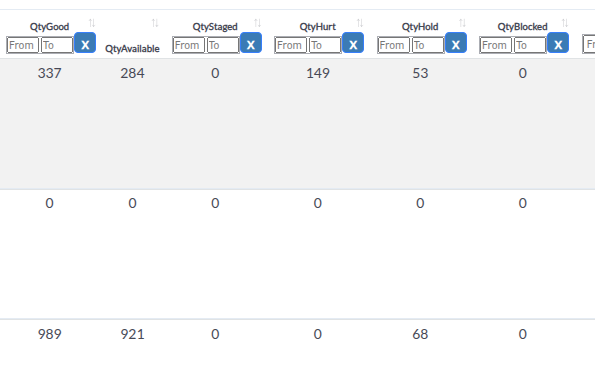
QtyGood:
QtyAvailable:
QtyStaged (QtyReserved):
QtyHurt:
QtyHold:
QtyBlocked:
Filter catalog products using advanced column filters:
Available Filters:
Using Column Filters:
Locate Filter Box
Find the filter input box below each column header.
Enter Filter Value
Type your search value in the filter box. Filters apply automatically after 1 second delay.
Use Range Filters
For quantity and weight columns, enter minimum and maximum values in the range filter boxes.
Use Date Filters
For date columns, select date range using date picker.
Combine Filters
Multiple filters work together (AND logic) to narrow results further.
Clear Filters
Clear individual filters or refresh page to reset all filters.
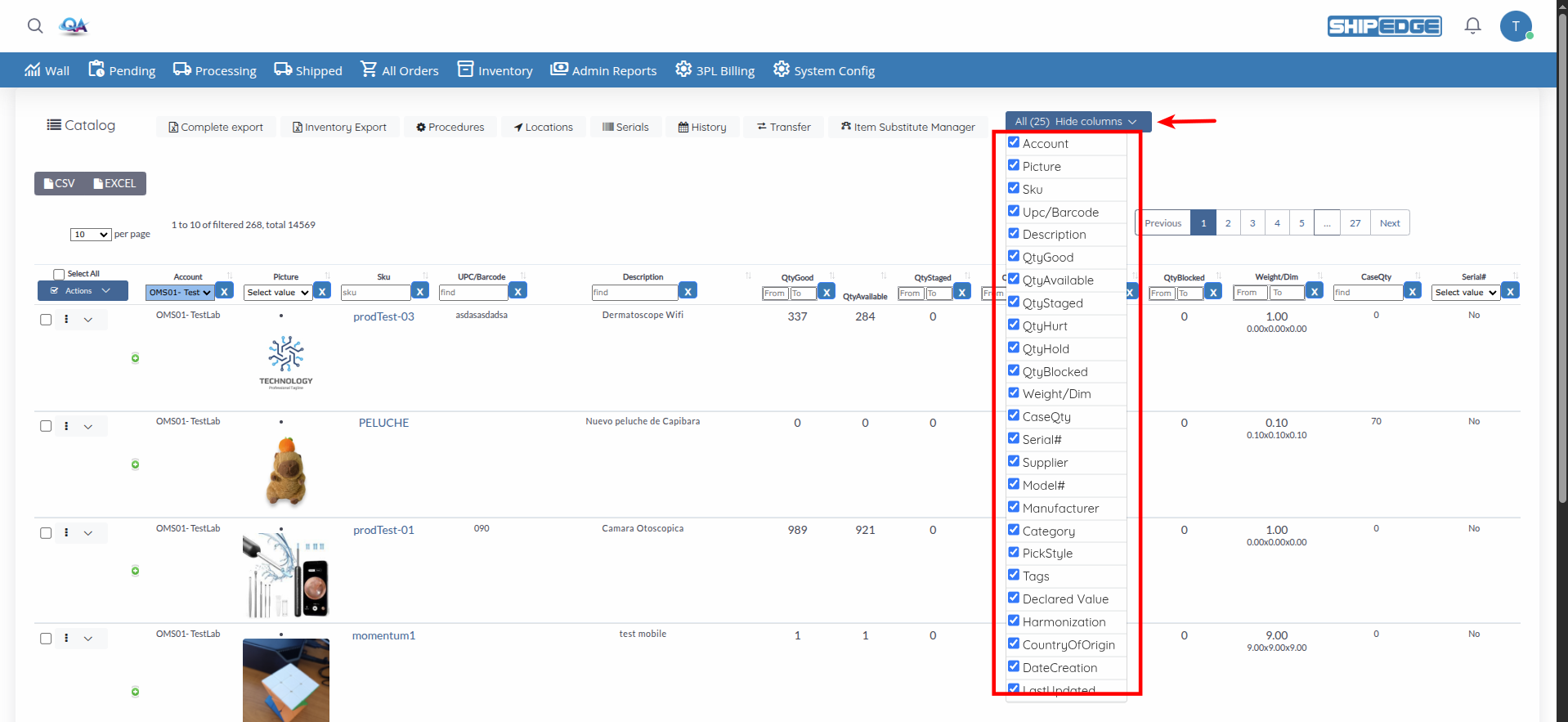
Show or hide columns to customize your view:
Open Column Selector
Click the column selector dropdown button (shows “Hide columns”).
Toggle Columns
Check or uncheck columns to show or hide them:
Save Preferences
Column visibility preferences are saved automatically for your user account.
Select multiple products and perform actions on them:
Selecting Products:
Select Individual Products
Check the checkbox next to each product row to select it.
Select All Products
Check the Select All checkbox in the table header to select all visible products. Bulk actions support up to 500 products.
View Selection
Selected products are highlighted. The selection persists as you navigate pages.
Available Bulk Actions:
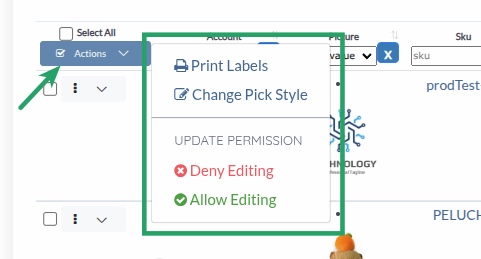
Click the Actions dropdown button to access bulk actions:
Product Actions:
Update Permissions (header: Update permission):
Performing Bulk Actions:
Select Products
Check the boxes next to products you want to act on.
Choose Action
Click Actions dropdown and select the desired action.
Follow Prompts
Some actions require additional information (e.g., pick style selection, label options).
Confirm Action
Follow prompts to confirm the action.
Review Results
System shows success message or any errors encountered.
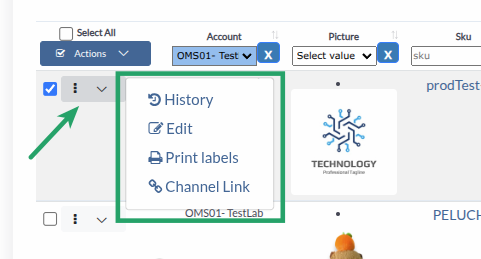
Each product row has a dropdown menu (⋮) with:
up-product.php) in new tabClick Sku to open the product editor directly. Click Edit in the dropdown for the same result.
Pick styles determine how products are picked from bins:
Available Pick Styles:
Changing Pick Style:
Select Products
Check the boxes next to products you want to update.
Open Change Pick Style
Click Actions → Change Pick Style.
Select Pick Style
Choose the desired pick style from the dropdown.
Save Changes
Click Save to update pick style for all selected products.
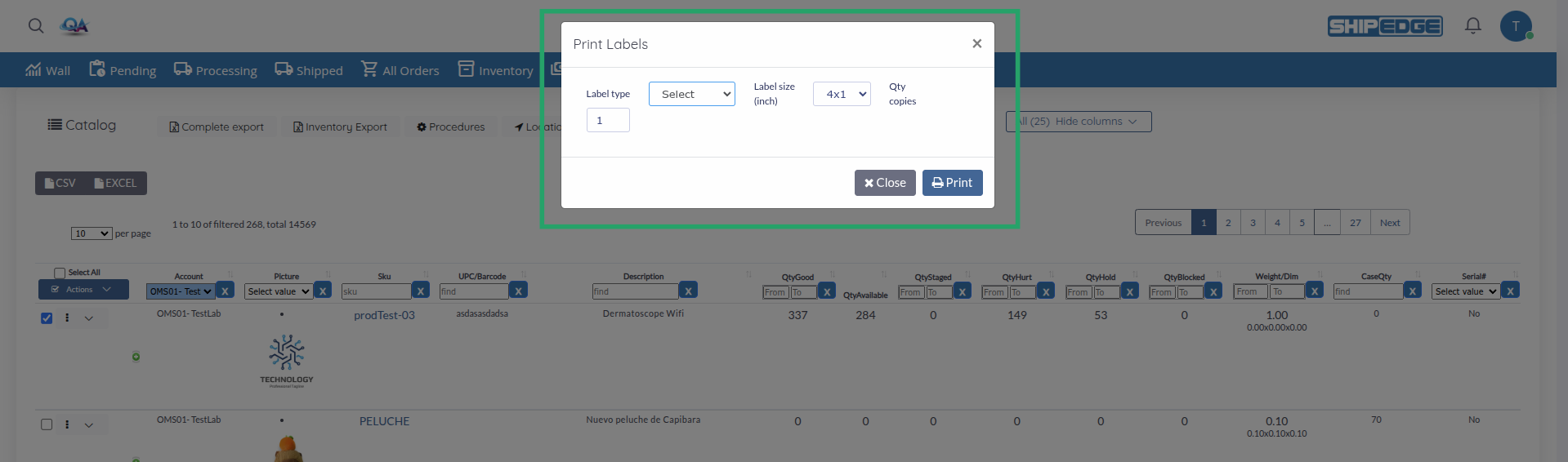
Print labels for selected products:
Select Products
Check the boxes next to products you want to print labels for.
Open Print Labels
Click Actions → Print Labels.
Configure Label Options
Select:
Generate Labels
System generates PDF with labels ready for printing.
Use browser print function to print labels.
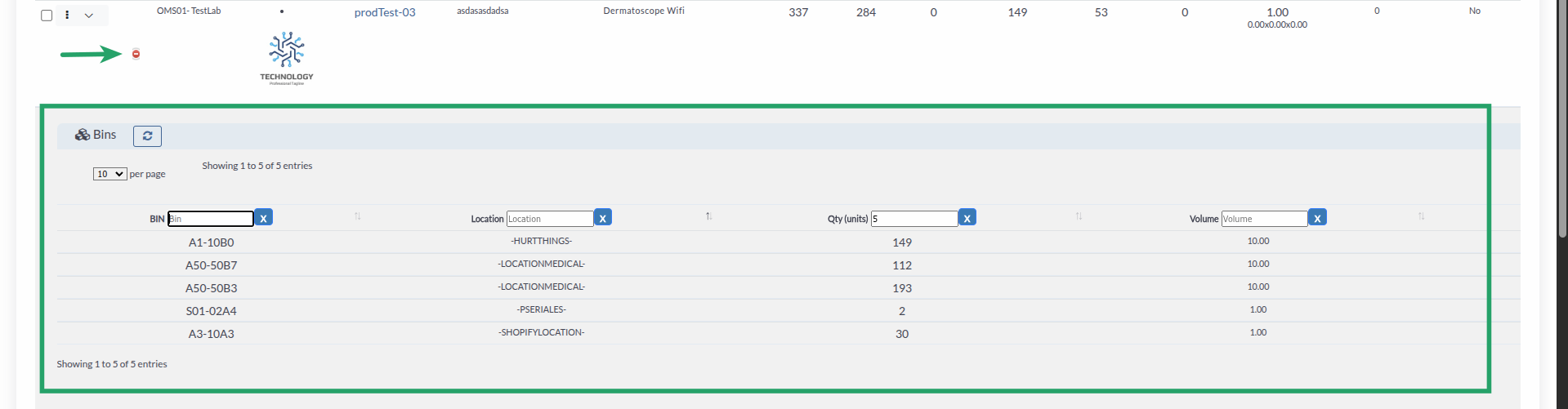
Expand product rows to see detailed information:
Expandable Details:
Expanding Details:
Find Product Row
Locate the product you want to review.
Expand Row
Click the expand icon (plus/minus) in the second column to expand details.
View Bins Table
See bins containing this product with quantity, location, lot, and expiration.
Refresh Bins
Click the refresh button in the expanded section to reload bin data.
Collapse Row
Click the expand icon again to collapse and hide details.
Export catalog data for reporting or analysis:
Table Export (CSV and EXCEL):
Apply Filters (Optional)
Set up any filters you want to include in the export.
Click CSV or EXCEL
Use the CSV or EXCEL button in the table toolbar to export visible data.
Open File
CSV downloads as inventory.csv. Excel downloads as Inventory.xlsx with separate columns for weight, length, width, height.
Access related warehouse features directly from Catalog Management:
Start with SKU or Description filters to find specific products quickly. Use quantity filters to identify low stock or oversold items.
Regularly review QtyStaged, QtyHold, and QtyBlocked to ensure inventory is available for orders. Clear holds and blocks when appropriate.
Configure pick styles based on product characteristics. Use FIFO for perishables, FEFO for expiration-sensitive items.
Select multiple products for bulk operations like changing pick styles or printing labels to save time.
Export catalog data regularly for backup and analysis. Use filters to export specific subsets when needed.
Problem: Catalog table is empty or shows no products.
Solutions:
Problem: Applied filters don’t show expected results.
Solutions:
Problem: Edit link doesn’t work or product editor doesn’t open.
Solutions:
Problem: Bulk actions don’t execute or show errors.
Solutions:
Problem: Print labels action doesn’t work or generates errors.
Solutions:
Problem: Quantity statuses don’t match expected values.
Solutions:
Next Steps:
Related Features: