
Centralized Management
Manage all shipping methods from a single table, enabling configuration and maintenance of shipping options for all clients.
Esta página aún no está disponible en tu idioma.
Shipping Methods allows you to manage the configuration of all available shipping methods in the system. You can define shipping methods, associate them with carriers, configure mail classes, package types, destinations, rate visibility, and apply global discounts or surcharges per carrier.
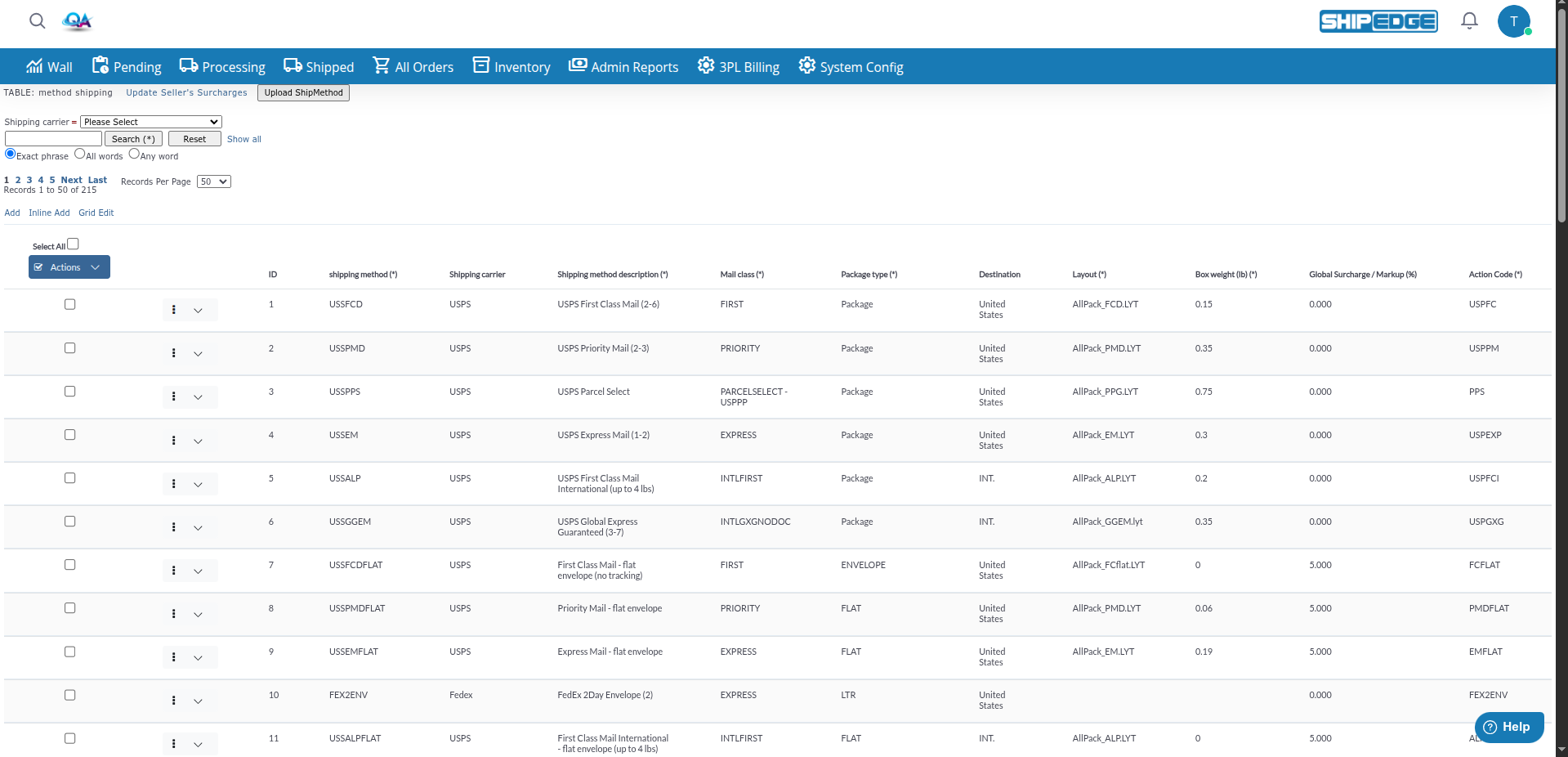
This tool is essential for 3PL administrators who need to configure and maintain shipping methods available for OMS clients. It allows you to control which methods are active, how rates are displayed, and apply global adjustments to shipping costs.
Manage all shipping methods from a single table, enabling configuration and maintenance of shipping options for all clients.
Edit shipping methods directly in the table using inline editing or grid edit for quick and efficient changes.
Control which methods show rates to clients and which are hidden, allowing you to manage the client experience.
Activate or deactivate multiple shipping methods at once using multiple selection and batch actions.
Apply global discounts or surcharges (GCD) per carrier to adjust shipping costs at method or carrier level.
Define mail classes, package types, destinations, box weights, and other specific parameters for each shipping method.
You can access Shipping Methods from:
The Shipping Methods table shows the following columns for each method:
You can create shipping methods using inline editing or the add form:
Open Add Mode
Click Add to use the full form or Inline Add to add directly in the table.
Complete Required Fields
Enter the following mandatory fields:
Complete Optional Fields
If necessary, enter:
Save the Method
Click Update or Save to save the new shipping method.
You can edit methods using inline editing or grid edit:
Activate Edit Mode
Click the menu icon (three dots) in the row, then select Inline Edit from the dropdown.
Modify the Fields
Update the fields you want to change. All fields are editable except the ID.
Save Changes
Click Update to save the changes.
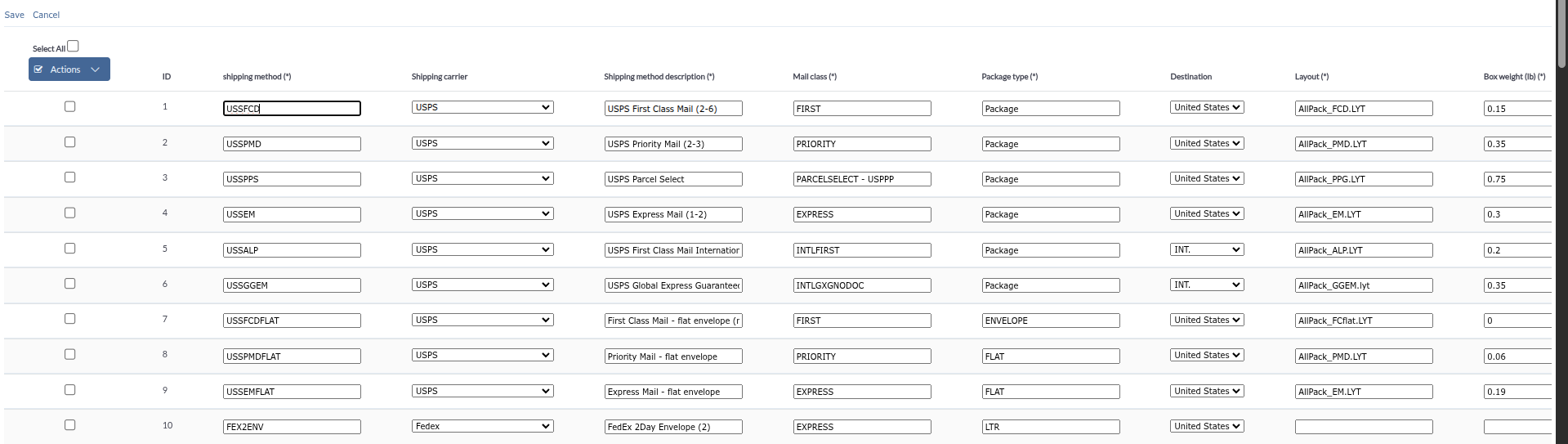
Activate Grid Edit
Click Grid Edit at the top of the table.
Modify Multiple Methods
Edit fields directly in table cells for multiple methods at once.
Save Changes
Click Save to save all changes or Cancel to discard them.
You can activate or deactivate methods individually or in bulk:
Edit the Method
Edit the method using inline editing.
Change Active Status
Change the Active field to Y (active) or N (inactive).
Save
Save the changes.
Select Methods
Check the checkboxes of the methods you want to activate or deactivate.
Or check Select All to select all visible methods.
Open Actions Menu
Click the Actions button (with check-square icon) at the top of the table.
Select the Action
Select:
Confirm
Selected methods will activate or deactivate automatically.
You can control which methods show rates to clients:
Edit the Method
Edit the method using inline editing.
Modify Rates
Change the Rates field (rates_visible) according to your needs:
Save
Save the changes.
Select Methods
Check the checkboxes of the methods you want to modify.
Open Actions Menu
Click the Actions button.
Select Rate Action
Select:
Confirm
Rate visibility will update automatically.
The Global Surcharge / Markup (%) field (GCD) allows you to apply global discounts or surcharges:
Edit the Method
Edit the method using inline editing or grid edit.
Enter the Percentage
In the Global Surcharge / Markup (%) field, enter:
Save
Save the changes. The discount or surcharge will apply to that method’s rates.
At the top (TABLE: method shipping) you’ll find:
You can update seller surcharges related to shipping methods:
Access the Function
Click the Update Seller’s Surcharges link at the top of the page.
Process the Update
The system will process and update seller surcharges according to the current shipping method configuration.
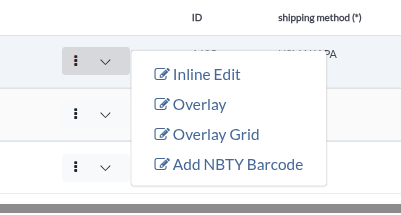
Each shipping method row has a menu (three dots) with these options:
Additionally, each row has a Delete link (with confirmation) to remove the shipping method. Delete is only visible if you have delete permissions.
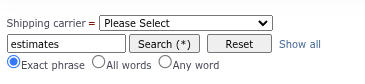
You can search methods using advanced filters or basic search:
Open the Search Form
Search fields appear at the top of the page.
Use Advanced Search
You can filter by:
Use Basic Search
Enter search terms in the basic search field and select the type:
Apply the Search
Click Search (*) or press Enter to apply the filters.
Clear Filters
Click Reset or Show all to clear all filters.
Use clear and descriptive descriptions for each shipping method to enable identification and selection by clients.
Periodically review which methods are active and deactivate methods you no longer use to keep the list organized.
Use “Show-all” for methods you want clients to see and hide rates for special or internal methods.
Carefully review global discounts or surcharges before applying them, as they affect all shipping costs for that method.
When you need to make similar changes to multiple methods, use Grid Edit to do it efficiently.
Make sure each method is associated with the correct carrier and that configurations match the carrier’s capabilities.
Problem: I don’t see the GCD column in the table.
Solution:
Problem: I don’t see the Active/Deactivate options in the Actions menu.
Solution:
Problem: I modify fields but changes don’t save.
Solution:
Problem: When trying to create a new method, a validation error appears.
Solution: