Saltearse al contenido

OMS Client Prices

Esta página aún no está disponible en tu idioma.

OMS Client Prices allows you to assign and manage specific pricing configurations for each OMS account. You can create current or future price lists, customize costs per service, and schedule price changes to activate automatically on future dates.

OMS Client Prices

This tool is essential for customizing billing for each client according to their specific needs. It allows you to create “Future Price Lists” that activate automatically on a scheduled date, enabling planned price transitions without interrupting current billing.

Per-Client Customization

Customize prices for each OMS account individually, allowing you to adapt billing to each client’s specific needs.

Future Price Lists

Schedule price changes to activate automatically on future dates, enabling smooth and planned price transitions.

Plan Assignment

Assign existing price plans to accounts and then customize specific costs when necessary for each client.

Status Management

Control which price list is active for each account and schedule future activations with clear states (Future, Current (Active), Past).

Complete Cost Configuration

Define detailed costs for handling, storage, man-hours, bins, receiving, and all warehouse services.

Flexible Billing Cycles

Configure custom billing cycles per account and schedule when invoices are generated.

You can access OMS Client Prices from:

  • 3PL Billing Menu: Navigate to 3PL Billing > 3PL Prices > OMS Client Prices

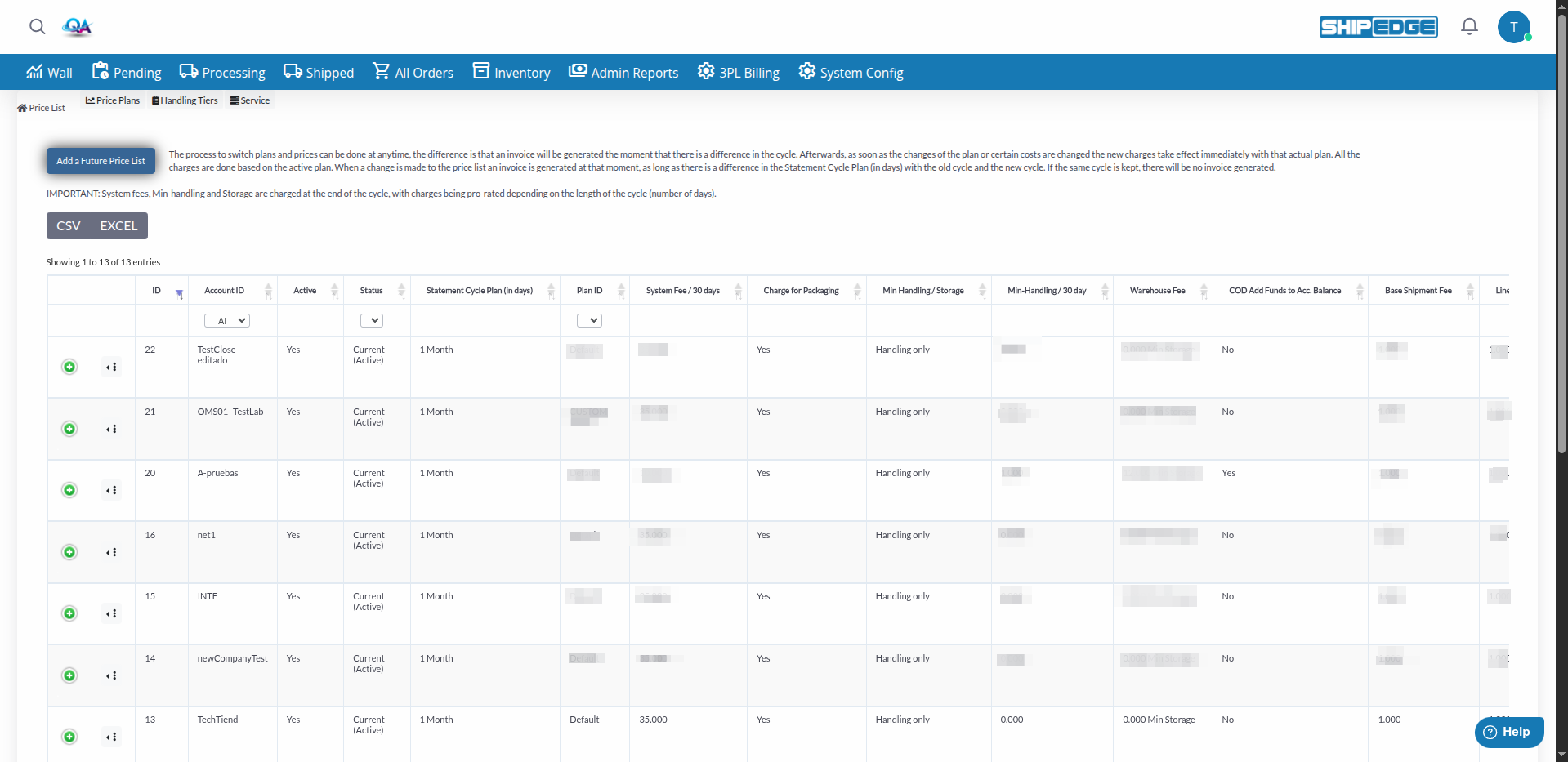
The OMS Client Prices table shows the following columns for each price list:

  • ID: Unique identifier of the price list
  • Account ID: OMS account identifier
  • Active: Indicates if the price list is currently active (Y/N)
  • Status: Price list status
    • Future (scheduled for future activation)
    • Current (Active) (currently active)
  • Statement Cycle Plan (in days): Billing cycle in days (e.g., 7, 15, 30)
  • Plan ID: Identifier of the assigned price plan
  • Future Billing Day: Scheduled date for activation (for Future Price Lists)
  • Last Day Update: Last update date
  • System Fee / 30 days: System fee calculated for 30 days
  • Charge for Packaging: Indicates if packaging is charged (Yes/No)
  • Min Handling / Storage: Type of minimum charge (Min Storage or Fixed Fee)
  • Min-Handling / 30 days: Minimum handling charge calculated for 30 days
  • Warehouse Fee: Warehouse fee
  • COD Add Funds to Acc. Balance: Indicates if COD adds funds to balance (Yes/No)
  • Base Shipment Fee: Base fee per shipment
  • Line-item/Sku Fee: Fee per line item or SKU
  • Pick Unit Fee: Fee per picked unit
  • Multi Box Fee: Additional fee for multiple boxes
  • Cost Man Hour: Cost per man hour
  • Cost photo: Photography cost
  • Handling Tiers: Assigned handling tier (configured in Handling Tiers)
  • Order Processing Fee: Order processing fee
  • Pick Case Fee: Fee per picked case (associated with CaseQty attribute of SKU)
  • Receiving SKU Fee: Fee per received SKU
  • Receiving QTY Fee: Fee per received quantity
  • Product Volume: Product volume conversion factor (divisor)
  • Storage Cycle (in days): Storage cycle in days
  • 30 Days Standard # Storage Fee: Standard storage fee for 30 days
  • 30 Days Special S Storage Fee: Special (S) storage fee for 30 days
  • 30 Days Top T Storage Fee: Top (T) storage fee for 30 days
  • 30 Days Floor F Storage Fee: Floor (F) storage fee for 30 days
  • 30 Days Pallet P Storage Fee: Pallet (P) storage fee for 30 days
  • 30 days Racking R Storage fee: Racking (R) storage fee for 30 days

Each storage type also has an associated Billing Model that defines how the charge is calculated.

  • Statement Notes: Additional notes for the statement

A Future Price List is a price list scheduled to activate on a future date. This allows you to plan price changes without interrupting current billing:

  1. Open the Form

    Click the Add a Future Price List button at the top of the page.

  2. Select the Account

    In the Account ID field, select the OMS account for which you want to create the price list.

  3. Configure the Billing Cycle

    Complete the Billing Cycle Fees fields:

    • Statement Cycle (days): Select the billing cycle from the dropdown menu
    • Future Billing Day: Select the future date when you want this price list to activate
    • Plan ID: Select a base price plan from the dropdown menu (optional, you can customize later)
  4. Configure Cycle Costs

    Complete the cycle cost fields:

    • System Fee / 30 days: Enter the system fee
    • Charge for Packaging: Select Yes or No
    • Min Handling / Storage: Select Min Storage or Fixed Fee
    • Min-Handling / 30 days: Enter the minimum handling charge
    • Warehouse Fee: Enter the warehouse fee
    • COD Add Funds to Acc. Balance: Select Yes or No
    • Statement Notes: Add optional notes
  5. Configure Handling Costs

    Complete the Handling Fees fields:

    • Base Shipment Fee: Base fee per shipment
    • Line-item / Sku Fee: Fee per line or SKU
    • Pick Unit Fee: Fee per picked unit
    • Multi Box Fee: Fee for multiple boxes
  6. Configure Other Costs

    Complete the Other Labor and Distribution fields:

    • Cost Man Hour: Cost per man hour
    • Cost photo: Photography cost
    • Handling Tiers: Select the handling tier (configure first in Handling Tiers if necessary)
    • Order Processing Fee: Processing fee
    • Pick Case Fee: Fee per case
  7. Configure Receiving Costs

    Complete the Receiving fields:

    • Receiving SKU Fee: Fee per received SKU
    • Receiving QTY Fee: Fee per received quantity
  8. Configure Storage

    Complete the Storage fields:

    • Storage Cycle (in days): Select the storage cycle
    • Product Volume Unit Conversion (divider): Volume conversion factor
    • For each bin type (Standard Shelf #, Special/Secure S, Top T, Floor F, Pallet P, Racking R):
      • Enter the fee for 30 days
      • Select the Billing Model (BIN Volume, Locations, Product Volume, or Quantity)
  9. Save the Future Price List

    Click Create to save. The price list will be created and will activate automatically on the specified date.

When you create a Future Price List:

  1. Creation: The price list is created with future status and not active
  2. Scheduling: The date in Future Billing Day is saved in SchedulingBillingDay
  3. Automatic Activation: When the scheduled date arrives:
    • The system generates an invoice with the current plan
    • Deactivates the previous plan
    • Activates the new plan
    • New charges apply immediately

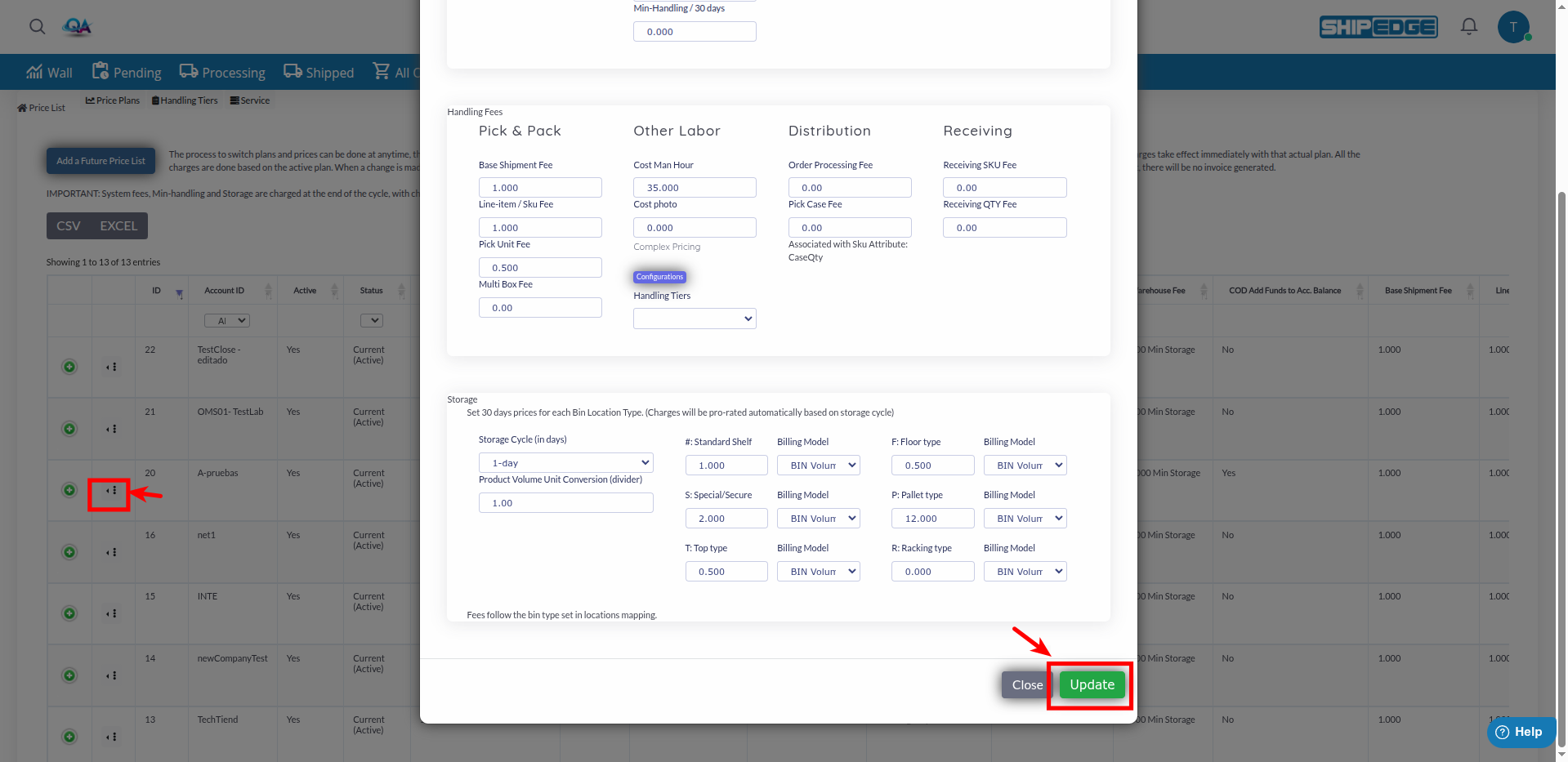
Edit a Price List

You can edit existing price lists to update costs:

  1. Locate the Price List

    Find the price list you want to edit in the table using search filters if necessary.

  2. Open the Edit Form

    Click the menu icon (three dots) on the row, then select Edit from the dropdown.

  3. Modify the Fields

    Update the fields you want to change. All fields are editable.

  4. Save Changes

    Click Update to save the changes.

Copy a Price ListCopy a Price List Modal

You can create a new price list by copying an existing one:

  1. Locate the Source Price List

    Find the price list you want to copy in the table.

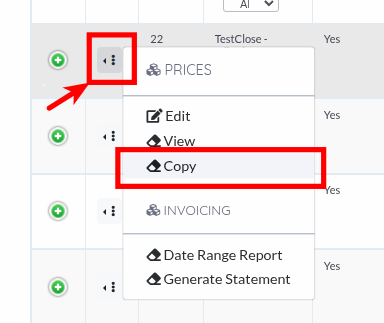
  2. Open the Copy Form

    Click the menu icon (three dots), then select Copy. The form opens with all values pre-filled.

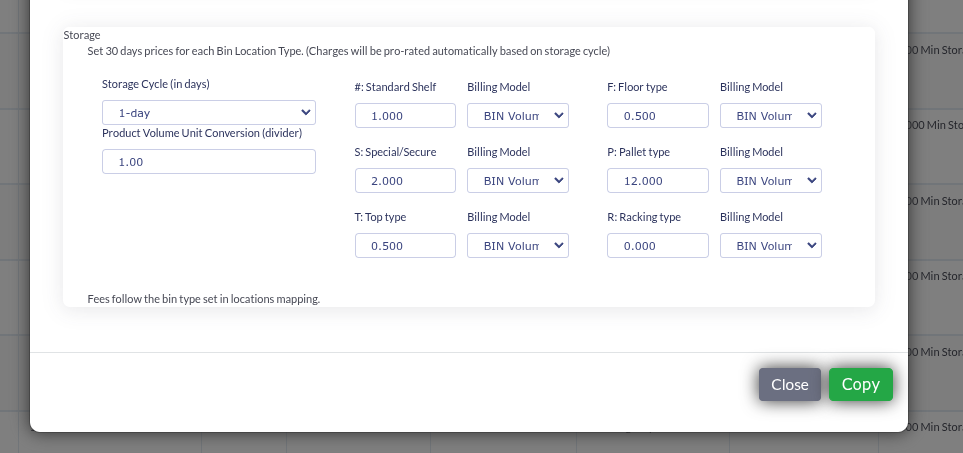
  3. Adjust as Needed

    Change Account ID, Future Billing Day, or any other field as needed for the new price list.

  4. Save

    Click Copy to create the new price list.

View Price List Details

You can view complete details of any price list:

  1. Locate the Price List

    Find the price list in the table.

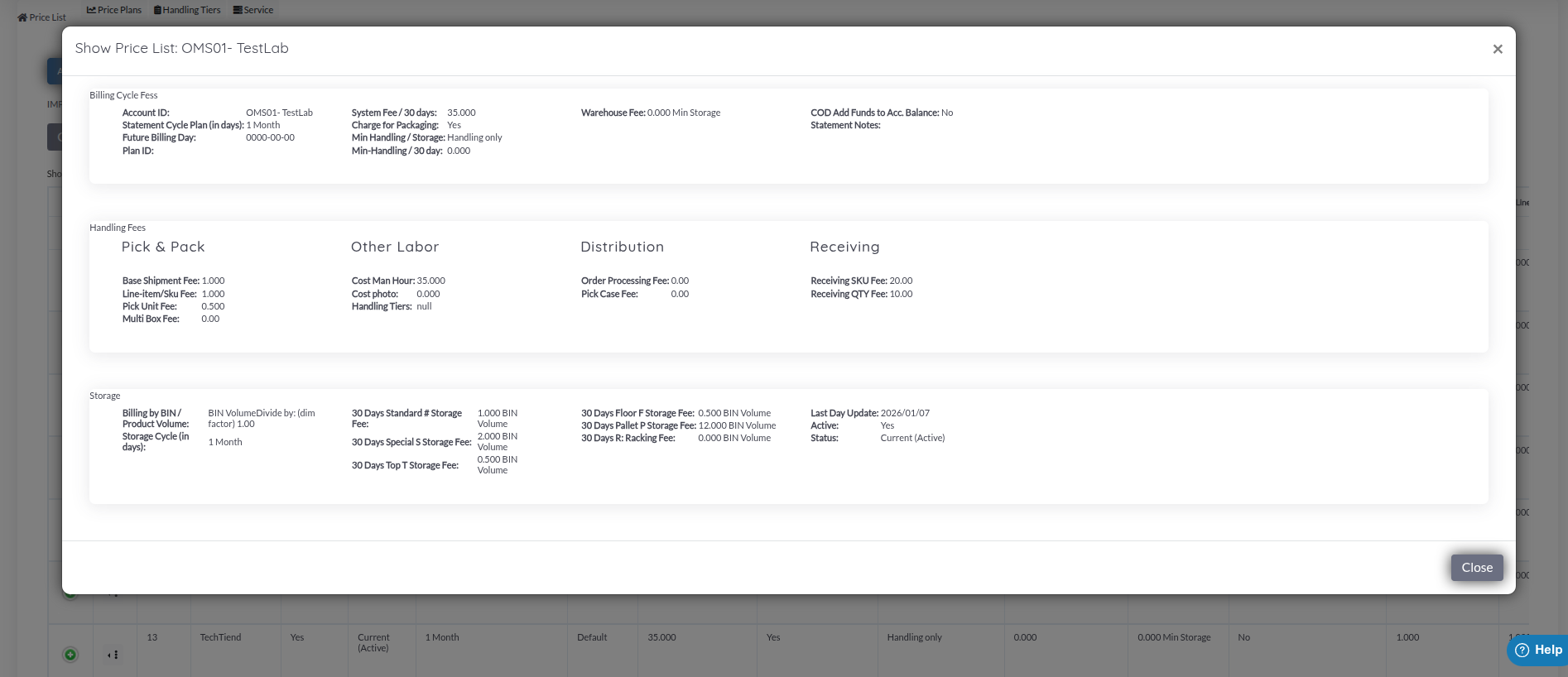
  2. Open the Details View

    Click the menu icon (three dots) on the row, then select View from the dropdown.

  3. Review the Information

    The modal shows all price list fields organized by sections:

    • Billing Cycle Fees
    • Handling Fees
    • Storage
    • And all other configured fields

Row Actions

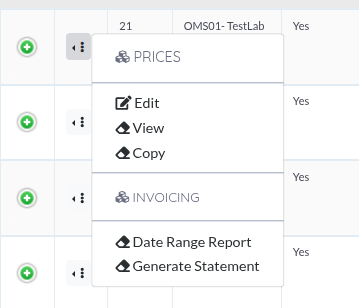
Each price list row has a menu (three dots) with these options:

Prices:

  • Edit: Update the price list (available for Future and Current (Active) only)
  • View: Open the details modal
  • Copy: Create a new price list based on the selected one
  • Delete: Remove a Future price list (only for future status)

Invoicing:

  • Date Range Report: Export a report for a date range (opens PriceListCsv)
  • Generate Statement: Generate a statement for all transactions since the last statement (only for Current (Active))
  • Update Hubs pricing: Sync pricing to hub accounts (only for main hub accounts)
  • CSV / EXCEL: Use the export buttons above the table to download the price list data (limit: 1000 records).
  • Services: In the form’s Distribution section, click the Services button to open the Value Added Services modal and configure additional services for the price list.
  • Expand rows: Click the first column of a row to expand and see all price lists for that account in a nested table.

Price lists have three main states:

Future

Price list scheduled for future activation. Not currently active but will activate automatically on the date specified in Future Billing Day.

Current (Active)

Currently active price list. This is the price list being used to bill the account. Only one can be active per account at a time.

For each bin type, you can select a Billing Model that defines how the storage charge is calculated:

  • BIN Volume: Billed based on bin volume
  • Locations: Billed per location used
  • Product Volume: Billed based on product volume
  • Quantity: Billed per quantity

The selected model determines how storage charges are calculated for that specific bin type.

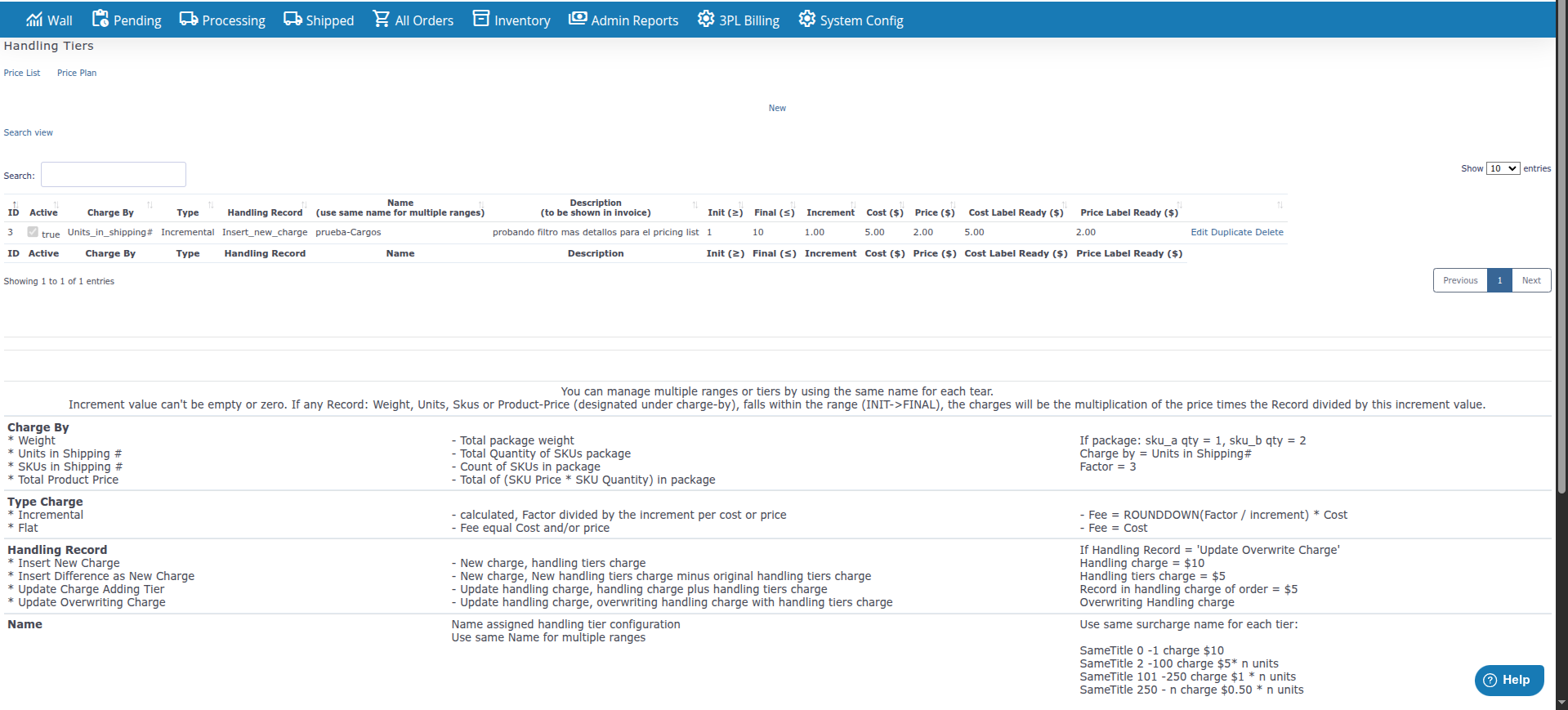
Handling Tiers

Handling Tiers are handling levels that you can assign to price lists to apply more complex handling rates based on order volume or complexity:

  1. Configure Handling Tiers

    Click the Handling Tiers button at the top of the page (next to Price Plans) to open and configure handling levels.

  2. Assign to Price List

    In the Handling Tiers field of the price list form, select the handling level you want to apply.

At the top of the page you’ll find links to:

  • Price Plans: Direct access to price plans to create or edit templates
  • Handling Tiers: Configure handling levels for complex pricing
  • Service: Access to additional service configurations

Use Plans as Base

Start by assigning a Plan ID to each account to establish base values, then customize only the fields that need to be different.

Plan Changes in Advance

Create Future Price Lists with sufficient advance notice so changes activate at the right time without interruptions.

Document Customizations

Use the Statement Notes field to document why certain costs were customized, enabling tracking and justification.

Review States Regularly

Periodically review Future Price Lists to ensure they activate on the correct dates and that there are no conflicts.

Verify Billing Cycles

Make sure billing cycles are appropriate for each client and that cycle changes are well planned.

Test Before Activating

Before creating a Future Price List for an important account, manually verify calculations to ensure they are correct.

I can’t create a Future Price List with current date

Section titled “I can’t create a Future Price List with current date”

Problem: When trying to create a Future Price List, an error appears about the date.

Solution:

  • The Future Billing Day field must be a future date (after today)
  • If you need to activate a price list immediately, edit the current active price list instead of creating a future one
  • Verify that you are selecting a valid date in the date picker

Problem: I modify a price list but charges remain the same.

Solution:

  • Verify that the price list you edited has Active and Status (Current (Active))
  • If it’s a Future Price List, changes won’t apply until the activation date
  • Changes to active price lists apply immediately for new charges
  • Already generated charges are not automatically modified

I can’t manually activate a Future Price List

Section titled “I can’t manually activate a Future Price List”

Problem: I need to activate a Future Price List before its scheduled date.

Solution:

  • Future Price Lists activate automatically on their scheduled date
  • If you need to activate it earlier, you can edit the Future Price List and change the Future Billing Day to an earlier date
  • Alternatively, you can create a new price list with Active status

Problem: I select a Plan ID but fields don’t fill automatically.

Solution:

  • Verify that the selected Plan ID exists and has configured values in Price Plans
  • Some fields may require manual entry even when selecting a plan
  • Reload the page and try selecting the plan again