
Real-Time Comparison
Get updated rates from all available carriers for each specific order, with accurate information based on actual package weight and dimensions.
Esta página aún no está disponible en tu idioma.
Rate Shopping allows you to compare rates from multiple carriers for a specific order and select the best shipping option directly from the processing view. This functionality shows all available options sorted by price, making it easy to compare and select the most suitable shipping method.
Unlike Shipping Estimates which is a standalone tool, Rate Shopping is integrated into the order processing flow, allowing you to get rates and update the order in one place.
Get updated rates from all available carriers for each specific order, with accurate information based on actual package weight and dimensions.
Compare and select the shipping method directly from the modal, updating the order and generating the label in one step.
View retail price, OMS price, carrier, shipping method, package type, and estimated delivery time to make informed decisions.
Find the best available rate by comparing all options side by side, helping you reduce shipping costs.
Access Shipping View
From the main menu, go to Processing and choose the order you want to compare rates for.
Locate the Order
In the orders table, locate the order for which you want to compare rates.
Click Get Rates
Click Get Rates in one of these places:
Wait for Calculation
The system will calculate rates from all available carriers. You’ll see a loading indicator while rates are being processed.
Review Options
A modal titled Available rates will open showing all available shipping options sorted by price. Use the Close button to dismiss the modal without selecting.
Compare Rates
Review the following columns for each option:
Select Method
For each option, you have two buttons available:
Confirm Selection
Click “Save & Confirm” or “Print Label” according to your preference. The order will automatically update with the selected method.
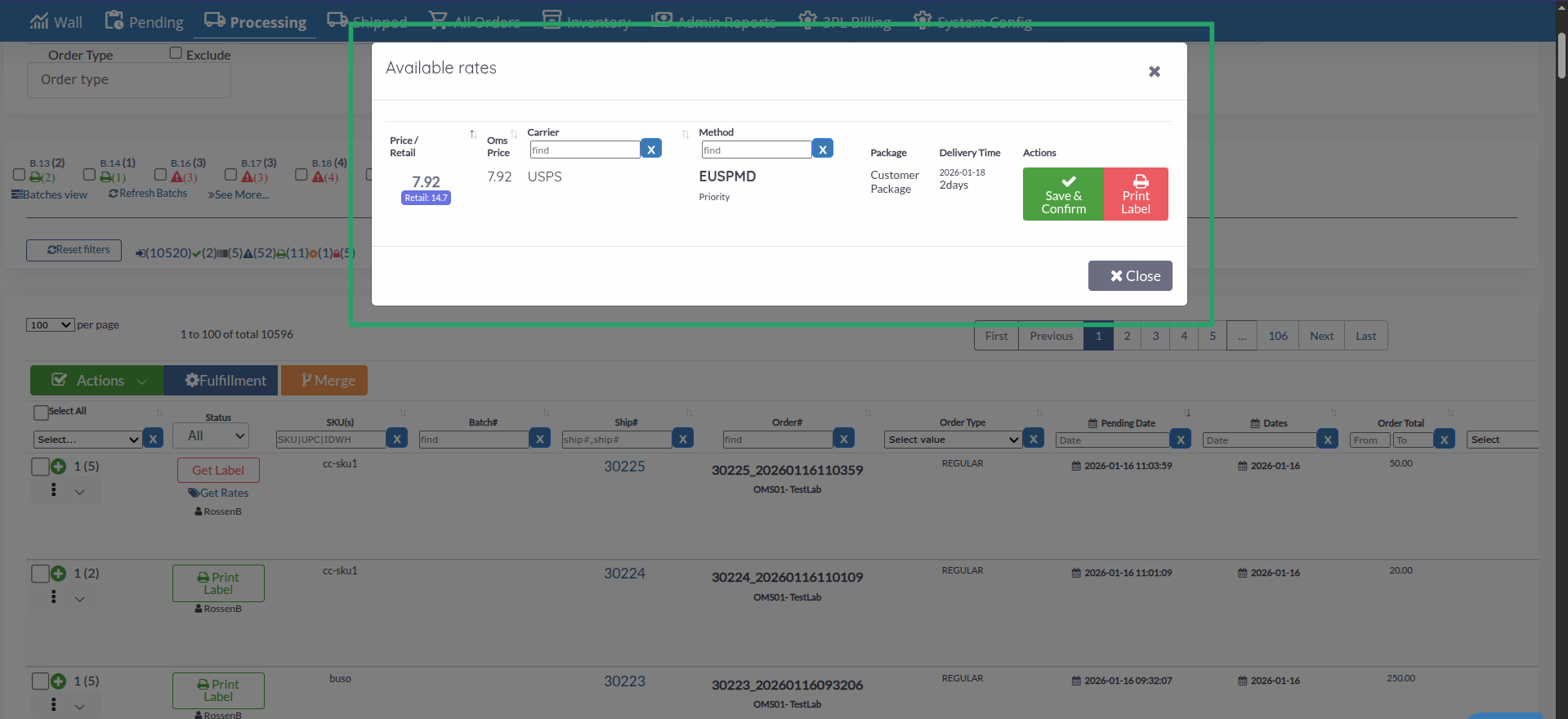
You can filter results using the search fields in the Carrier and Method columns:
Results are automatically sorted by price (lowest to highest). You can click the Price / Retail, Oms Price, or Carrier column headers to change the sort order.
This button saves the selected shipping method and updates the order:
After clicking, you can generate the label later using the “Get Label” or “Print Label” button in the main view.
This button saves the method and immediately generates the label:
Use this option when you’re ready to print the label immediately.
The system shows two price columns:
Each option shows:
This information helps you choose between speed and cost.
If a rate shows a very low Oms Price (≤ $0.01), you’ll see a warning icon indicating you may need to review your margin configuration. You can continue with that rate if desired, but it’s recommended to verify the configuration.
Review all available options before selecting. Sometimes a faster method can be more economical than a standard one for certain destinations.
Evaluate both price and delivery time. A more economical method may be suitable if the customer doesn’t need urgent delivery.
If you’re certain of the selection, use “Print Label” to save and generate the label in one step, saving time.
Pay attention to low price warnings. They may indicate configuration issues that need to be fixed.
Problem: You click Get Rates but no options appear, you see “No found rates”, or an error message appears.
Solution:
Problem: The displayed rates don’t match what’s expected.
Solution:
Problem: You don’t see Get Rates in the order actions or detail panel.
Solution:
Problem: The “Save & Confirm” or “Print Label” buttons don’t work.
Solution:
Next Step: Shipping Labels - Generate shipping labels for your orders