
One Login for Multiple Apps
Use the same credentials across your organization’s apps. No need to remember a separate ShipEdge password if your company uses SSO.
Esta página aún no está disponible en tu idioma.
SSO (Single Sign On) lets you log in to ShipEdge using your organization’s identity provider. Instead of a ShipEdge username and password, you sign in through a popup window. If your account is linked to SSO, you must use this method to log in.
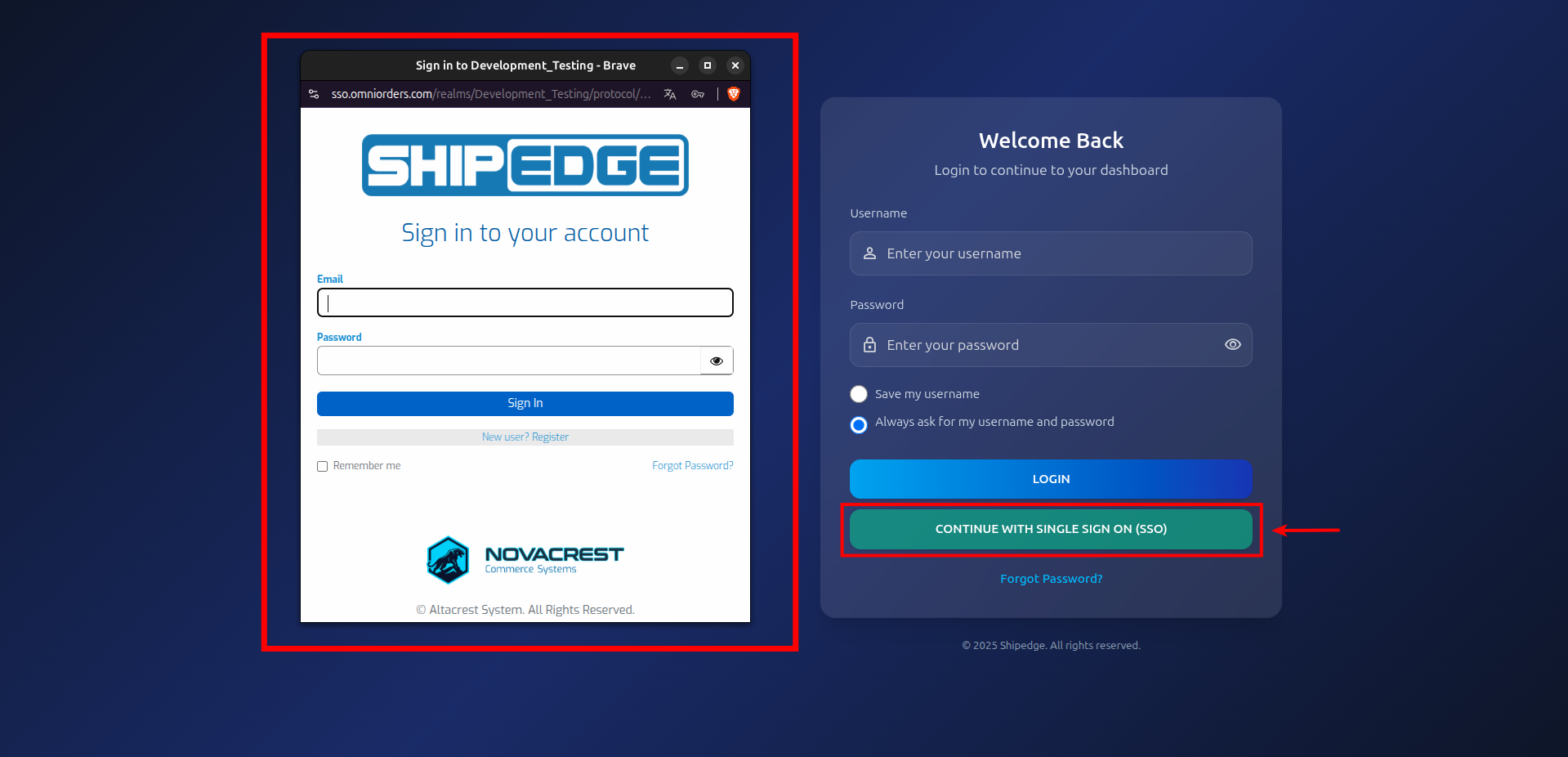
When you use SSO for the first time, the system may ask you to link your existing ShipEdge account or register a new one. This page explains the full flow.
SSO login uses your organization’s identity provider as the authentication server. When you click CONTINUE WITH SINGLE SIGN ON (SSO) on the login page, a popup opens where you enter your organization’s credentials. After you sign in, ShipEdge links your session to your account.
If your ShipEdge account is already linked to SSO (your user has an SSO identity), you cannot use the standard username/password login. You must use SSO.
Use the same credentials across your organization’s apps. No need to remember a separate ShipEdge password if your company uses SSO.
Your organization manages passwords and security policies. The identity provider handles authentication securely.
Link your existing ShipEdge account to your SSO identity once. After that, SSO login signs you in automatically.
New users can register through SSO. The system creates a ShipEdge account linked to your SSO identity.
On the ShipEdge login page, click the CONTINUE WITH SINGLE SIGN ON (SSO) button. A popup window opens (about 550x630 pixels). Complete the sign-in in that window.
Go to the Login Page
Open the ShipEdge login page. You see two buttons: LOGIN (for username/password) and CONTINUE WITH SINGLE SIGN ON (SSO).
Click CONTINUE WITH SINGLE SIGN ON (SSO)
A popup window opens with your organization’s SSO login form.
Sign in with your organization credentials
Enter your organization credentials in the popup. This is the same login you use for other company apps that use SSO.
Return to ShipEdge
After you sign in, the popup closes or redirects. ShipEdge checks if your SSO identity is linked to a ShipEdge account.
Complete the flow
When you sign in with SSO for the first time (or when the system needs to confirm your identity), you see a User Information screen showing:
You also see two buttons:
The next screen asks: Do you already have a Shipedge account?
If you choose Yes (you already have a ShipEdge account), you see a form with:
Click Submit to link your account. If the username and password are correct, your ShipEdge account is linked to your SSO identity. You are then logged in.
Click Back to return to the previous screen.
If you choose No (you do not have a ShipEdge account), you are redirected to the SSO registration page. Complete the registration form to create a new ShipEdge account linked to your SSO identity.
If your ShipEdge account is linked to SSO and you try to log in with username and password, you see a message indicating you must use SSO to log in.
The system may automatically open the SSO login popup after a short delay. Use the SSO button to log in.
Enable popups for the ShipEdge site so the SSO window can open. Blocked popups prevent SSO login.
Link your ShipEdge account to SSO the first time you use it. After that, SSO login signs you in without extra steps.
When linking an existing account, use your ShipEdge username and password. These are different from your SSO credentials.
If you see “Could not verify SSO user” or other errors, try again. If the issue persists, contact support.
Problem: You entered your username and password but see a message that you must log in with SSO.
Solution: Your account is linked to SSO. You must use CONTINUE WITH SINGLE SIGN ON (SSO) to log in. The system may open the SSO popup automatically; if not, click the SSO button.
Problem: This message appears after you sign in with SSO.
Solution: There may be a temporary issue with the SSO connection. Try again. If it keeps happening, contact support.
Problem: Nothing happens when you click the SSO button.
Solution: Your browser may be blocking the popup. Allow popups for the ShipEdge domain in your browser settings, then try again.
Problem: You see these errors when trying to link your account.
Solution: Fill in both Username and Shipedge Password before clicking Submit. Both fields are required.
Problem: During registration, you see a message about username or email already in use.
Solution: The message suggests using “Link My Register Account” to connect your existing account. If you already have a ShipEdge account, go back and choose Yes when asked “Do you already have a Shipedge account?” Then enter your username and password to link it.
Problem: Registration through SSO did not complete.
Solution: There may be a conflict with your email or username in your organization’s identity provider. Try a different email or use “Link My Register Account” to connect an existing account. If the problem continues, contact support.
Next Steps: